Version 1.9 Page 84 of 170
Data
o Data: shows/hides the grid with numerical data
o Bars: shows/hides the OptoGait bars
Video
o Video: shows/hides the acquired video
o Play: you can play ‘Single’ (only once) or ‘Continuous’ (looping the test)
o Overlay: using graphical tools draw on a still picture and save this image as an
overlay ( ); use this flag to show or hide it
o Video choice: allows you to choose whether to show or hide one of the two videos
o Speed: normal (1x) or slowed down by a factor from 0.1x to 0.9x
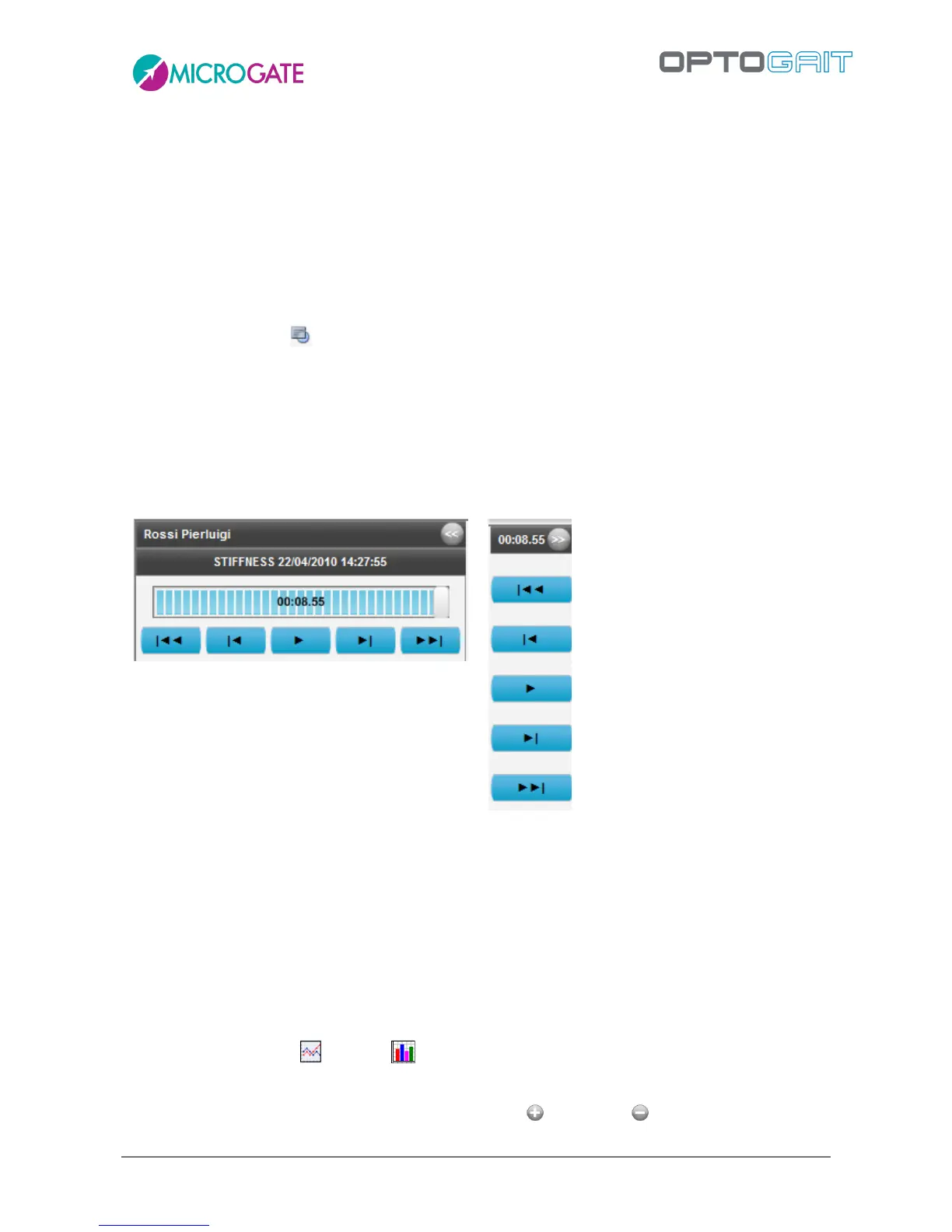
The Configuration panel can be closed (i.e., minimized) using the button << in the upper left corner.
Only the video commands (play, stop, ff-fw, rew, etc.) are available, allowing you to view the test.
Use >> to open the panel again.
4.3.1.2 CHARTS
In OptoGait charts there are various viewing options. (for example, in Figure Figure 69 'Stance' and
'Swing' are displayed). To change view type, left-click with the mouse on another option (such as
‘Power’ or ‘Height’). The buttons have the same colours as the chart bars/lines and are therefore
used as legend.
In addition, if you place your cursor on one of the buttons, the displayed chart type will appear on
the right. It can be lines ( ) or bars ( ). To change the chart type, left-click on the corresponding
symbol.
By pressing the symbols under ‘Zoom’ you can increase ( ) or reduce ( ) the chart display.



 To Next Page