Version 1.9 Page 147 of 170
5.5 MANAGING IMAGES
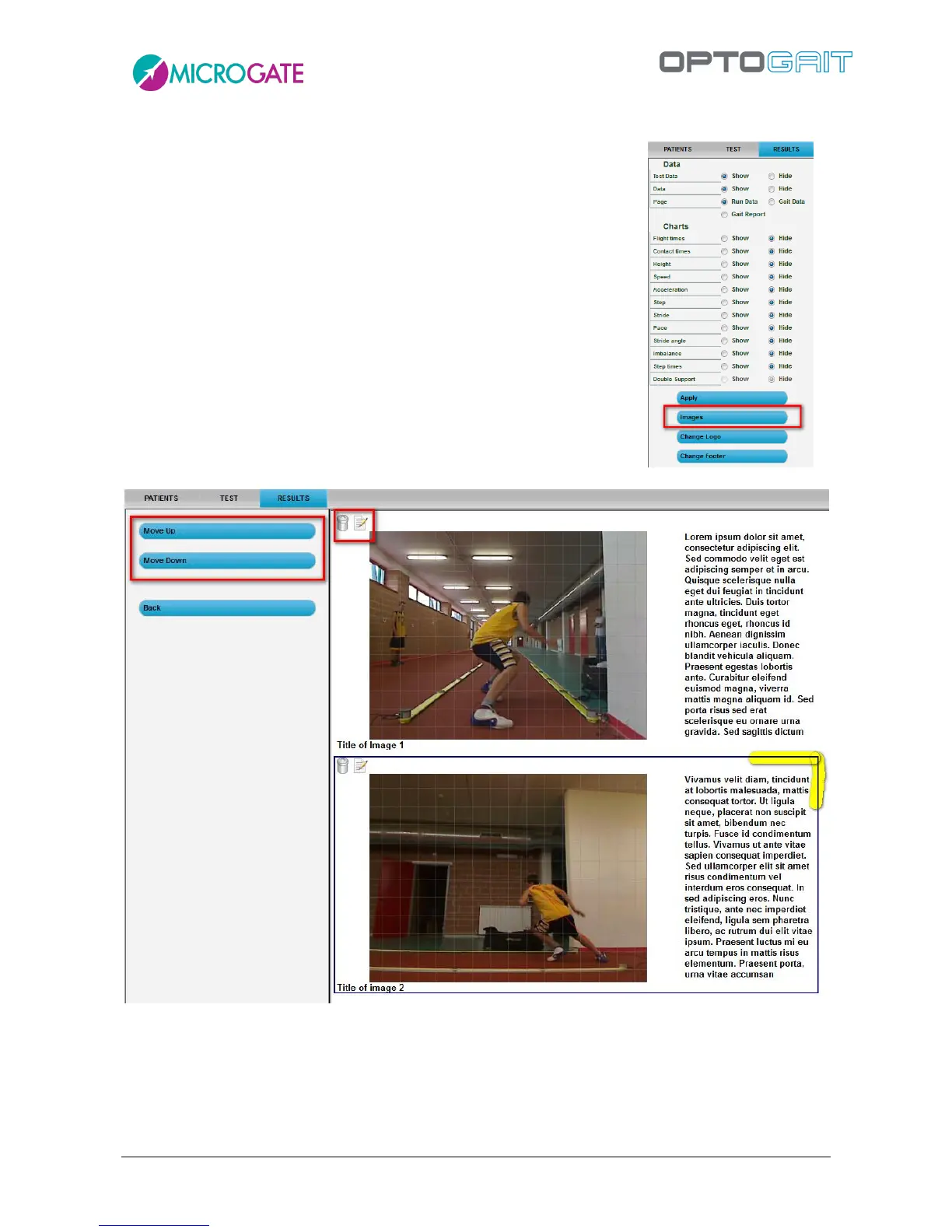
When saving an image (or two images in the case of video frames of a
test comparison) it is possible to add a caption (i.e. a short name used as
title) and a note (a larger field for an image description).
Images are managed (caption and note editing, changing of order of
appearance and possible deletion) using the button <Images> in the
Print section (chap. 4.3.1.8).
In this area there is a list of images added to the report in chronological
order, each one having two icons - edit and delete - for editing captions
and notes, and for deleting images from the report.
The order of appearance can be changed selecting the photo to be
moved (a selected picture has a black frame) and clicking <Move up> or
<Move down> in the left button bar.



 To Next Page