Version 1.9 Page 19 of 170
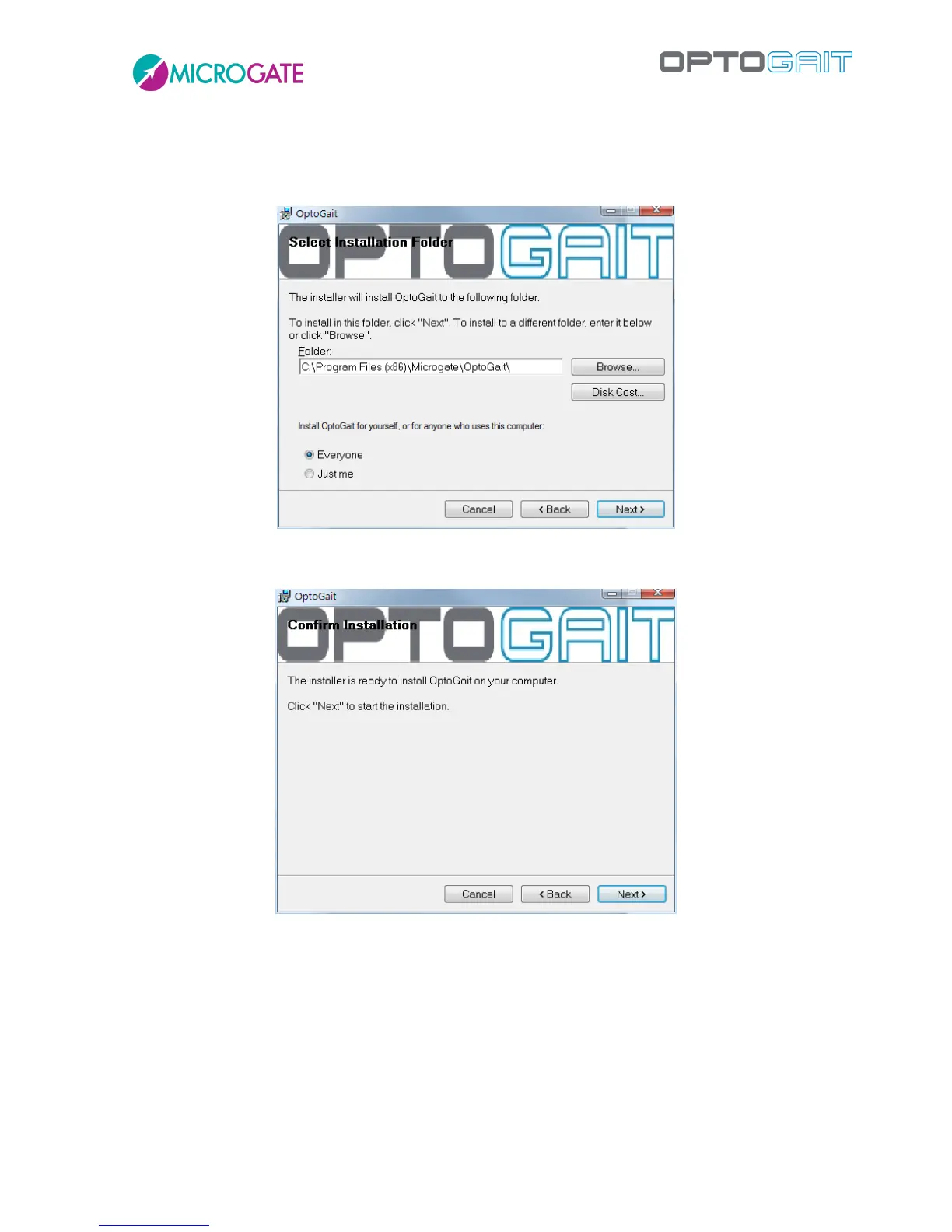
If you want everyone with access to the computer to be able to use the product, select “Everyone”,
otherwise select “Just me”.
We advise you to leave the folder unchanged and select “Everyone”. Click on <Next> to continue.
Figure 3 – Installation – data insertion.
The next window offers to launch software installation. If all the data is correct, click on <Next>.
Figure 4 – Installation – confirm installation
The setup program will install the product on the PC, showing state of progress.



 To Next Page