6. Usage
MiR500 User guide (en) 09/2019 - v.1.3 ©Copyright 2018-2020: Mobile Industrial Robots A/S. 114
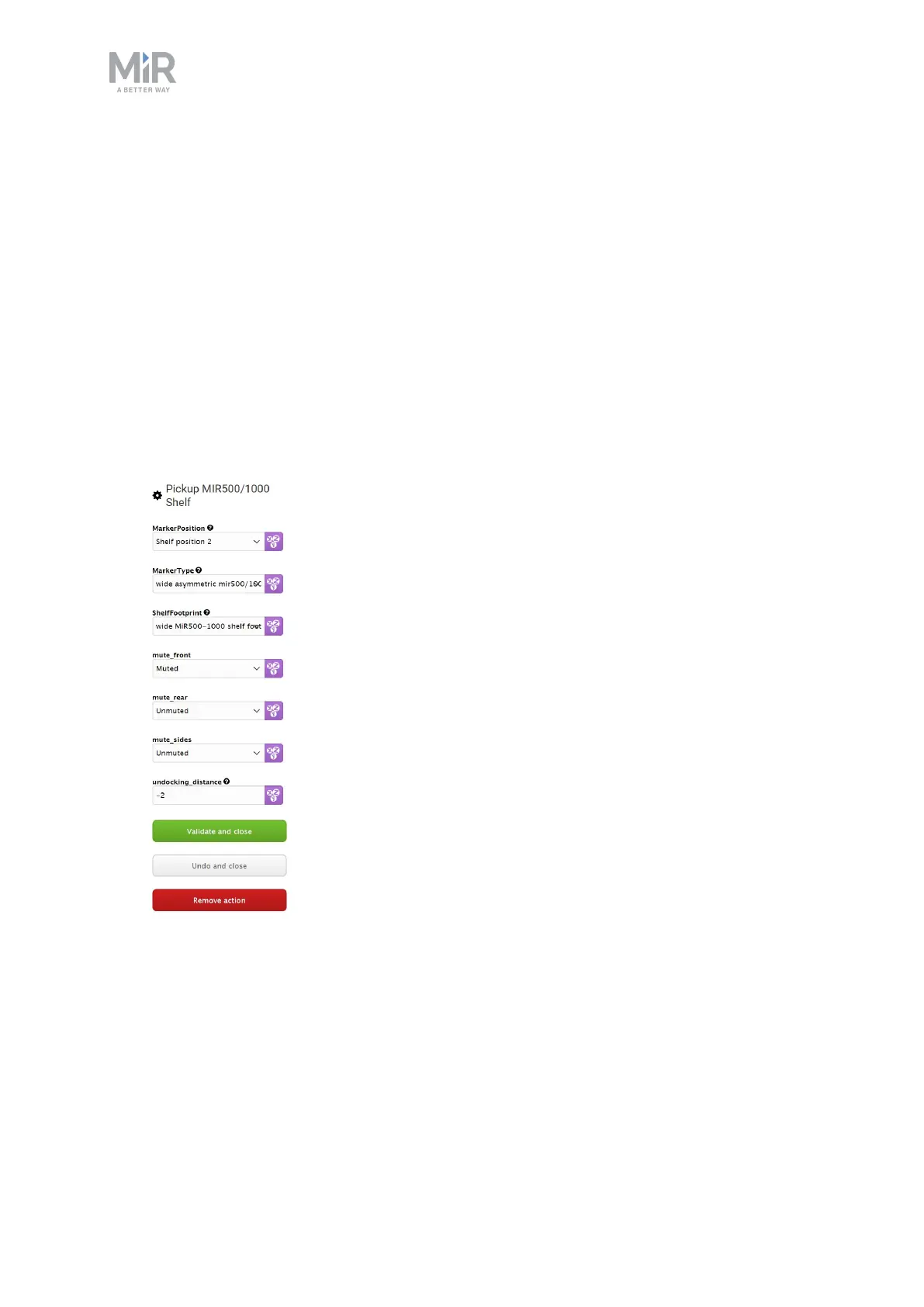
6. Under Pick up MiR500/1000 Shelf, set the Marker position to the position you want to
dock to.
7. Under Marker type, choose the marker type that fits the dimensions of your shelf.
8. Under Shelf footprint, select the footprint that matches the footprint of your shelf. If you
are using a shelf with dimensions not supported by MiR (see Shelf specifications), you can
create your own footprint (see Create footprint).
9. Under Mute front, Mute rear, and Mute sides, select if you want the safety scanners to
be muted on the front, rear, or sides while undocking. This can be necessary if the shelf is
located near other obstacles (see Mark potentially hazardous floor areas).
10. Under Undocking distance, choose the undocking distance in meters. A negative value
makes the robot undock in reverse, and a positive value will make the robot move
forward when undocking. Select Validate and close.
11. Under Move to, select the shelf position you want to dock to.


 To Next Page