Emptying waste ink tank 113
2. Resetting waste ink counter
Before resetting the counter, make sure the waste ink tank is completely empty.
If not, it can lead waste ink leaks inside or from the printer.
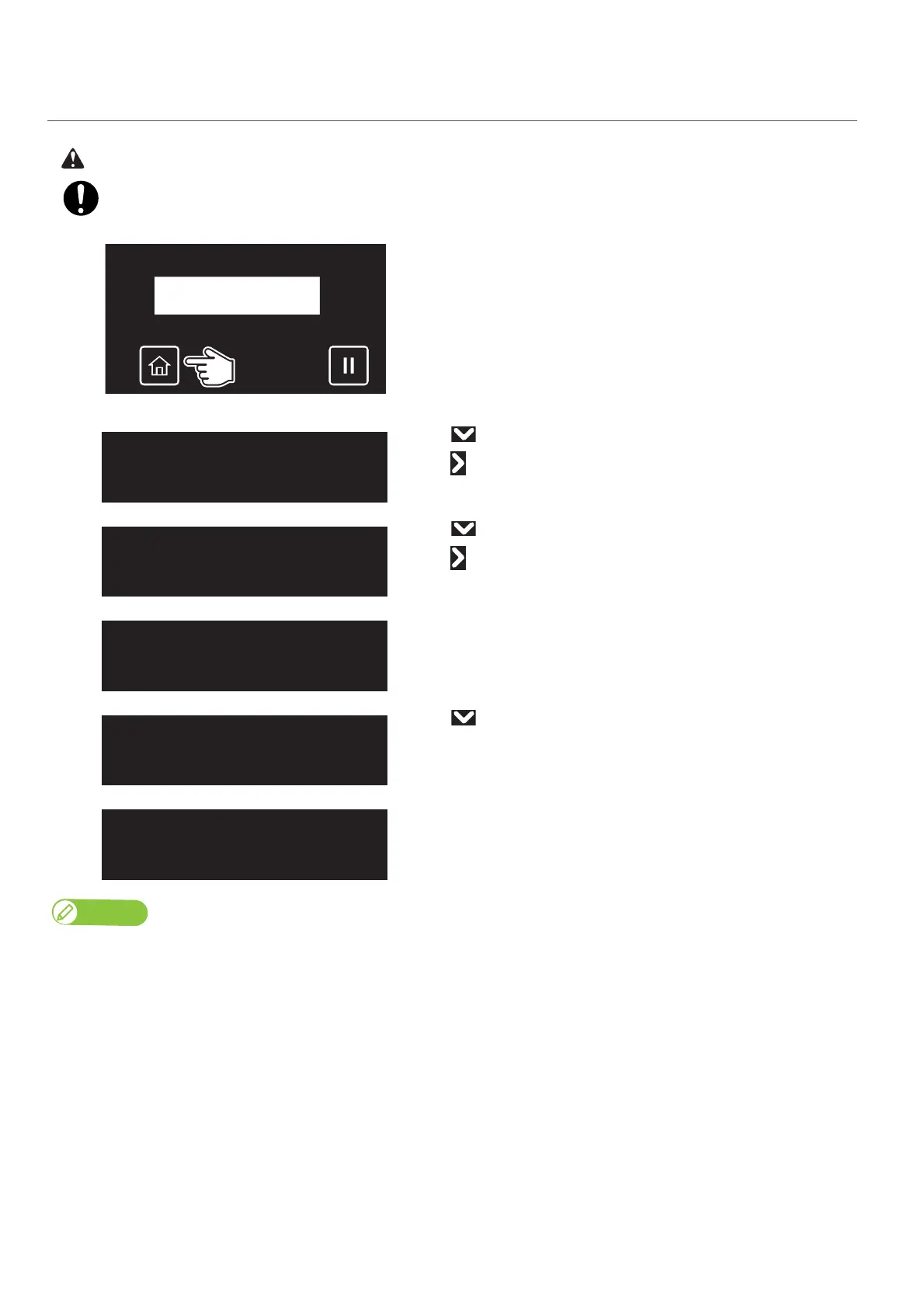
[1]
Tap [Home].
[2]
• Use to choose the menu shown left.
•Tap .
[3]
• Use to choose the menu shown left.
•Tap .
[4]
The message on the left will appear.
• Use to choose the menu shown left.
• Tap [Enter].
[5]
The waste ink counter is being reset.
• The waste ink tank has been emptied.
Note
• “Reset Waste Ink” can alternatively be carried out via “Maintenance” in the printer driver’s “Utility” section.
• It can also be carried out via the MSM’s remote panel.
• To carry out [Reset Waste Ink] during printing, see "Menu4: Reset Waste Ink" P. 48 under "Menus you can access while printing".
Maintenance2
ResetWasteInk
Initial.Parameter?
No
Initial.Parameter?
Yes



 To Next Page