Service Modes, Error Codes, and Fault Finding
EN 18 BJ3.0E PA5.
5.2.2 Service Alignment Mode (SAM)
Purpose
• To perform (software) alignments.
• To change option settings.
• To easily identify the used software version.
• To view operation hours.
• To display (or clear) the error code buffer.
How to Activate SAM
Via a standard RC transmitter: key in the code “062596”
directly followed by the “INFO” button. After activating SAM
with this method a service warning will appear on the screen,
you can continue by pressing the red button on the RC.
Contents of SAM:
• Hardware Info.
– A. SW Version. Displays the software version of the
VIPER software (main software) (example: BX31E-
1.2.3.4_12345 = AAAAB_X.Y.W.Z_NNNNN).
• AAAA= the software name.
• B= the region: A= AP, E= EU, L= LatAm, U = US.
For AP sets it is possible that the Europe software
version is used.
• X.Y.W.Z= the software version, where X is the
main version number (different numbers are not
compatible with one another) and Y.W.Z is the sub
version number (a higher number is always
compatible with a lower number).
• NNNNN= last five digits of 12nc code of the
software.
– B. SBY PROC Version. Displays the software version
of the stand-by processor.
– C. Production Code. Displays the production code of
the TV, this is the serial number as printed on the back
of the TV set. Note that if an NVM is replaced or is
initialized after corruption, this production code has to
be re-written to NVM. ComPair will foresee in a
possibility to do this.
• Operation Hours. Displays the accumulated total of
operation hours (not the stand-by hours). Every time the
TV is switched "on/off", 0.5 hours is added to this number.
• Errors. (Followed by maximal 10 errors). The most recent
error is displayed at the upper left (for an error explanation
see paragraph “Error Codes”).
• Defective Module. Here the module that generates the
error is displayed. If there are multiple errors in the buffer,
which are not all generated by a single module, there is
probably another defect. It will then display the message
“UNKNOWN” here. Not all errors will display a defective
module name.
• Reset Error Buffer. When you press “cursor right” and
then the “OK” button, the error buffer is reset.
• Alignments. This will activate the “ALIGNMENTS” sub-
menu.
• Dealer Options. Extra features for the dealers.
• Options. Extra features for Service. For more info
regarding option codes, see chapter 8.
Note that if you change the option code numbers, you have
to confirm your changes with the “OK” button before you
store the options. Otherwise you will lose your changes.
• Initialise NVM. When an NVM was corrupted (or replaced)
in the former EMG based chassis, the microprocessor
replaces the content with default data (to assure that the
set can operate). However, all preferences and alignment
values are gone now, and option numbers are not correct.
Therefore, this was a very drastic way. In this chassis, the
procedure is implemented in another way: The moment the
processor recognizes a corrupted NVM, the “initialize
NVM” line will be highlighted. Now, you can do two things
(dependent of the service instructions at that moment):
– Save the content of the NVM via ComPair for
development analysis, before initializing. This will give
the Service department an extra possibility for
diagnosis (e.g. when Development asks for this).
– Initialize the NVM (same as in the past, however now it
happens conscious).
Note: When you have a corrupted NVM, or you have replaced
the NVM, there is a high possibility that you will not have picture
any more because your display option is not correct. So, before
you can initialize your NVM via the SAM, you need to have
picture and therefore you need the correct display option. To
adapt this option, you can use ComPair (the correct HEX
values for the options can be found in the table below) or a
method via a standard RC (described below).
Changing the display option via a standard RC:
Key in the code “062598” directly followed by the “MENU”
button and “XXX” (where XXX is the 3 digit decimal display
option code as mentioned in the first column of the next table).
Make sure to key in all three digits, also the leading zero’s.
If the above action is successful, the front LED will go out as an
indication that the RC sequence was correct.
After the display option is changed in the NVM, the TV will go
to the Stand-by mode.
If the NVM was corrupted or empty before this action, it will be
initialised first (loaded with default values). This initialising can
take up to 20 seconds.
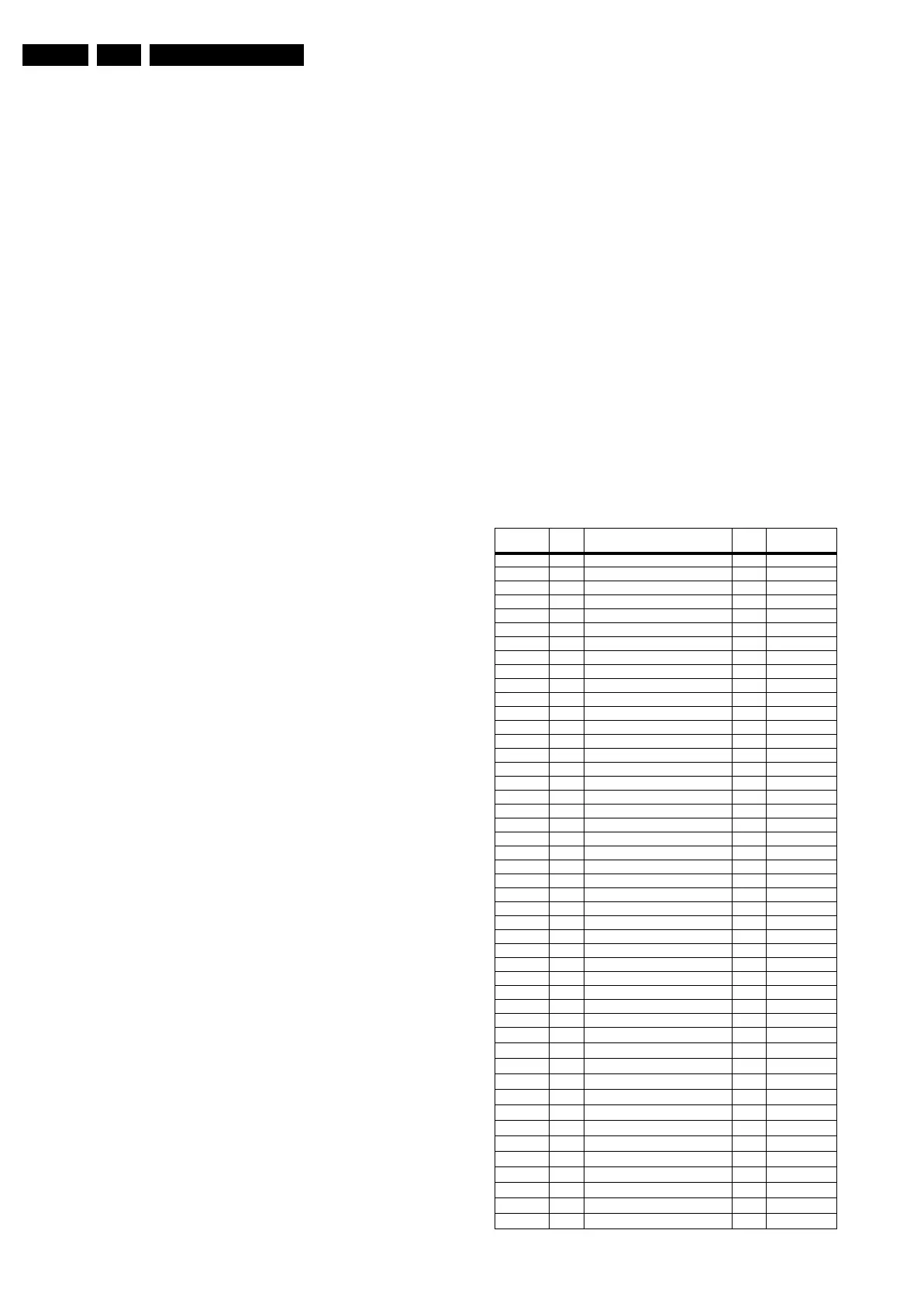
Table 5-2 Display option code overview
Display
Option
HEX Display Type Size Vertical
Resolution
000 00 PDP SDI HD V3 42” 768p
001 01 PDP SDI HD V3 50” 768p
002 02 PDP FHP 42” 1024i
003 03 LCD LPL 30” 768p
004 04 LCD LPL 37” 768p
005 05 LCD LPL 42” 768p
006 06 LCD SHARP 32” 768p
007 07 PDP SDI SD V3 42” 480p
008 08 PDP FHP 37” 1024i
009 09 LCOS XION - 720p
010 0A LCD AUO 30” 768p
011 0B LCD LPL 32” 768p
012 0C LCD AUO 32” 768p
013 0D LCD SHARP 37” 768p
014 0E LCD LPL full HD 42” 1080p
015 0F PDP SDI SD 37” 480p
016 10 PDP FHP 37” 1080i
017 11 PDP FHP 42” 1080i
018 12 PDP FHP 55” 768p
019 13 LCOS VENUS - 720p
020 14 LCOS VENUS full HD - 1080p
021 15 LCD LPL 26” 768p
022 16 LCD LPL clear lcd 32” 768p
023 17 PDP LG SD 42” 480p
024 18 PDP SDI V4 42” 480p
025 19 PDP SDI V4 42” 768p
026 1A PDP FHP A2 42” 1024i
027 1B PDP SDI HD V4 50” 768p
028 1C LCD Sharp full HD 37” 1080p
029 1D LCD AUO 32” 768p
030 1E for development sample only
031 1F LCD Sharp full HD clear lcd V3.0 37” 1080p
032 20 LCD LPL 20” 768p
033 21 LCD QDI 23” 768p
034 22 ECO PTV 51” 1080i
035 23 ECO PTV 55” 1080i
036 24 ECO PTV 61” 1080i
037 25 PDP FHP A3 42” 1024i
038 26 DLP 50” 720p
039 27 DLP 60” 720p
040 28 LCD Sharp V2.3 32” 768p
041 29 LCD LPL clear lcd 42” 768p
042 2A PDP SDI V4 63” 768p
043 2B LCD Sharp V3.0 clear lcd 37” 768p
044 2C LCD Sharp V2.3 37” 768p
045 2D LCD LPL 26” 768p
046 2E LCD LPL 32” 768p



 To Next Page