USER MANUAL
Page 26 of 86 URM18PH392 Rev A. May 2020
3.4 VIPER™ COMMAND MANAGER USER INTERFACE OVERVIEW
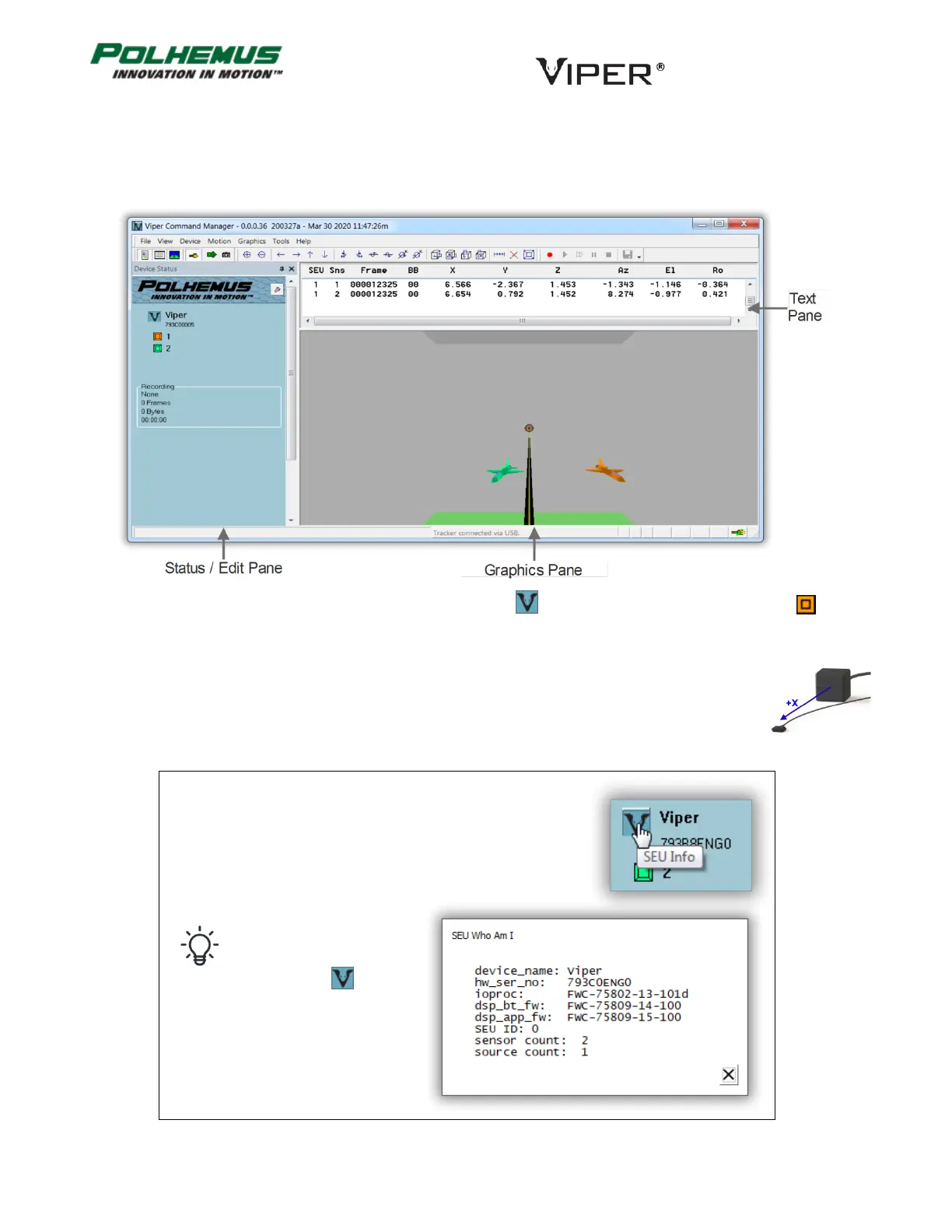
On startup, the VIPER™ Command Manager app (VPcmdMgr) connects automatically to VIPER™ and collects a
single frame of P&O data.
On the Status Pane at the left, icons for the VIPER™ SEU and connected Sensors and/or Stylus’ are
displayed. Different colored Sensor/Stylus icons correspond to animated avatars in the Graphics Pane to the
right.
In the Graphics pane, the sensor avatars are displayed with +X pointing out of the screen toward
the viewer’s eye. This corresponds to looking at the sensor(s) and source from the direction of
the +X axis.
When the mouse pointer is hovered over active
controls in the app, the mouse pointer will change
and a descriptive tool tip will appear. Use this
feature to discover active controls in VPcmdMgr:
For example, to view
“Who Am I” information
about the VIPER™
device, click on the
VIPER® icon in the
Status Pane.


 To Next Page