121
MBOX® USER MANUAL
Live Session
The default editing mode for all three applications is to edit image remapping data in a live session, where changes are
instantly visible onscreen in the Mbox application. Live editing can take place on the Mbox computer itself (when using
any of the three applications) or from a remote computer (when using Mbox Remote).
Note: To edit image remapping data in a live session using Mbox Remote, the Mbox application must be running on the
Mbox server, and must have the appropriate management network interface selected to connect to the computer that is
running Mbox Remote. Refer to “Networking for Mbox” on page 77 for more information.
The steps required to begin a live edit session are slightly different between Mbox and Mbox Remote because Mbox can
always get data from itself and doesn’t require a network connection between computers.
Step 1. If using Mbox, only the image remapping data on the same server can be edited, therefore no network
conguration is necessary. If using Mbox Remote, conrm that the computer is on the same subnet as the
Mbox server, add the server if necessary, and then select the server on the left side of the main window.
Step 2. Click on the Image Remap tab, and click on the live session button if not already selected. If switching from
a le mode session, an alert panel will appear. Select the appropriate option to copy the current data to
Mbox or to discard the current data and load data from Mbox.
Step 3. The live data will load. Large les may take a few seconds to load.
Step 4. Edit the data as desired, all edits will automatically be saved to the default Mbox/MultiScreenData.plist le.
The data can also be manually saved to a le on disk other than the default by using the le save-as option.
Switching Between File Mode and Live Session
Both Mbox and Mbox Remote allow a switch from le mode to a live session and provide the ability to copy the data
from the le on disk to Mbox or to re-read the current data from Mbox (discarding the existing data) and load that into
the editor.
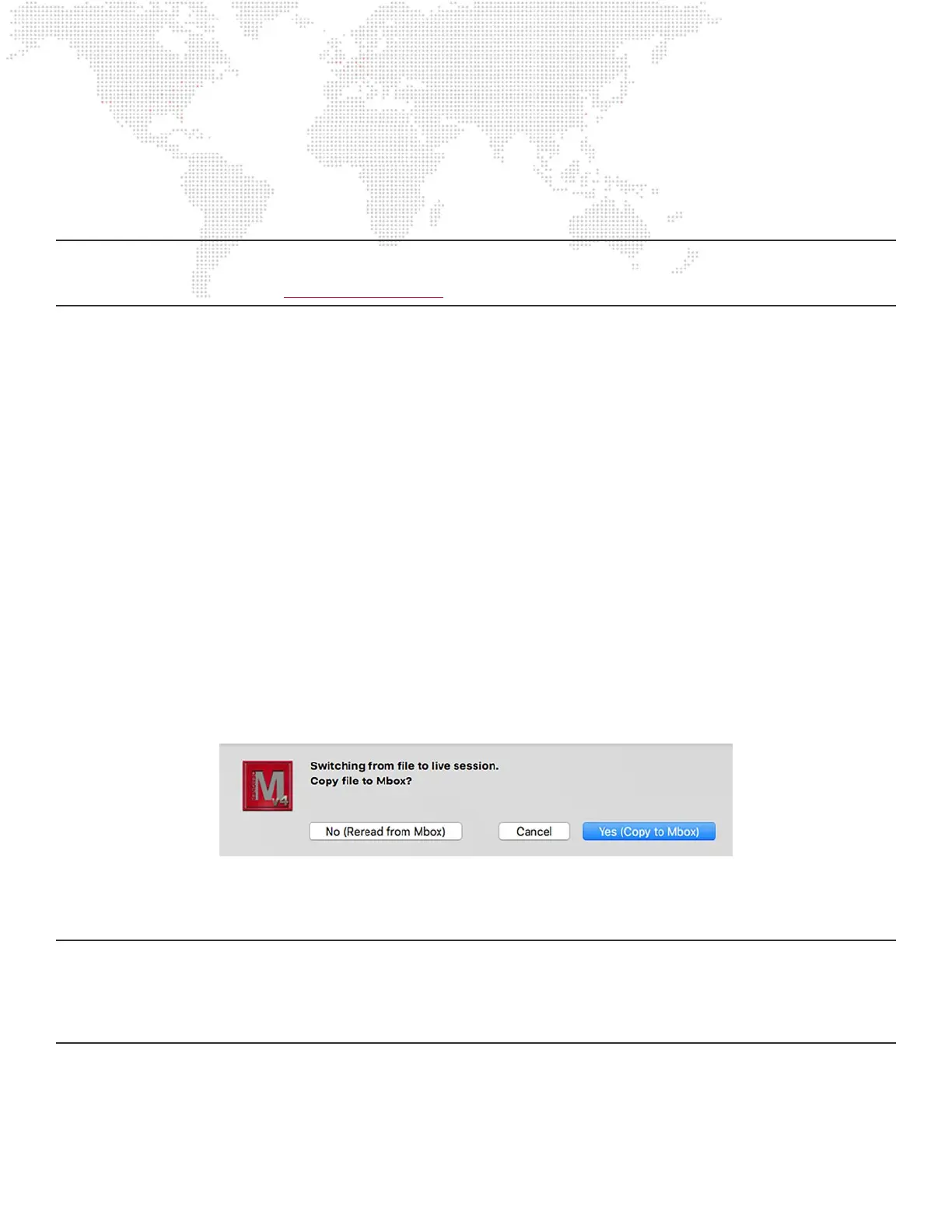
Step 1. With Mbox or Mbox Remote in le mode, click on the live session button. An alert dialog will open asking if
the current le should be copied into the Mbox application’s live memory:
Step 2. If the intention is to copy the current le to Mbox, then press [return] or click on the button labeled “Yes
(Copy to Mbox)”. To discard the current le (any unsaved changes will be lost), click on the button labeled
“No (Reread from Mbox)”. To cancel the switch, press the cancel button.
CAUTION! It is possible to have both Mbox and Mbox Remote open, with both applications editing the image
remapping conguration. If both applications are in a live session, the any changes made to the conguration in one
will immediately be reected in the other. However, if one application is editing the default MultiScreenData.plist le in
le mode, those changes will not be reected in the other application. If the application in le mode is switched to a live
session and told to copy its data to Mbox, any changes made in the other application may be lost!



 To Next Page