66
MBOX® USER MANUAL
The snap and ortho buttons are used when arranging outputs and mixes on the global surface. Enabling snap causes
guidelines to be created when dragging an output or mix around the layout view. These guidelines will indicate the
snaps status: snapping to the object’s parent will be shown with a blue guide and snapping to other objects will be
shown with a green guide. A red guide is an indication that while the object is close to a snap point, it isn’t quite
snapped. Enabling ortho causes the object being dragged to be locked to movement on one axis (horizontal or vertical)
only. This makes it easier to move an object in one direction without losing its current position on the other axis. When
enabled, the ortho button’s label will change to show the locked axis, X or Y.
The snap and ortho functions can be enabled/disabled by clicking on their respective buttons. Their functionality can
also be temporarily toggled using a keyboard combination while dragging. Hold down the [control] key to toggle the
snap function, or hold down the [shift] key to toggle the ortho function.
Note: When an output or mix is selected by clicking on it on the top layout view, the arrow keys on the keyboard may
be used to nudge the output’s position one pixel at a time. Holding down the [shift] key while using the arrow keys will
nudge the output/mix’s position ten pixels at a time.
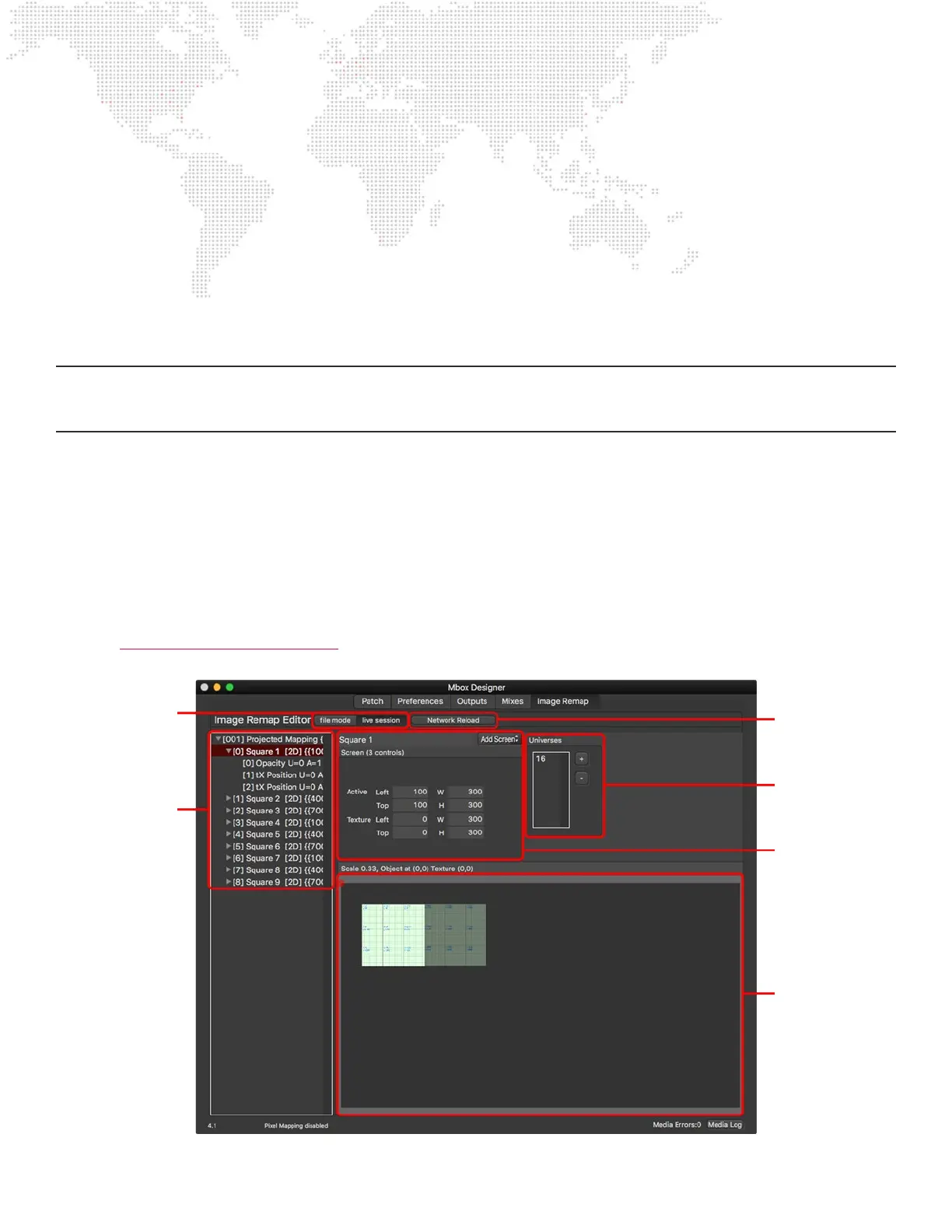
Image Remap Tab
The Image Remap Tab of the Mbox application is used to:
+ View and edit image remapping data.
- Open MultiScreenData.plist from disk or in live session with Mbox application.
- Add, delete, or edit image remapping congurations, screen objects, and controls for screen objects.
Refer to “Chapter 5. Image Remapping” on page 119 for detailed information on the use and conguration of image
remapping in Mbox.
Press to reload live
image remap data.
Universes entered here
may be used for screen
object controls.
Displays data for
selected item in
conguration list. Edits
are made here.
Previsualization of the
selected conguration/
screen objects. A
custom background
image may be loaded.
Used to toggle between
edit modes: edit le from
disk, or edit live data in
Mbox.
The conguration list
shows all congurations,
their screen objects, and
the controls for each
screen object.



 To Next Page