122
MBOX® USER MANUAL
User Interface
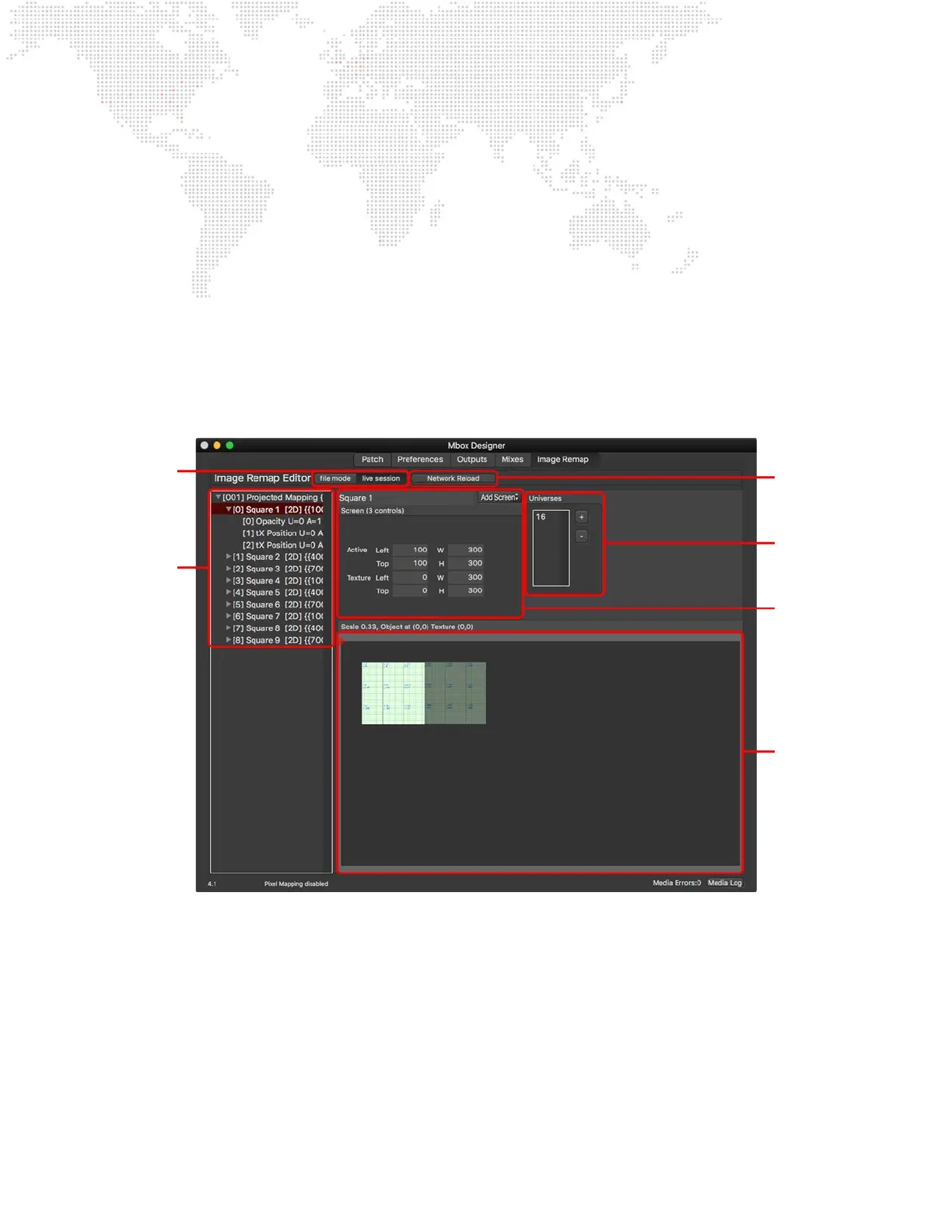
The illustration below shows the user interface of the Image Remap tab of the Mbox application. This is the same as the
interface seen in the Mbox Remote applications:
+ The data editing and preview areas are combined onto the Image Remap tab.
+ The entire Mbox application window can be resized to make the edit and preview areas larger.
+ The edit mode is selected at the top of the main window by clicking on the le mode or live session buttons.
+ File open, save, and save-as options are found in the Image Remap menu and have corresponding keyboard
shortcuts: [⌘O], [⌘S] , and [⌘⇧S].
+ The view in the preview area can be scaled. In Mbox use [⌘+] to zoom in, [⌘-] to zoom out, and [⌘⇧0] to zoom to
t. In Mbox Remote use [⌘+] to zoom in, [⌘-] to zoom out, and [⌘0] to zoom to t. Click and drag on the view to
pan.
The information shown on right side of the main window or tab will change depending on which item is selected in the
conguration list:
+ With no conguration selected (click on a blank area of the conguration list to deselect) the right side of the main
window will show the global Texture Position Scale parameter, which will default to a value of 1.
+ If a conguration is selected, then its name, texture size, and display size will be shown.
+ If a screen object is selected, its name and active and texture coordinates will be shown.
+ If a control is selected, its name and control properties will be shown.
Reload live image remap
data.
Control Universe Setup
Control Parameter Setup
Preview Area.
Edit mode selection.
Conguration &
Screen Object List.



 To Next Page