157
MBOX® USER MANUAL
Mbox File Convertor
In some cases, Mbox may not be able to play custom QuickTime movie content.
If this happens, if the “Show Diagnostics” option is enabled on the Preferences
tab. (Refer to “Preferences Table - Categories and Preferences” on page 51)
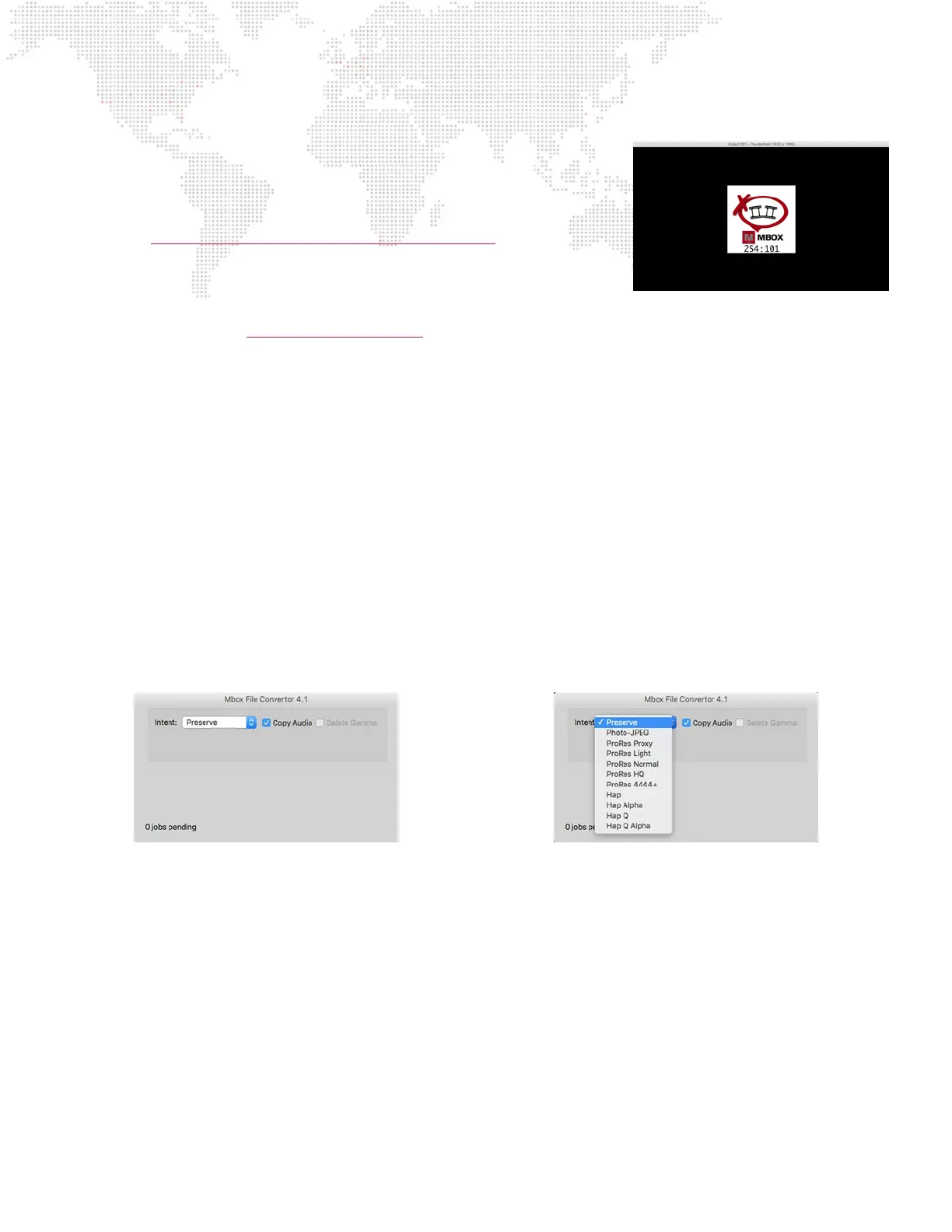
Mbox will display the broken movie image (shown at right). This diagnostic
image indicates that there is a problem with the movie le.
If the broken movie image appears or if poor playback is experienced, rst conrm that the movie uses one of the Mbox
preferred codecs. (Refer to “File Type Specications” on page 34) If the movie is not using one of these codecs, it can
be converted to a preferred codec using the File Convertor app. If the movie is already using the one of the preferred
codecs, then the Mbox File Convertor application can be used in an attempt to eliminate the problem.
About File Conversion
The Mbox File Convertor will accept le drops of more than one le at a time. It processes four les simultaneously and
will queue additional les. The application creates new copies of the original le in the same location as the original
le. The new les will have the same numerical prex and name as the original, but will have either “_Mbox or “_PMA”
appended to the end of the le name (prior to the le extension). “_Mbox” is appended for movie les, “_PMA” for still
image les.
023.My Content.mov would be renamed as 023.My Content_Mbox.mov
or
011.My Picture.png would be renamed as 011.MyPicture_PMA.png
After conversion, be sure to move the original les, so there are not two les with the same index value in the folder.
File Conversion Settings
There are four settings that can be modied when using the File Convertor: Intent, Quality, Gamma, and Copy Audio.
+ Intent: This setting has eleven possible values: Preserve, Photo-JPEG, ve versions of the ProRes codec, and four
versions of the Hap codec. If “Preserve” is chosen, movie(s) will not be converted to another codec, but rather the
application will attempt to x the le so that Mbox can play it. The changes made do not affect the codec or quality
of the movie. If any other options is chosen, the movie(s) will be converted to the selected codec, using the quality
slider’s value if applicable. No matter which codec is selected for conversions, the application will always attempt to
correct any errors in the le. It may be necessary to test several levels of quality to get the desired results.
+ Quality: The Quality slider setting only applies to movie when they are being converted to Photo-JPEG, Hap, and
Hap Alpha.
+ Delete Gamma: This setting will cause the gamma information saved with the le to be removed. In many cases, this
will result in a movie that does not have the same colors as the original, and should therefore be used with caution.
+ Copy Audio: The default action for the app is to strip audio from les it processes. Enabling this setting will cause
embedded audio to be retained (copied) when a movie is converted.



 To Next Page