143
MBOX® USER MANUAL
Blackmagic UltraStudio devices and Decklink/Active Silicon Phoenix PCIe Capture Cards
The Mbox software has been optimized to provide the best possible video input (high quality, smooth framerate, low
latency) with Blackmagic UltraStudio device and Decklink or Active Silicon Phoenix PCIe cards.
Note: At present time Mbox does not support Active Silicon LFG cards.
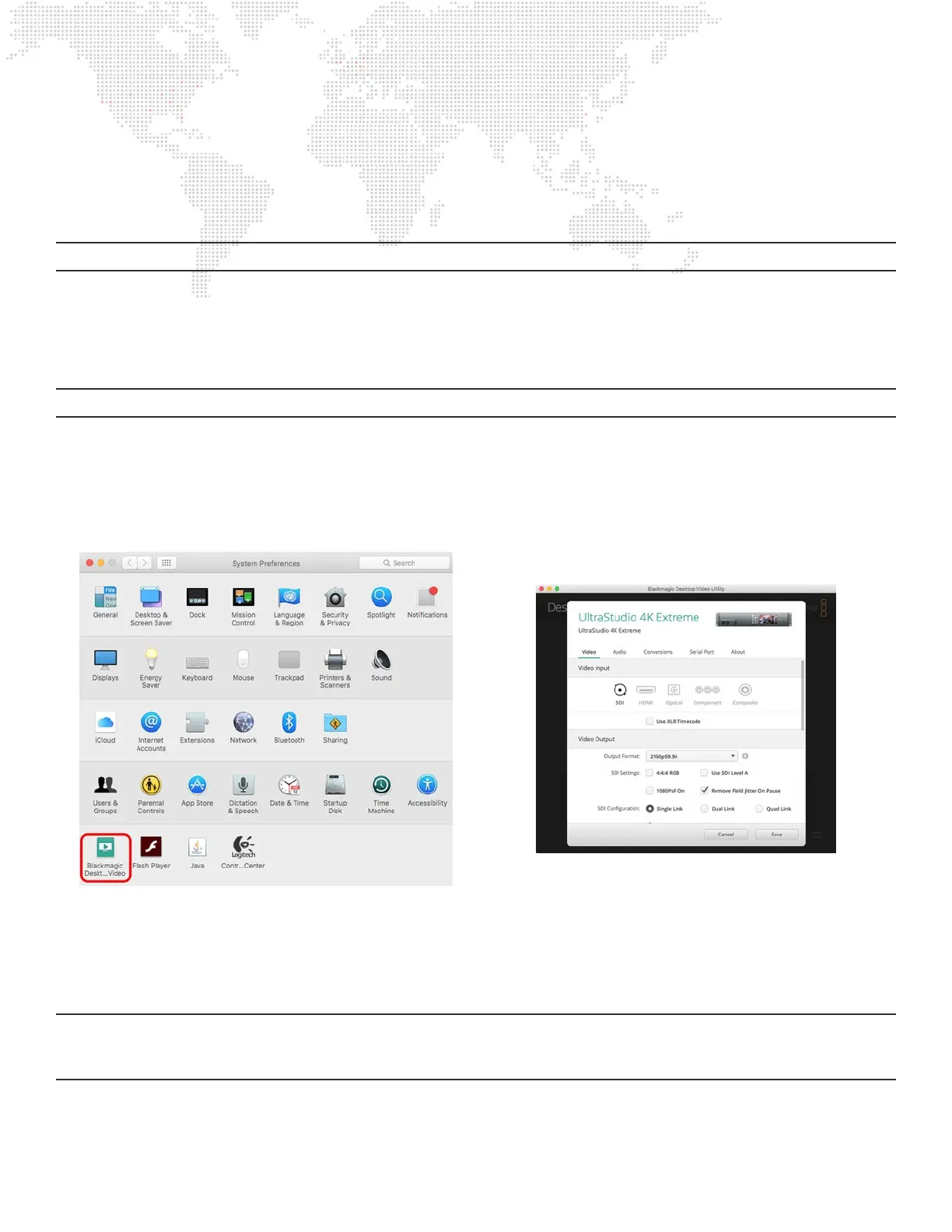
To setup Blackmagic devices in Mac Preferences:
Before use with Mbox, some Blackmagic devices may need to be congured to receive the correct video signal type
(SDI, component, or composite) using the Blackmagic preference pane in the Mac System Preferences. Whether this is
the case or not depends on the device, as some can receive multiple video signal types.
Note: Active Silicon PCIe cards do not require any conguration in System Preferences.
Step 1. Quit Mbox application, if running.
Step 2. On the Apple menu, select System Preferences.
Step 3. On the System Preferences window, click on the Blackmagic Desktop Video button. This will launch the
Blackmagic Desktop Video Utility in a separate window.
Step 4. On the Blackmagic Desktop Video Utility window, click on conguration button to open the pane where the
input type can be selected.
Step 5. After making changes, press the save button on the conguration pane and then close Blackmagic Desktop
Video window and relaunch the Mbox application.
Note: The audio inputs on Blackmagic devices only receive/capture audio when the unit is actively capturing video (i.e.
only when Mbox is displaying that video input on a layer) and therefore the audio inputs cannot be used as a timecode
audio input to the Mbox application.



 To Next Page