128
MBOX® USER MANUAL
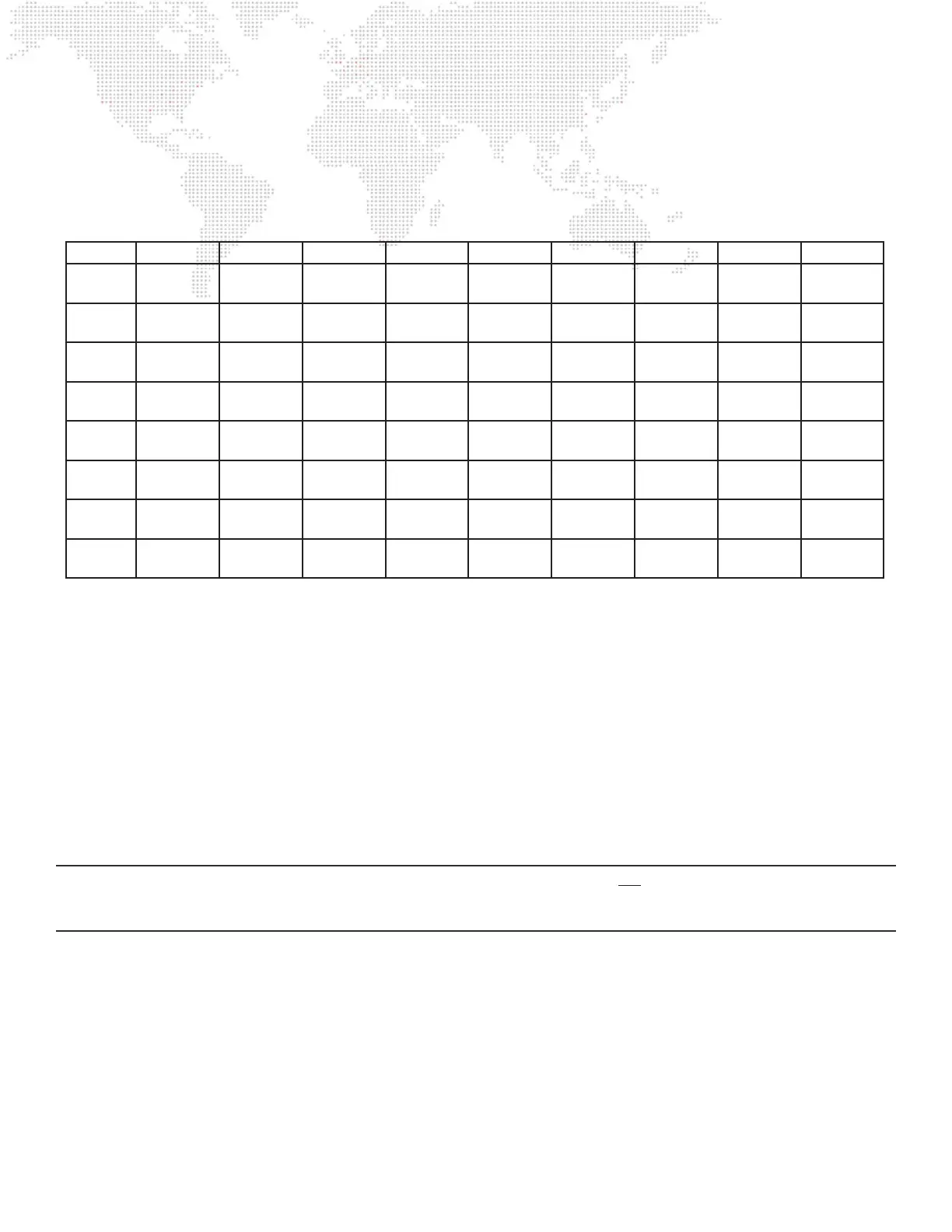
The chart below shows the active and texture origins and dimensions for all nine screen objects in this rst conguration.
Don’t add the other eight screen objects yet, as it is faster to add the necessary controls to the rst screen object and
then use the copy/paste functionality to quickly make the other eight screen objects. And then the values in the chart
can be applied to the respective screen objects.
Step 10. Before adding the other eight screen objects, controls need to be added to the rst screen object.
Remember that Opacity, X Position, and Y Position controls will be needed for each screen object. With the
Square 1 screen object selected, click once again on the Add button. This time select “Add Control” from
the menu. As when the screen object was added, a disclosure arrow will appear in the conguration list, to
the left of the screen object. Click on it to expand it.
Step 11. There is now one control attached to the screen object, give it the name “Opacity.” Each control has
properties that can be edited:
a. Universe: If the control will use external control data (Art-Net or sACN), this is the universe that it will
listen to. The options in the list are populated from the pool of universes provided by entries in the
universe area listbox at the bottom main window. The Universe pop-up shows a number in parentheses
to the left of the absolute universe number. The number in parentheses is the zero-based index number
of that universe within the entire group of universes entered in the universe area.
CAUTION! If any universe number is edited in the universes area those edits will not be automatically updated to the
universe value for controls that have already been congured to use that universe. The new universe value must be
reselected for each of those controls.
b. Address: The address of the rst channel within the selected universe that the control will listen to for its
data. Values between 1 and 512 are valid.
c. Stride: This number will typically be equal to the total number of control channels that this screen object
uses for all of its controls, not just this one. The stride setting simplies the use of an image remapping
conguration on more than one layers at the same time. The intention is to eliminate extra time spent
patching or creating multiple congurations, one for each layer, with different addressing. The stride
setting tells the screen object how many channels to automatically skip when it is used on multiple layers,
so it can use the correct address offset for each layer.
Square 1 Square 2 Square 3 Square 4 Square 5 Square 6 Square 7 Square8 Square9
Active
Left
100 400 700 100 400 700 100 400 700
Active
Top
100 100 100 400 400 400 700 700 700
Active
Width
300 300 300 300 300 300 300 300 300
Active
Height
300 300 300 300 300 300 300 300 300
Texture
Left
0 300 600 0 300 600 0 300 600
Texture
Top
0 0 0 300 300 300 600 600 600
Texture
Width
300 300 300 300 300 300 300 300 300
Texture
Height
300 300 300 300 300 300 300 300 300



 To Next Page