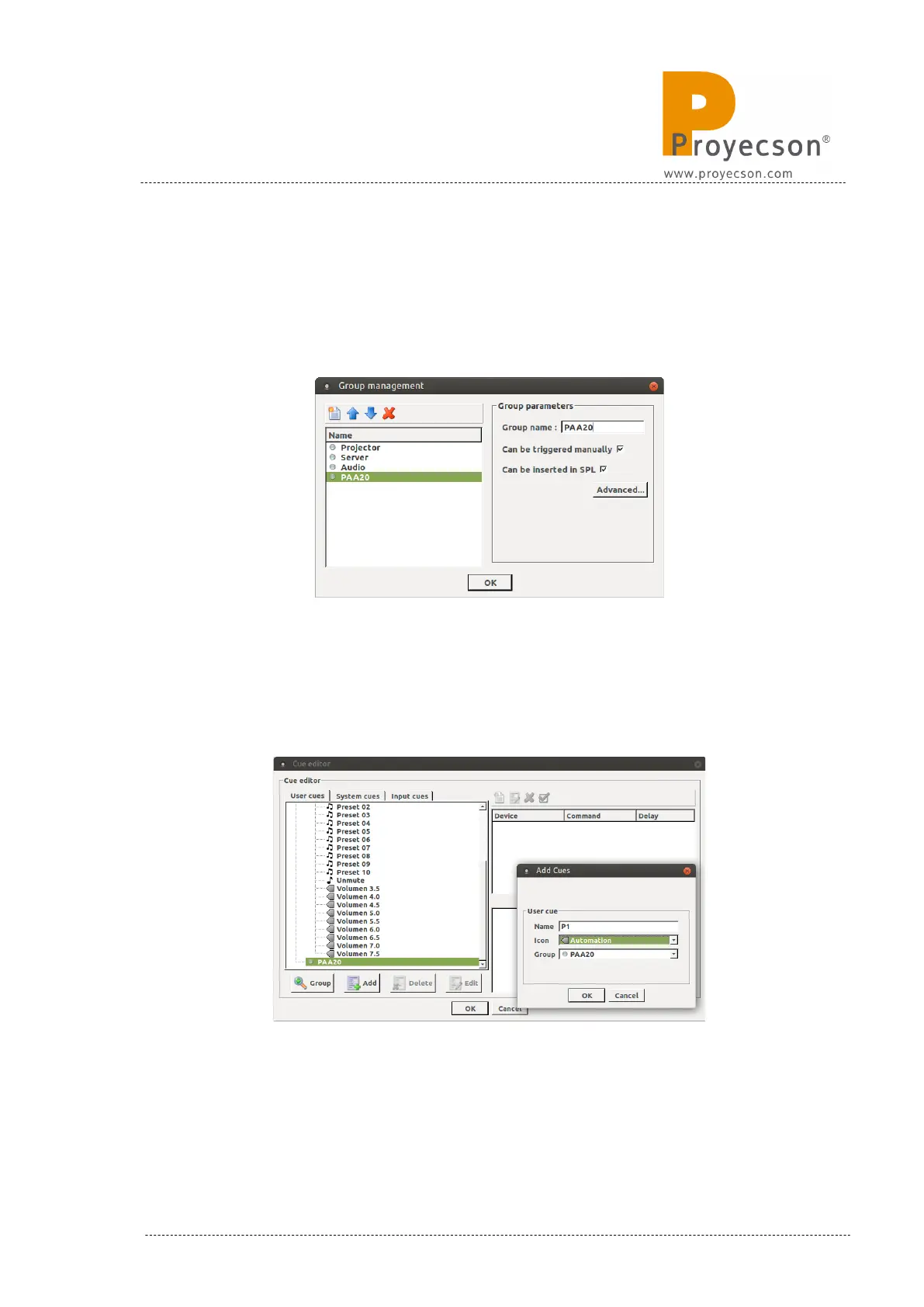
4. In the “Group Management” pop-up window click on the new group
icon and fill the “Group Name” with the name you want for the
PAA20+ cues group. In the example we used the name “PAA20”. Then
click on the “Ok” button. Figure 8.4.2.B.
Figure 8.4.2B
5. Select the PAA20 group and click on the “Add” button, in the “Add
cues” pop-up window write the name of the cue in the “Name” field,
select the icon and the group as you can see in the Figure 8.4.2C.
Figure 8.4.2C
INSTALLATION MANUAL: PAA20+ V 2.0 (10/2021) 81


 To Next Page