2. Start RICOH Monitor Multicast for Windows.
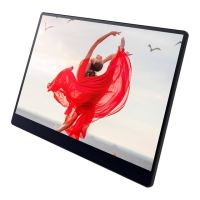
When RICOH Monitor Multicast for Windows starts, the search for RICOH Monitors in
the same network starts and the list of such is displayed.
3. To be enabled the touch operation permission of the RICOH Monitors that the
touch operation permission is disable, toggle on the "Touch operation
permission".
However, only one RICOH Monitor can enabled touch operations and stylus pen
operations at a time.
When disconnecting the auto connection
When the auto connection is enabled, the connection is established again regardless of
whether you disconnect from the RICOH Monitor side or this application. To disconnect
the auto connection, perform any of the following operations:
• Quit this application
• Disable the auto connection, and then disconnect
• Turn OFF the power of the RICOH Monitor
How to connect wirelessly when auto connection is disabled
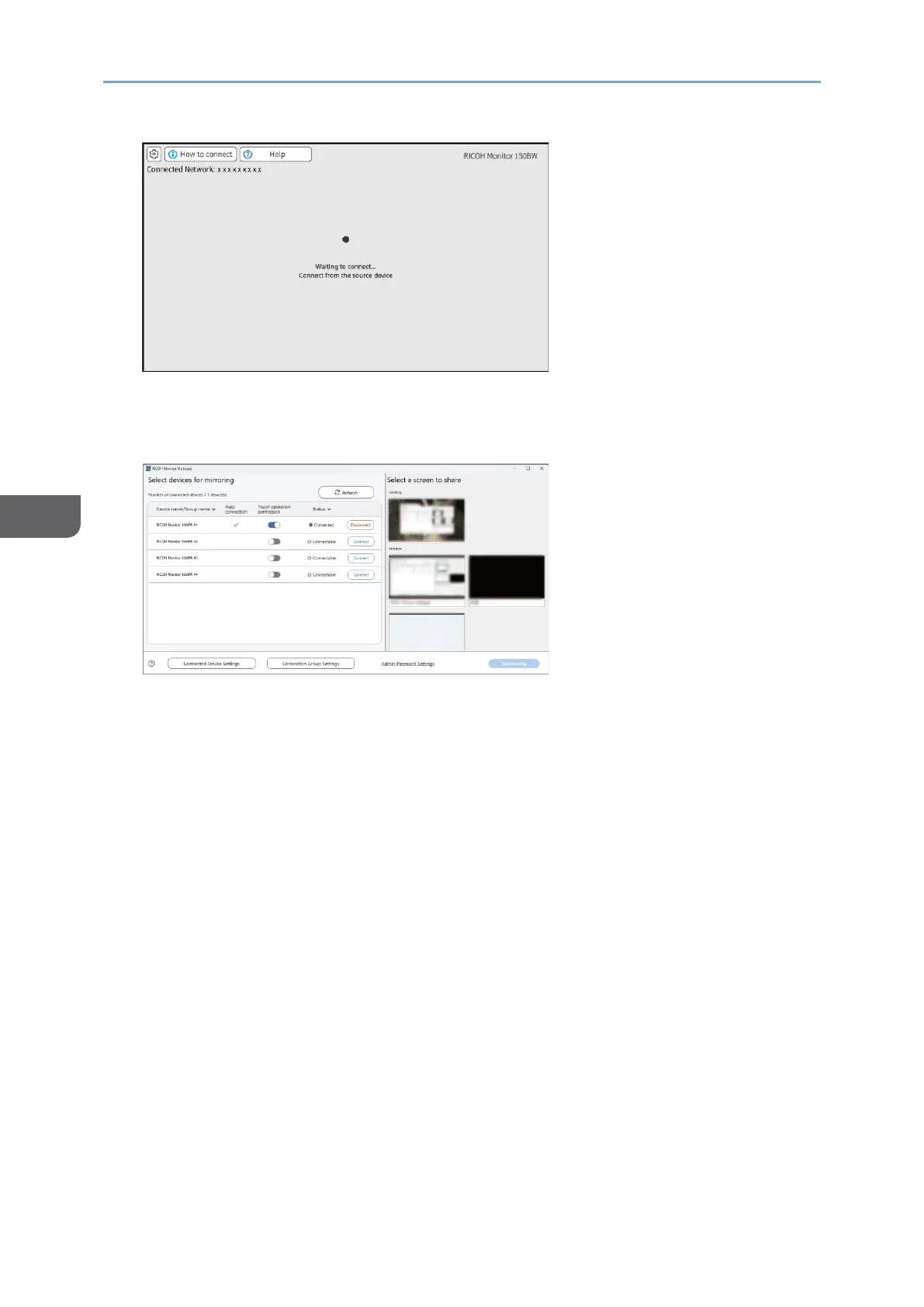
1. Turn ON all RICOH Monitors to be used and confirm that the Waiting to Connect
screen is displayed.
For details about how to turn ON the machine, see page 29 "Turning On and Off the
Power".





 To Next Page