11. [Connected Device Settings]
When you want to change the auto connection setting and touch operation
permission setting for currently connected RICOH Monitors, connectable RICOH
Monitors, and previously connected RICOH Monitors, click this button. For details,
see page 75 "Specifying RICOH Monitors to be connected".
Specifying auto connection in advance
You can specify to automatically connect wirelessly when turning ON RICOH Monitor and
starting RICOH Monitor Multicast for Windows.
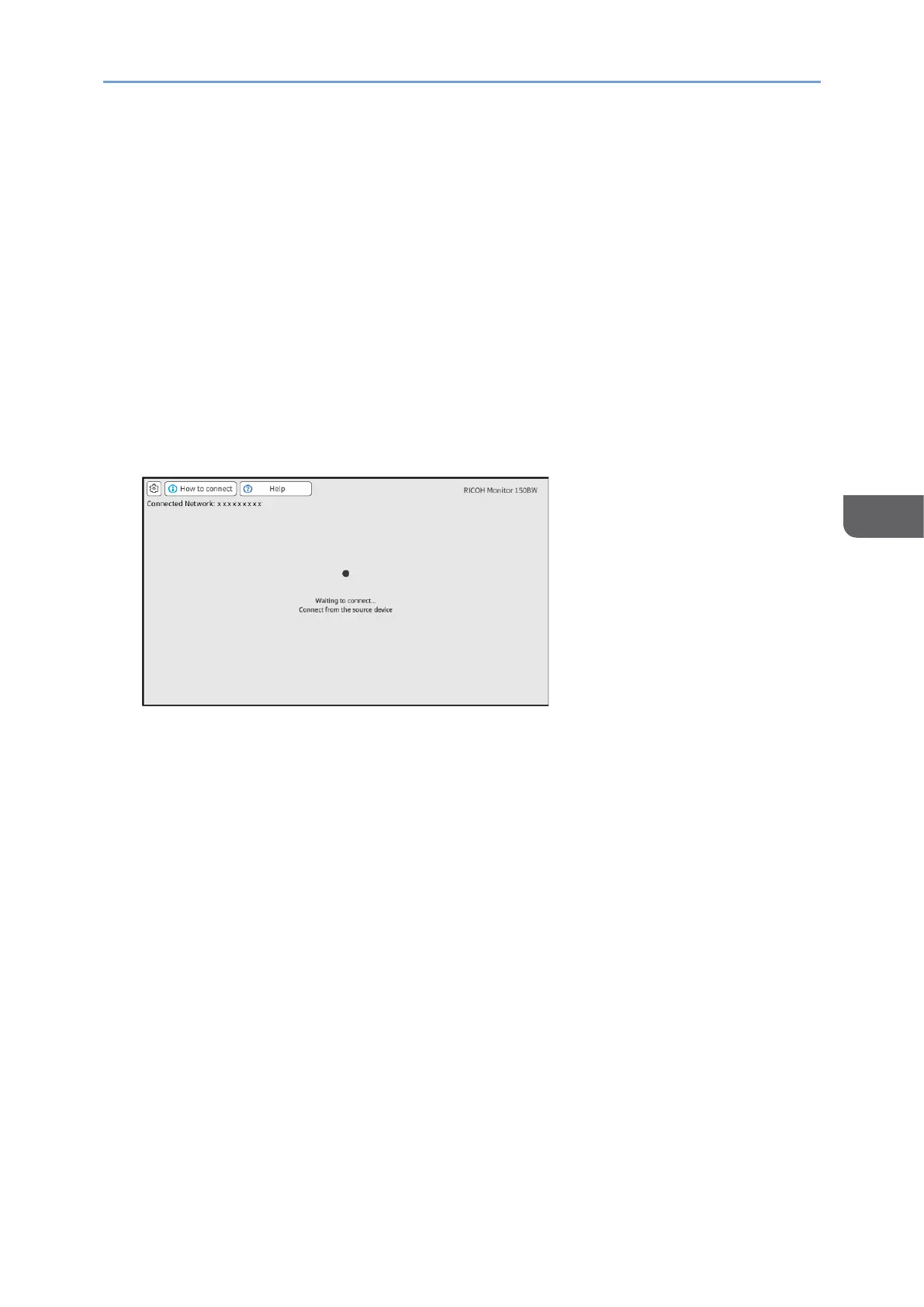
1. Turn ON all RICOH Monitors to be used and confirm that the Waiting to Connect
screen is displayed.
For details about how to turn ON the machine, see page 29 "Turning On and Off the
Power".
2. Start RICOH Monitor Multicast for Windows.
When RICOH Monitor Multicast for Windows starts, the search for RICOH Monitors in
the same network starts and the list of such is displayed.
3. Click [Connected Device Settings].
Specify the auto connection and the touch operation permission. For details, see
page 75 "Specifying RICOH Monitors to be connected" .
How to connect wirelessly when the auto connection is enabled
1. Turn ON all RICOH Monitors to be used and confirm that the Waiting to Connect
screen is displayed.
For details about how to turn ON the machine, see page 29 "Turning On and Off the
Power".
For details about how to set the Switching Input to [Wireless Connection], see page
31 "Switching Inputs".
For details about how to automatically switch to the Waiting to Connect
screen when turning on RICOH Monitor, see page 71 "Specifying auto connection in
advance".





 To Next Page