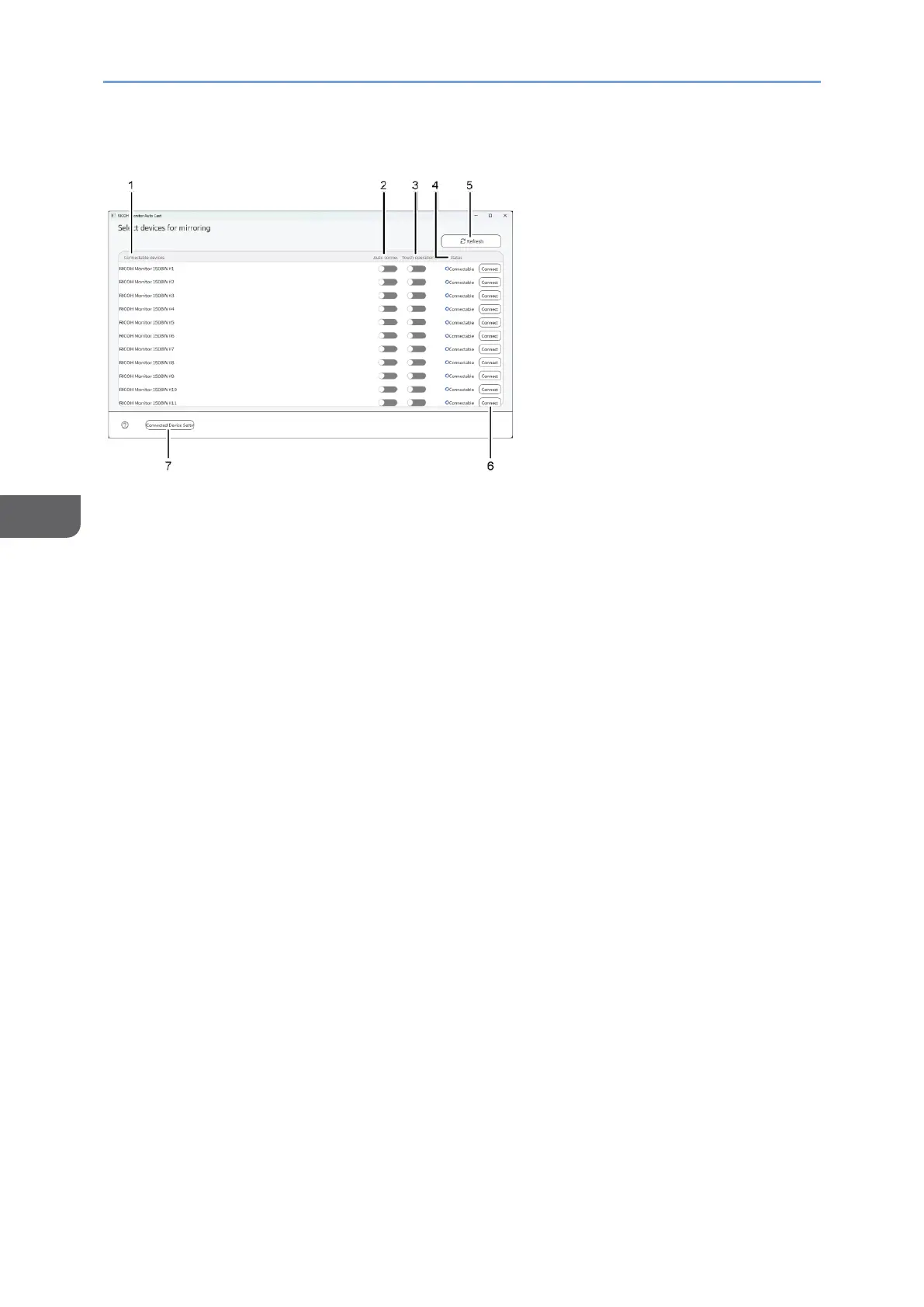
Description of the RICOH Monitor Auto Cast for Windows screen
1. Connectable devices
Displays the names of currently connected RICOH Monitors, connectable
RICOH Monitors, and previously connected RICOH Monitors
2. Auto connection
Toggles the auto connection enable / disable
When specifying the auto connection to enable, the connectable RICOH
Monitors start to wirelessly connect to the device. Only one RICOH Monitor can
communicate at a once.
You can set the auto connection in "Connected Device Settings". For details,
see page 84 "Specifying RICOH Monitors to be connected".
3. Touch operation permission
Toggles the touch operation or stylus pen operation permission enable /
disable.
The permitted RICOH Monitor can be changed at any time.
You can also set the touch operation permission in "Connected Device
Settings". For details, see page 84 "Specifying RICOH Monitors to be
connected".
4. Status
Displays the connection status of RICOH Monitors
5. [Refresh]
Refreshes the connection status of RICOH Monitors
6. [Connect] / [Disconnect]
When you want to connect a connectable RICOH Monitor or disconnect a
currently connected RICOH Monitor, click these buttons.
When you manually disconnect a RICOH Monitor for which the auto connection
is enabled, the RICOH Monitor will be automatically connected again.





 To Next Page