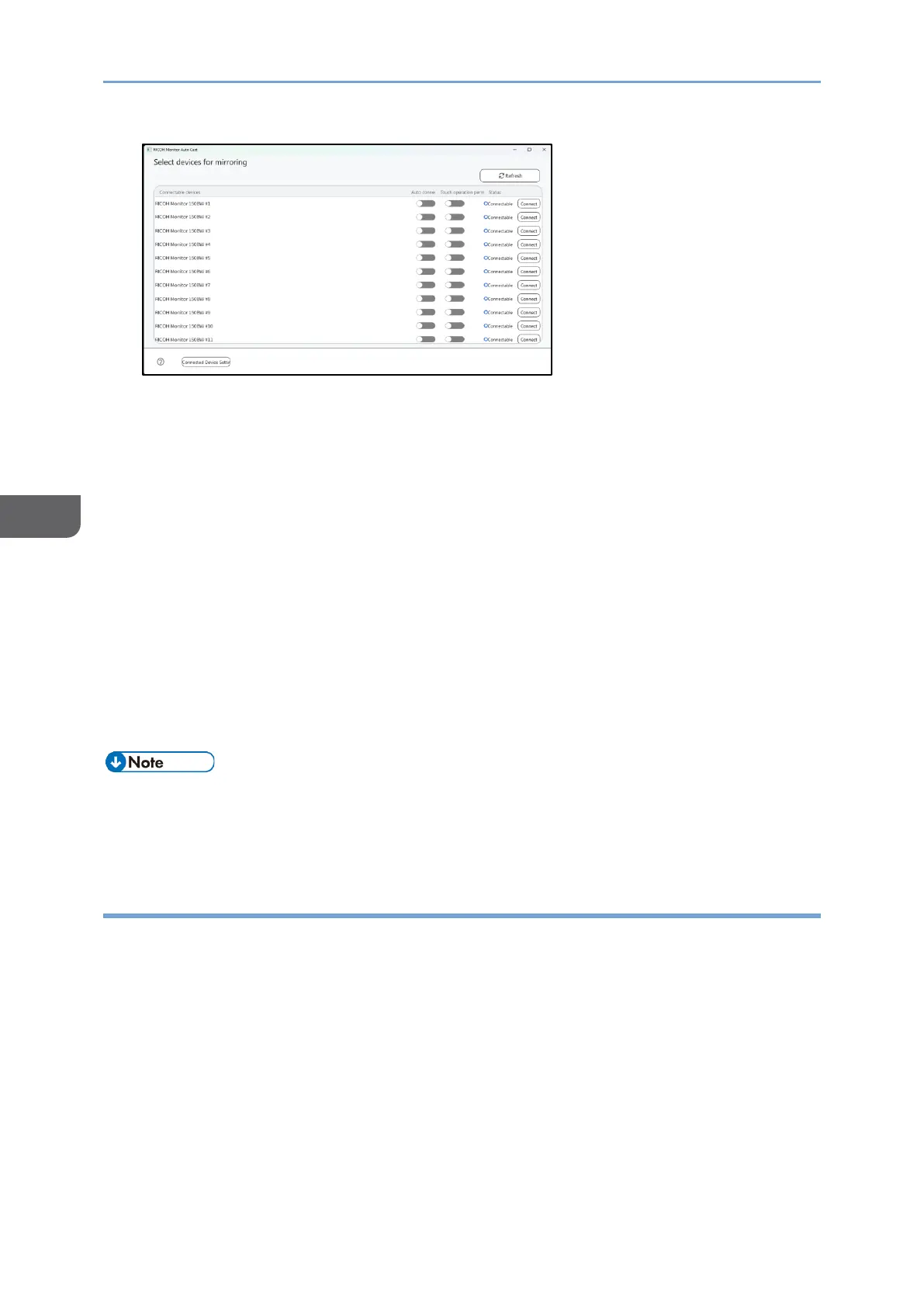
3. Toggle on "Auto connection" of a RICOH Monitor for which you want to specify
auto connection.
To enable the touch operation permission, toggle "Touch operation permission" on.
You can also specify the auto connection and the touch operation permission in
"Connected Device Settings". For details, see page 84 "Specifying RICOH Monitors
to be connected".
When disconnecting the auto connection
When the auto connection is enabled, the connection is established again regardless of
whether you disconnect from the RICOH Monitor side or this application. To disconnect
the auto connection, perform any of the following operations:
• Quit this application
• Disable the auto connection, and then disconnect
• Turn OFF the power of the RICOH Monitor
• After the connection process starts, the time required for the screen in the
connecting status to switch to the connected screen might take about two minutes.
In that case, please wait until the screen changes.
Specifying RICOH Monitors to be connected
In the "Connected Device Settings" screen, you can change the auto connection setting
and the touch operation permission setting of listed RICOH Monitors of the Connectable
devices list.





 To Next Page