If you want to prevent the RICOH Monitor from being connected again, perform
any of the following operations:
• Quit this application
• Disable the auto connection, and then disconnect
• Turn OFF the power of the RICOH Monitor
7. [Connected Device Settings]
When you want to change the auto connection setting and touch operation
permission setting for currently connected RICOH Monitors, connectable RICOH
Monitors, and previously connected RICOH Monitors, click this button. For
details, see page 84 "Specifying RICOH Monitors to be connected".
Specifying auto connection in advance
You can specify the setting so that a wireless connection is established automatically
when you turn ON a RICOH Monitor and start RICOH Monitor Auto Cast for Windows.
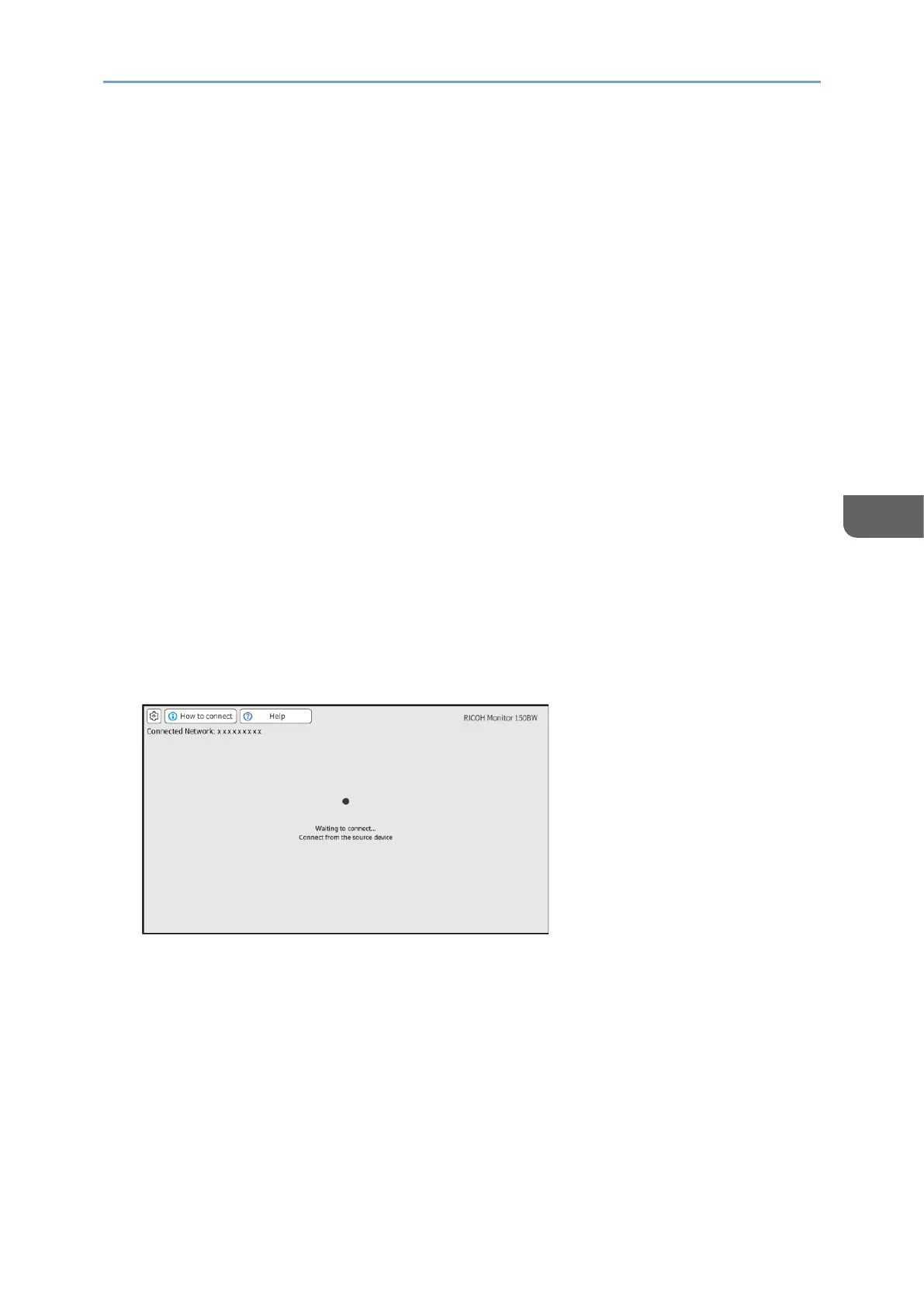
1. Turn ON the RICOH Monitor you will use, and then confirm that the Waiting to
Connect screen is displayed.
For details about how to turn ON the machine, see Turning On and Off the Power.
For details about how to set the Switching Input to [Wireless Connection], see
Switching Inputs.
For details about how to automatically switch to the Waiting to Connect screen when
turning on RICOH Monitor, see Connecting.
2. In Windows, start RICOH Monitor Auto Cast for Windows.
When RICOH Monitor Auto Cast for Windows starts up, a search for RICOH Monitors
in the surroundings starts, and then a list appears.





 To Next Page