3. Select the [Use Synchronous Function on Device Configuration] check box.
4. Leave [Whiteboard Address of Synchronization Source] and [Administrator Password of
Synchronization Source Whiteboard] blank.
5. Click [Set].
Procedure for making your whiteboard a destination whiteboard
• To synchronize the information, turn the source whiteboard on.
• Information is synchronized and setting information is updated every 10 minutes.
1. Open Administrator Settings of the Web page of the machine.
• See page 107 "Opening Administrator Settings".
2. Click [Device Configuration Management].
3. Select the [Use Synchronous Function on Device Configuration] check box.
4. Enter [Whiteboard Address of Synchronization Source] and [Administrator Password of
Synchronization Source Whiteboard].
To check if the source whiteboard is properly connected, click [Connection Test].
5. Click [Set].
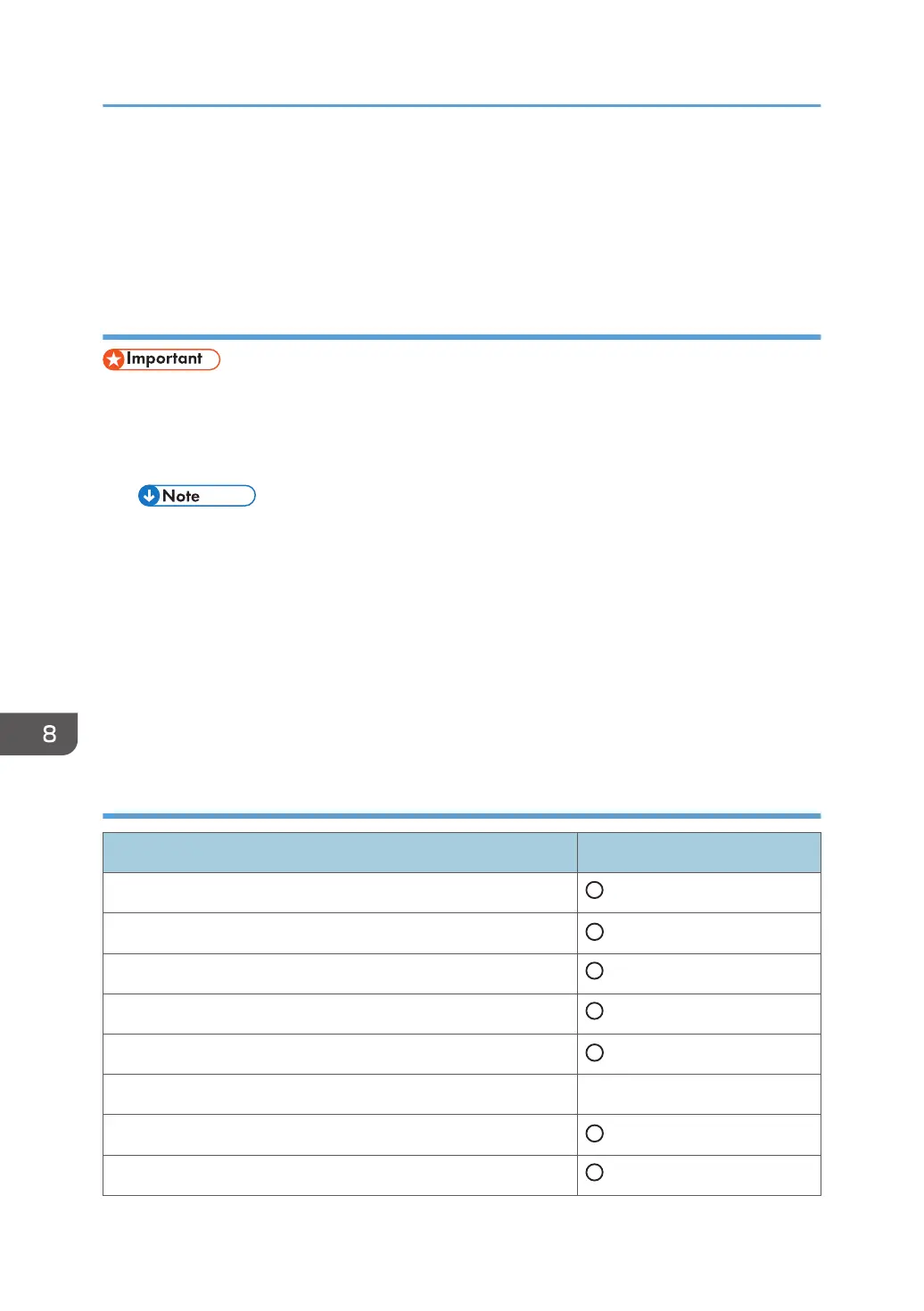
Whether or not the items in Administrator Settings can be synchronized on the
multiple whiteboards
Items in Administrator Settings Synchronized or not
System Settings
*1
Security Settings
Network Settings
*2
Print Settings
*3
Email Settings
Video Conference Settings ×
User Authentication Settings
Set Date/Time
*4
8. Changing the Interactive Whiteboard Settings
198


 To Next Page
 Loading...


