Changing the IP Address (LAN2 Port)
19
2
Note
❒ The screen varies by operating system used.
❒ To set an additional IP address on the Windows 2000, click [Detail Setting]
and then [Add].
❒ To set an additional IP address on the Windows XP, click [Alternative Con-
figuration] tab.
E Follow the instructions on the screen.
The IP address of the PC will be set at 192.168.10.x.
F Open your web browser of the computer.
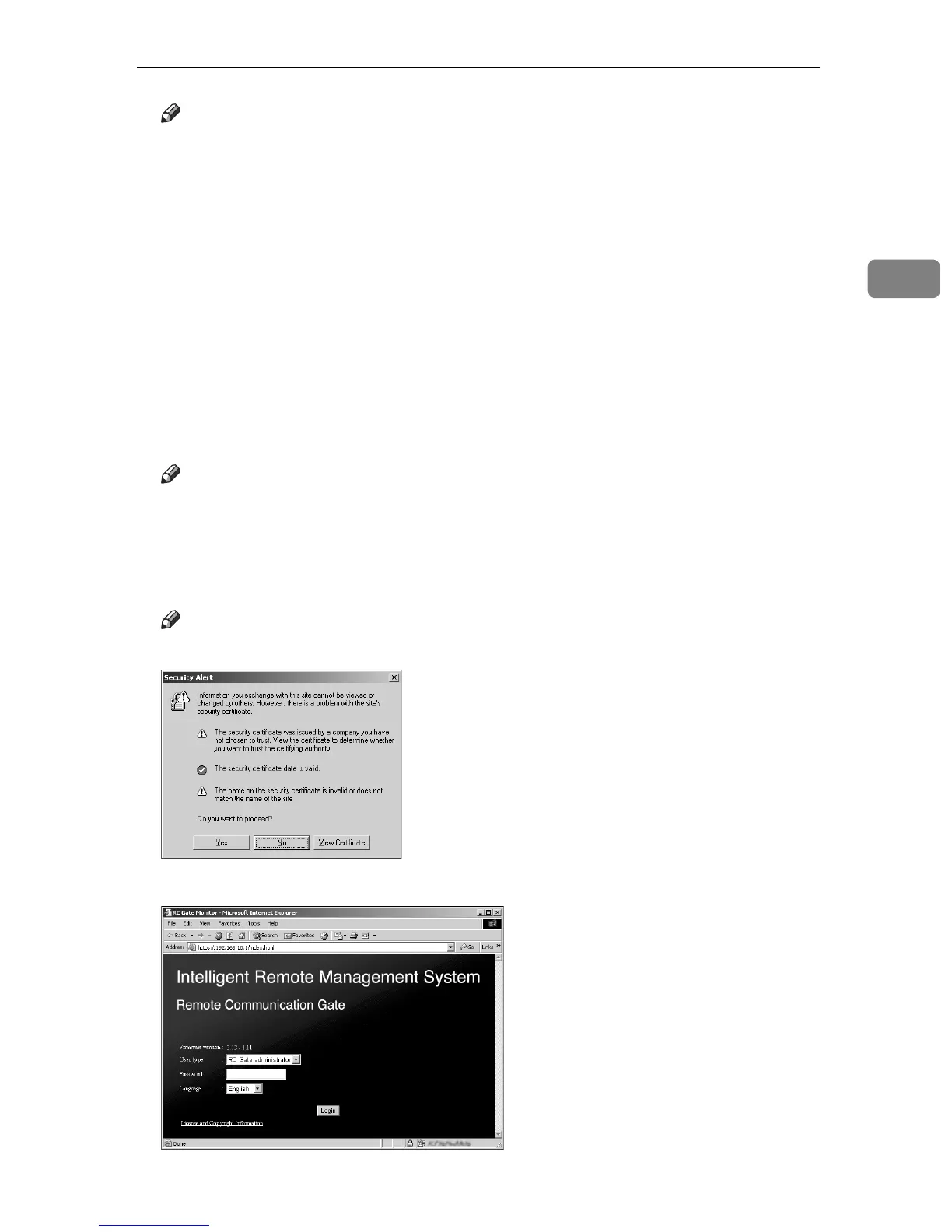
G Input "https://192.168.10.1/index.html" in the address box of the web brows-
er.
An SSL certification warning screen will appear.
Note
❒ SSL certification warning screen may differ according to your web brows-
er.
H Confirm the issuer is a “Ricoh Remote Service CA”, and then agree to the
conditions.
Note
❒ An example of Internet Explorer 6.0: Click [Yes].
The login page of the RC Gate Monitor appears.



 To Next Page