Setup and Connection
20
2
Note
❒ The RC Gate Monitor is the software to register, make settings, and config-
ure equipment, devices, and Auto Discovery. The software is pre-installed
in the equipment, and therefore, it is not necessary to install it to your com-
puter. To start the RC Gate Monitor, access “https://(IP address of the
LAN1 port or LAN2 port)/index.html” with the web browser.
❒ The LAN1 port's default IP address is "192.168.10.1".
I Select your language from [Language]. Select “RC Gate registrant” from [Us-
er type]. Enter the password for the RC Gate registrant to [Password]. Click
[Login].
Reference
Regarding the default password, please refer to the “Setup Guide.”
Important
❒ Do not use the factory default password as it is, and never fail to change it.
See p.105 “Password” for details.
Note
❒ If an invalid password is entered, the login page will appear again. Here,
click [User type] and make sure “RC Gate registrant” is selected, and enter
the correct password.
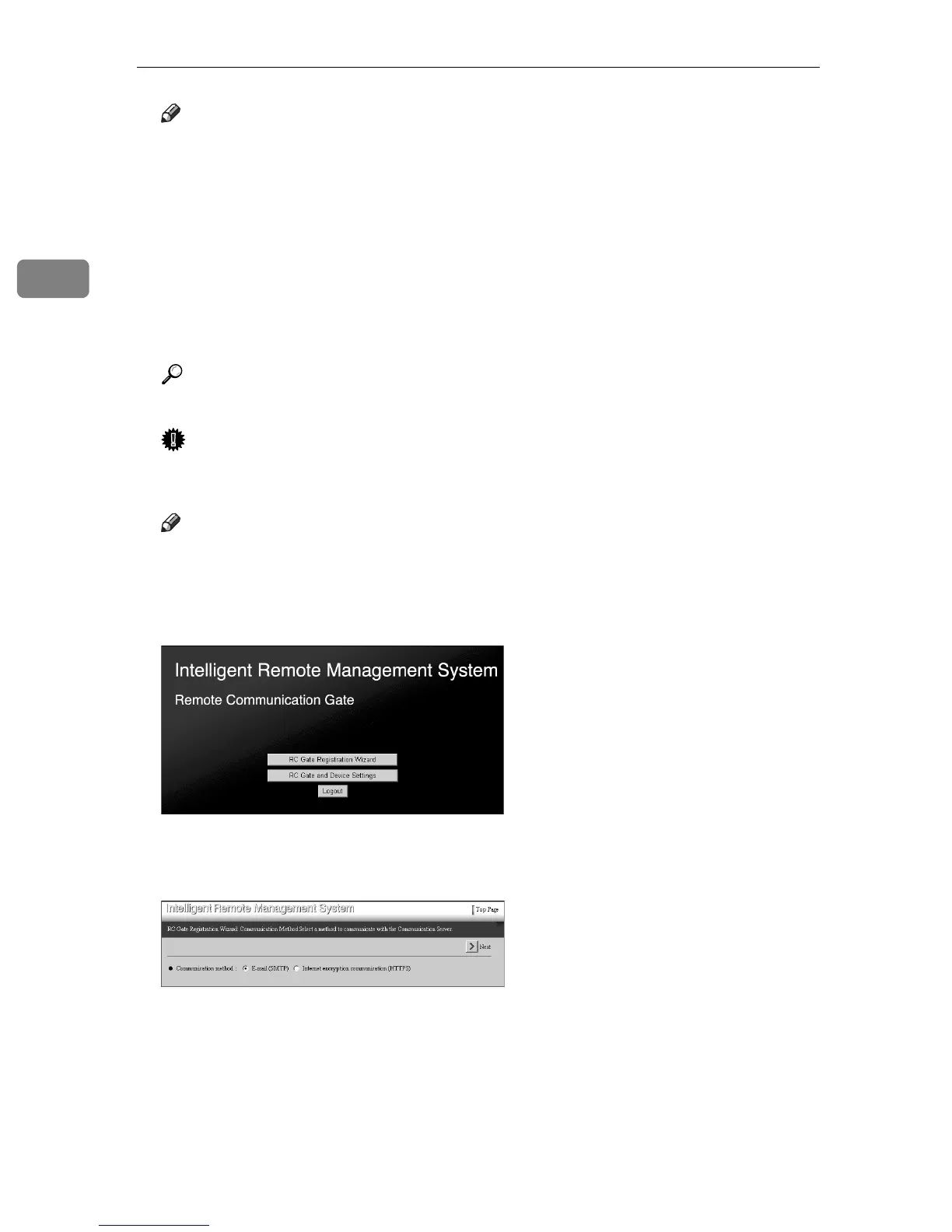
Top Page for the RC Gate registrant appears.
J Click [RC Gate Registration Wizard].
[RC Gate Registration Wizard: Communication Method] screen appears.



 To Next Page