100 SteelFusion Edge Hardware and Maintenance Guide
Monitoring and Managing the Appliances with BMC Viewing field-replaceable unit information
To generate an SSL certificate
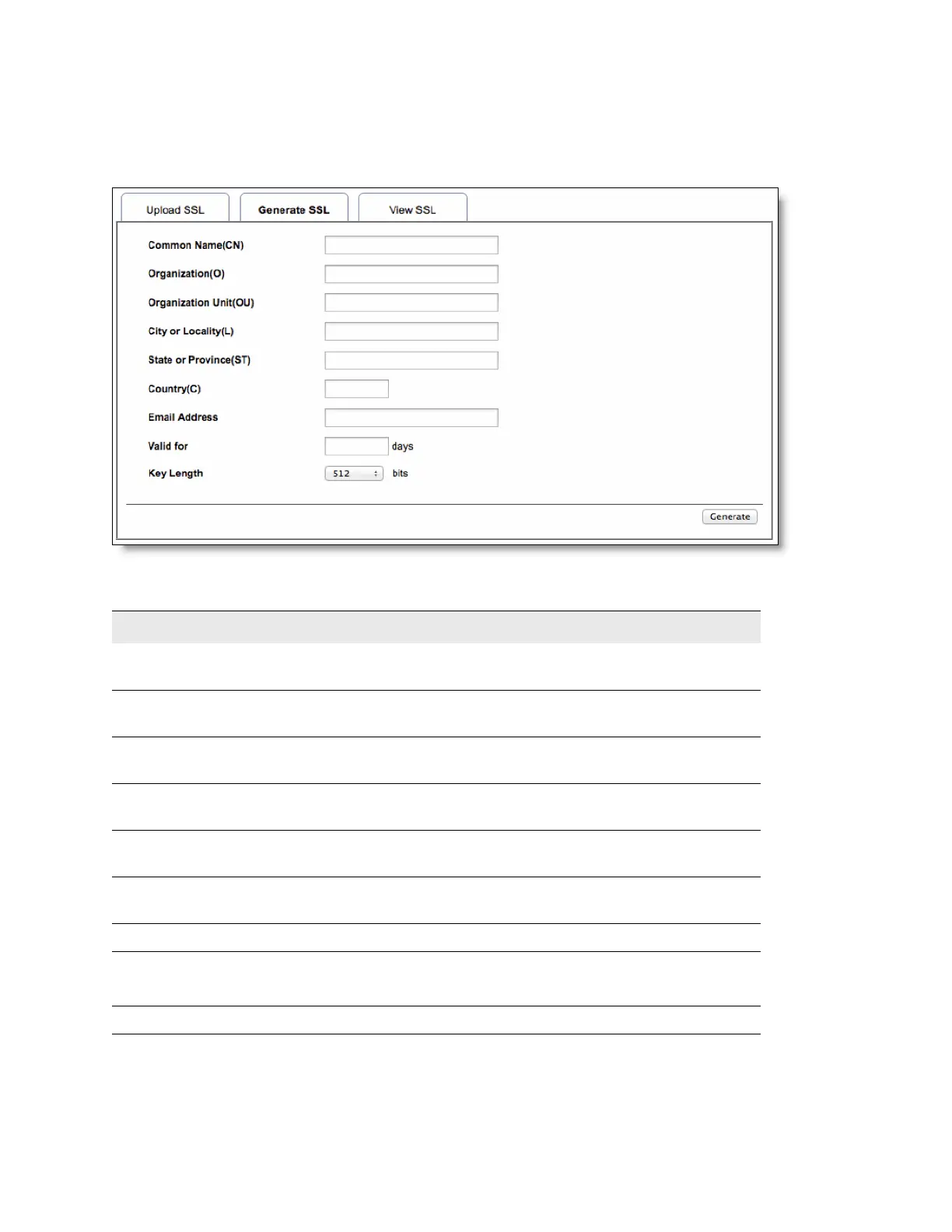
1. Choose Configuration > SSL and select the Generate SSL tab.
Figure D-8. Generate SSL certificate
2. Complete the configuration as described in this table.
3. Click Generate to create a new SSL certificate.
The HTTPS service restarts and begins using the new SSL certificate.
Control Description
Common Name
(CN)
Specify a common name for the certificate. The name can contain up to 64
alphanumeric characters. Special characters # and $ are not allowed.
Organization (O) Specify the organization name for the certificate. The name can contain up to 64
alphanumeric characters. Special characters # and $ are not allowed.
Organization
Unit (OU)
Specify the organization section unit name for certificate. The name can contain
up to 64 alphanumeric characters. Special characters # and $ are not allowed.
City or Locality
(L)
Specify the city or locality. The name can contain up to 64 alphanumeric
characters. Special characters # and $ are not allowed.
State or
Province (ST)
Specify the state or province. The name can contain up to 64 alphanumeric
characters. Special characters # and $ are not allowed.
Country (C) Specify the country code. This must be two characters. Special characters are
not allowed.
Email Address Specify the email address of the organization.
Valid for Specify the number of days the certificate is valid.
Value ranges from 1 to 3650 days.
Key Length Choose the key length bit value of the certificate.



 To Next Page