C2 User Manual, Release 1.0.0
4. Top or Bottom thickness
Here you can set different thickness for both the top and bottom of your print independently. In general,
bottom thickness does not need to be set as high as the top layers because you are printing onto a flat
surface. For the top layers, it is better to have more layers to fill in all voids in the print sufficiently.
5. Number of Top/Bottom layers
Instead of setting the thickness of your top and bottom layers, you can adjust the specific number of layers
if you wish. When you do this, the top/bottom thickness will be automatically calculated to match the
layers input.
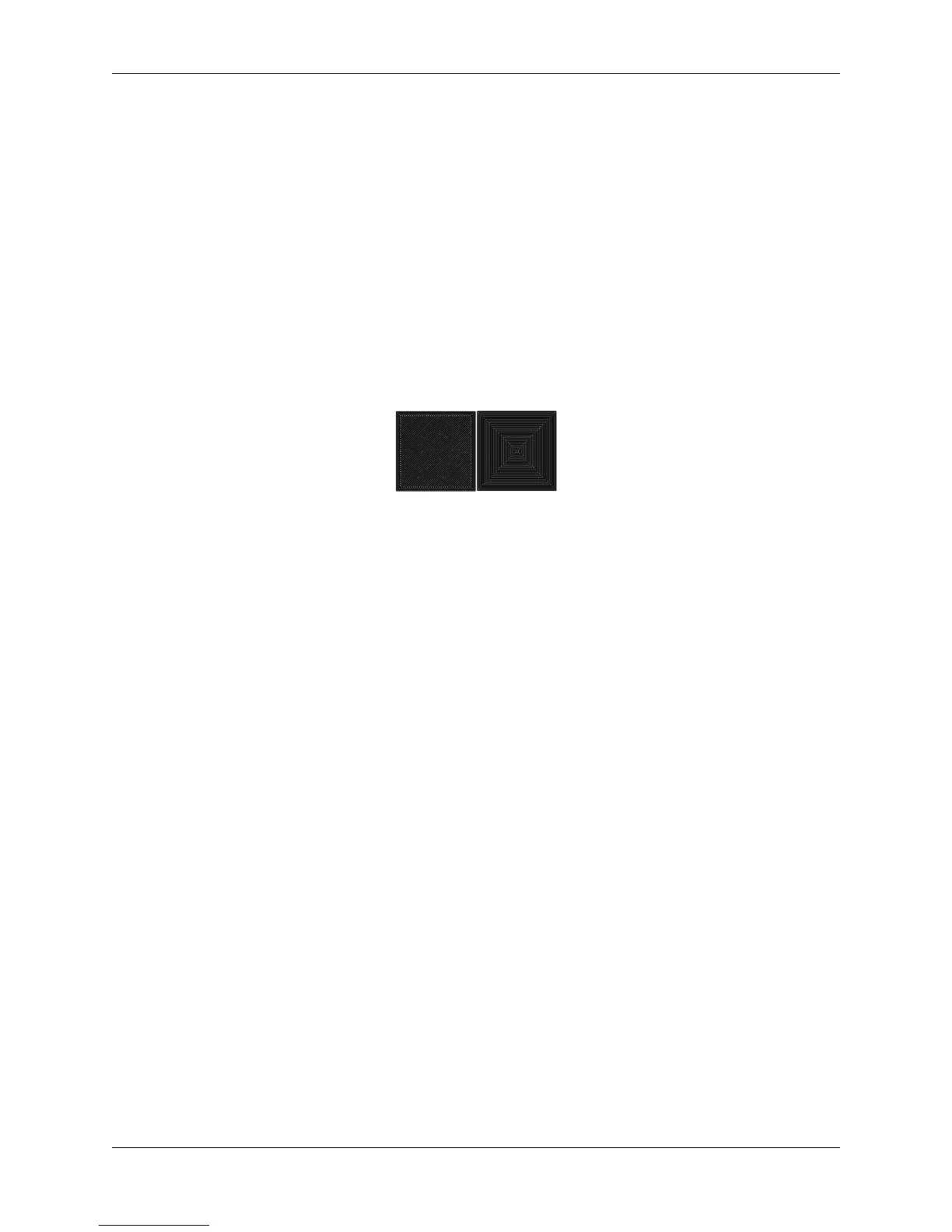
6. Top/bottom pattern
You are able to change the pattern of your top and bottom layers. There are 3 options; concentric, lines,
and zig zag. Concentric fills in your layers with the same pattern from the outside in. Lines and zig zag
both fill in your layers with a diagonal patern, either connecting to the shell or moving around the shell to
infill the layers.
Left: lines pattern - Right: concentric pattern
7. Z seam alignment
On most prints, there is a visible seam that appears on a model from when your printers’ nozzle pauses
to change layers in the z direction. Z seam alignment allows you to place where each new layer in the
z direction starts, effecting where the seam will be. There are 3 options to choose from; shortest, back,
random.
• Shortest will use the z seam wherever the last layer left off and will start the new one right away,
producing a shorter print time, but a visible seam.
• Back will simply put all layer changes at the back of the model, so make sure to rotate the model
towards the back of the build plate where you dont want the seam to show up.
• Random will choose a different spot to put the seam, which will eliminate visibility, but increase
print time.
Infill
1. Infill density
The infill density determines how dense your print will be by filling in your print with plastic by a certain
percentage. 100% infill density means your print will be totally and completely filled in with plastic,
while 0% infill density means your print will only print the perimeters with no plastic filling in the middle,
making it hollow. More infill produces a sturdier print, but takes more time, whereas less infill produces
a weaker print, and takes less time to print. An average infill density is around 20% for visual models,
whereas higher infil density parts are used more for structural or mechanical use models.
5.3. Settings 67


 To Next Page