C2 User Manual, Release 1.0.0
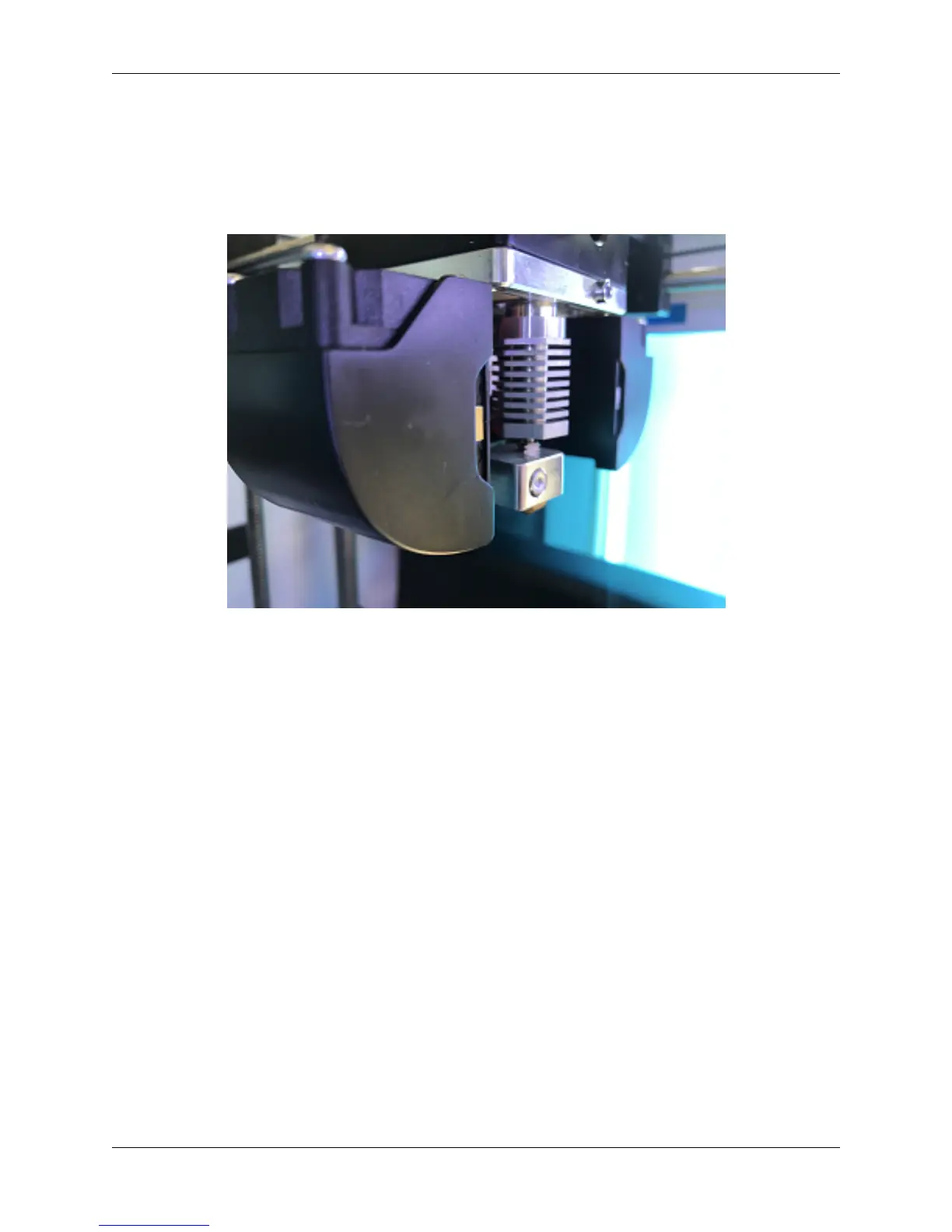
2. Loosen the hotend tensioner screw slightly. You do not need to loosen it completely, only enough to be able to
rotate the hotend while it is still inside its mount.
3. Align the heater block to be parallel with the extruder carriage. Make sure the heater block is not turned in such
a way that it is sticking out past the extruder carriage.
4. Tighten the hotend tensioner screw. Remember to not overtighten this screen, as it may be hard to perform
maintenance later.
5. Replace the hotend cover
4.10 Filament Runout Sensor Error
If you see an error while printing that lets you know you are out of filament, but you are not, check the next couple of
steps:
1. Make sure you are not bypassing the filament block
• In order for the filament sensor to work correctly, the filament needs to be run through the filament block on the
backside of your printer. The filament sensor is located in this black block and will give an error of no filament if
the filament is being run on the outside. Make sure you run all filament through this block to ensure the filament
sensor will detect your material.
2. Disable the filament runout sensor
• If the filament runout sensor is still reading that there is no filament inside your printer, even though it is going
through the filament sensor block, you can disable this software setting via the web browser. Take these steps to
disable the filament sensor:
1. Connect your printer to Wi-Fi. Go to Utilities> Network> Configure Wi-Fi and connect your printer.
2. Once you are successfully connected to the internet, lets find your IP address. Go to Utilities> Network>
Network Status. Here you will find the IP address.
50 Chapter 4. Troubleshooting


 To Next Page