C2 User Manual, Release 1.0.0
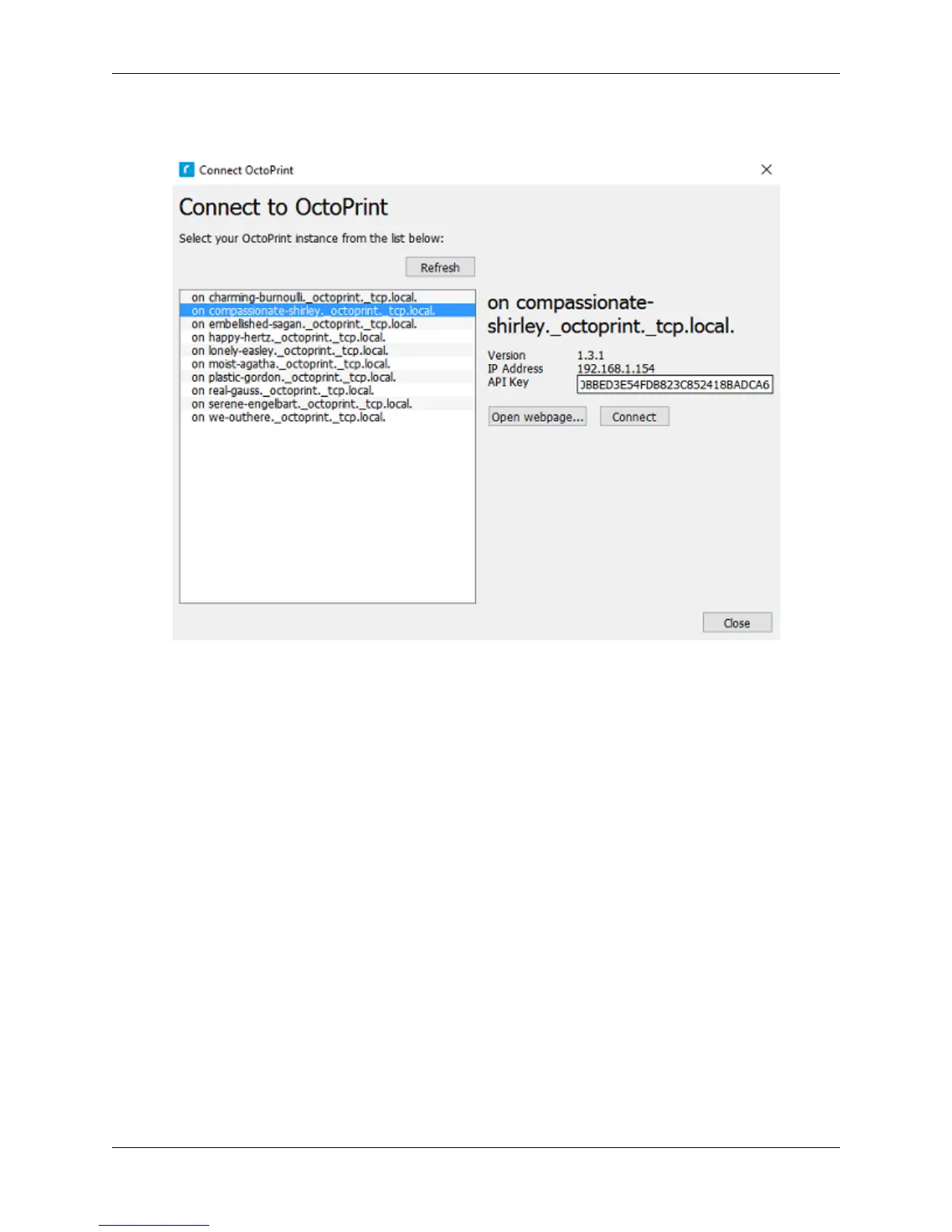
10. Next, go back into Cura for Robo desktop application. Paste this API key into the field provided by pressing
ctl+V on windows or command+V on a mac.
11. Finally, click on the ‘Connect’ button. Then press ‘close’.
12. Congratulations! You can now not only monitor your printer from within Cura for Robo, but you can also send
your print jobs directly to the printer with a single click!
Note; You should see a green check mark on the printer icon in the top right of the main interface. If you see a question
mark, try restarting the program. If you are still seeing a question mark, make sure both the printer and your computer
are connected to the same network.
5.5 Troubleshooting
5.5.1 Connecting Octoprint plugin for Mac
If you have downloaded the Mac version of Cura and are having problems seeing the ‘Connect Octoprint’ button in
your machine settings, follow these steps:
1. Find Cura 2.5 in your Applications folder.
2. Right click on Cura 2.5 and select “Show Package Contents”.
3. Navigate to the folder shown in the picture below:
5.5. Troubleshooting 79


 To Next Page