C2 User Manual, Release 1.0.0
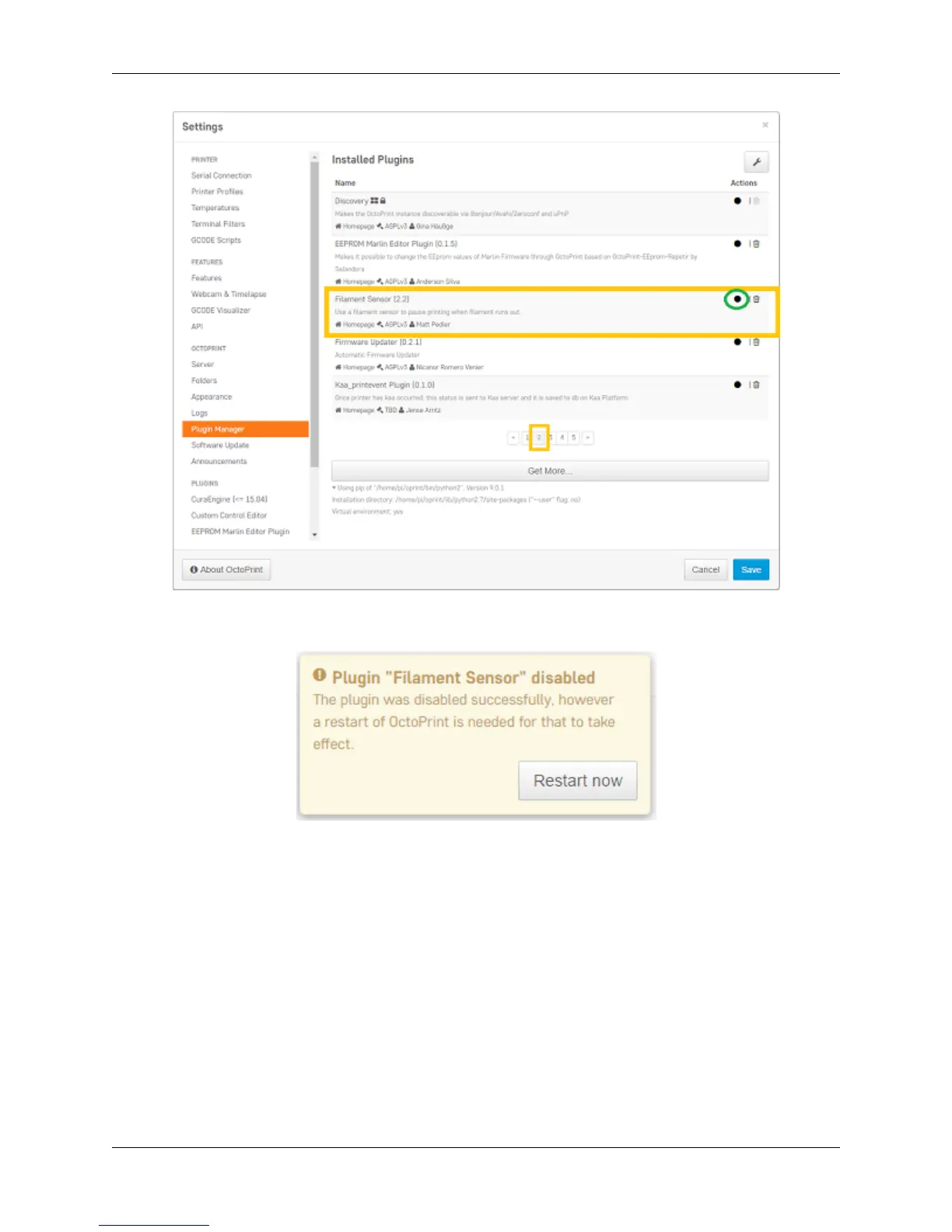
7. Once you have de-selected this plugin, you will need to restart Octoprint. A pop up will show on the top right
of the interface - click ‘restart now’. You should be good to print without filament runout detection interruption.
4.11 Firmware Update
This will walk you through the steps to update your firmware from the touchscreen and a USB drive.
1. Make sure you have the latest firmware. Download here: C2_Firmware.
2. Unzip the file and place the file onto a USB drive.
3. Place the USB drive into the USB slot on the front of your Robo C2.
4. On the touchscreen, navigate to Utilities > Options > Firmware Update
52 Chapter 4. Troubleshooting


 To Next Page