C2 User Manual, Release 1.0.0
6.4 Uploading stl Files
If you have an stl file that you want to print, you can slice it on your printer directly through the web dashboard. You
can grab an stl model from places like www.thingiverse.com, www.myminifactory.com, or upload your own from your
3d modeling software.
Once you have your stl file, go ahead and upload it to your printer by either of the two ways from the section above
Uplading gcode Files (link)
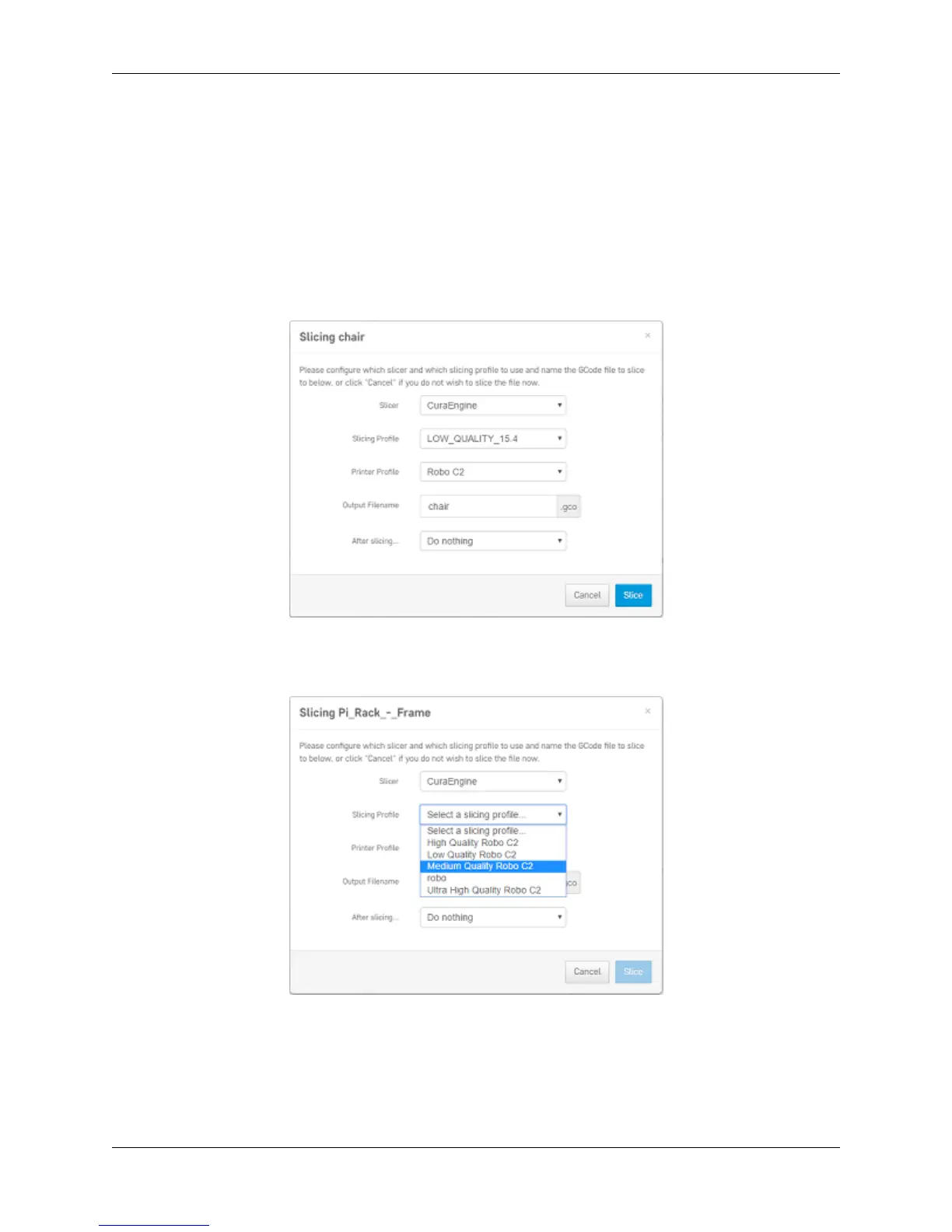
Once you upload your stl file to the printer via the web dashboard, a pop up window will show up asking you if you
would like to slice the file, and with what settings.
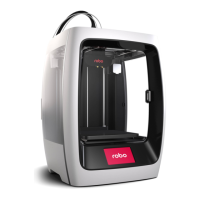
Choose from your print profile settings of Low, Medium, High, or Ultra High - with or without a raft. Once your
profile settings have been selected, you can choose to name your file and choose to start printing or do nothing after
slicing.
6.5 Set temperature and move motors
1. Under the ‘Temperature’ section of the web dashboard, you can set temperatures for your nozzle and your bed
(Robo R2 only). This is a good place to toggle your temperatures if your material needs more or less heat.
6.4. Uploading stl Files 85


 To Next Page