C2 User Manual, Release 1.0.0
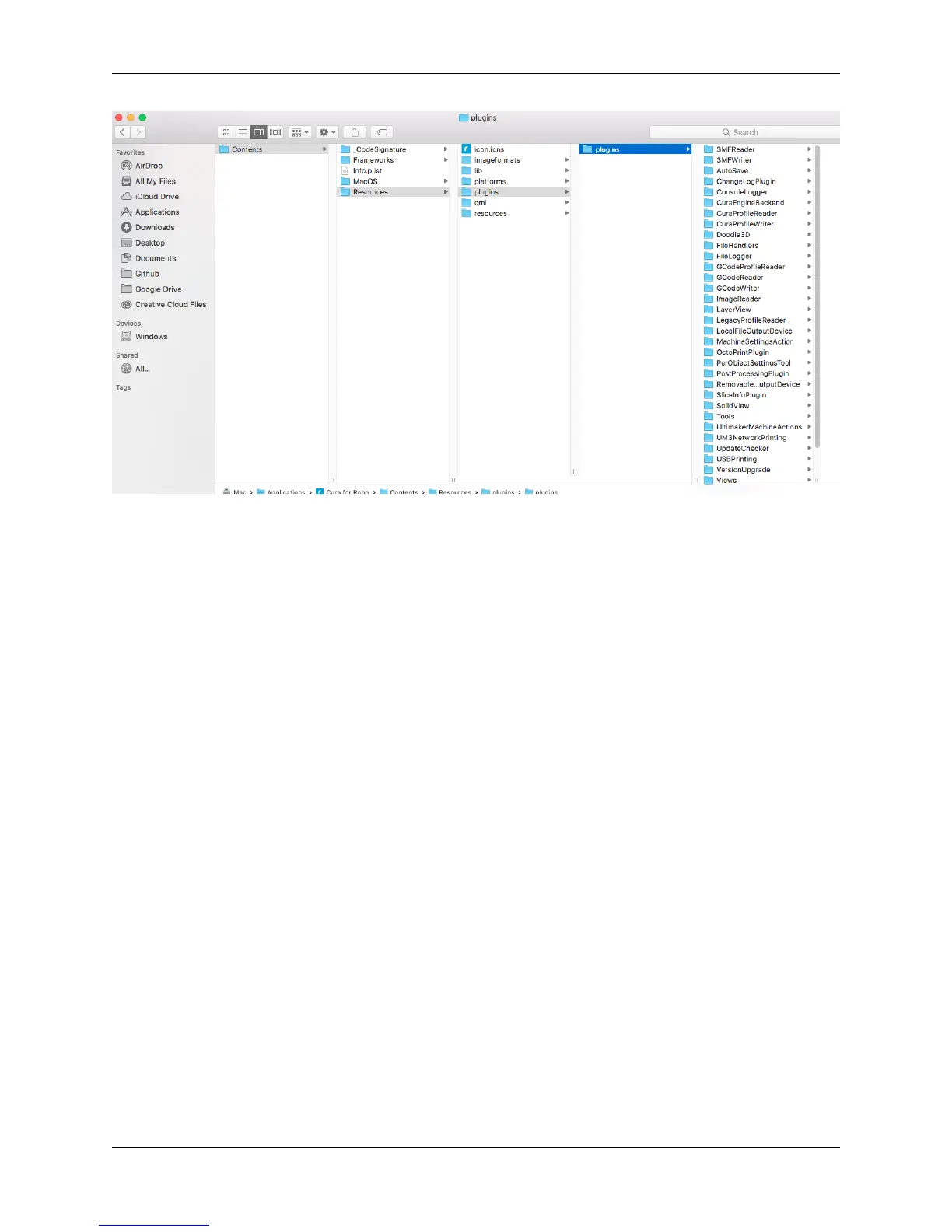
4. Unzip, and add the folder labeled OctoPrintPlugin to the “plugins” folder. Download here: OctoPrintPlugin.
5. Restart cura 2.5
5.5.2 .dll error for HP computers
If you are having trouble opening Cura for Robo Desktop because of the dll error, follow these steps to get you to be
able to run the software.
1. Download http://ftp.hp.com/pub/softpaq/sp78001-78500/sp78033.exe and extract the files.
2. Open windows Control Panel by right clicking on the windows start icon.
3. Open Programs and Features, right click the entry for HP 3D DriveGuard and select Uninstall. (If it is not in the
list, just run the setup file from step 1 and select Remove if that option is available)
4. When this has completed, restart your computer.
5. Run the setup again from step 1. If you get an INI error during setup, it doesn’t matter, the necessary files have
been deployed, just close it.
6. Cura for Robo should now run properly.
80 Chapter 5. Cura for Robo Desktop


 To Next Page