C2 User Manual, Release 1.0.0
Top/bottom speed determines how fast your solid top and bottom layers are printed. Note that the slower
bottom layers give you more reliability of the model by giving it a dependable base, and slower top layers
give you a more reliable roof on your print to give it a nice surface and close off all gaps.
6. Travel speed
Travel speed determines how fast your print head will move when it is not extruding material and printing
your model. This move can be higher than your print speed to make printing time lower, but be mindful
of moving too fast and motors or belts failing.
7. Initial layer speed
The speed for the first layer. A lower value is used here to improve adhesion to the build platform and get
a reliable first layer down.
8. Initial layer travel speed
The travel speed for the first layer. A lower value is used here to ensure that the print nozzle does not
potentially touch existing plastic laid down on the build platform and pull it up, resulting in a failed print.
9. Number of slower layers
The number of slower layers determines how many layers from the beginning of the print are going to be
slower than the rest. The overall success rate of a print is relying on the first layers adhering to the bed
correctly. The speed of your print is gradually increased over these layers.
Travel
1. Combing mode
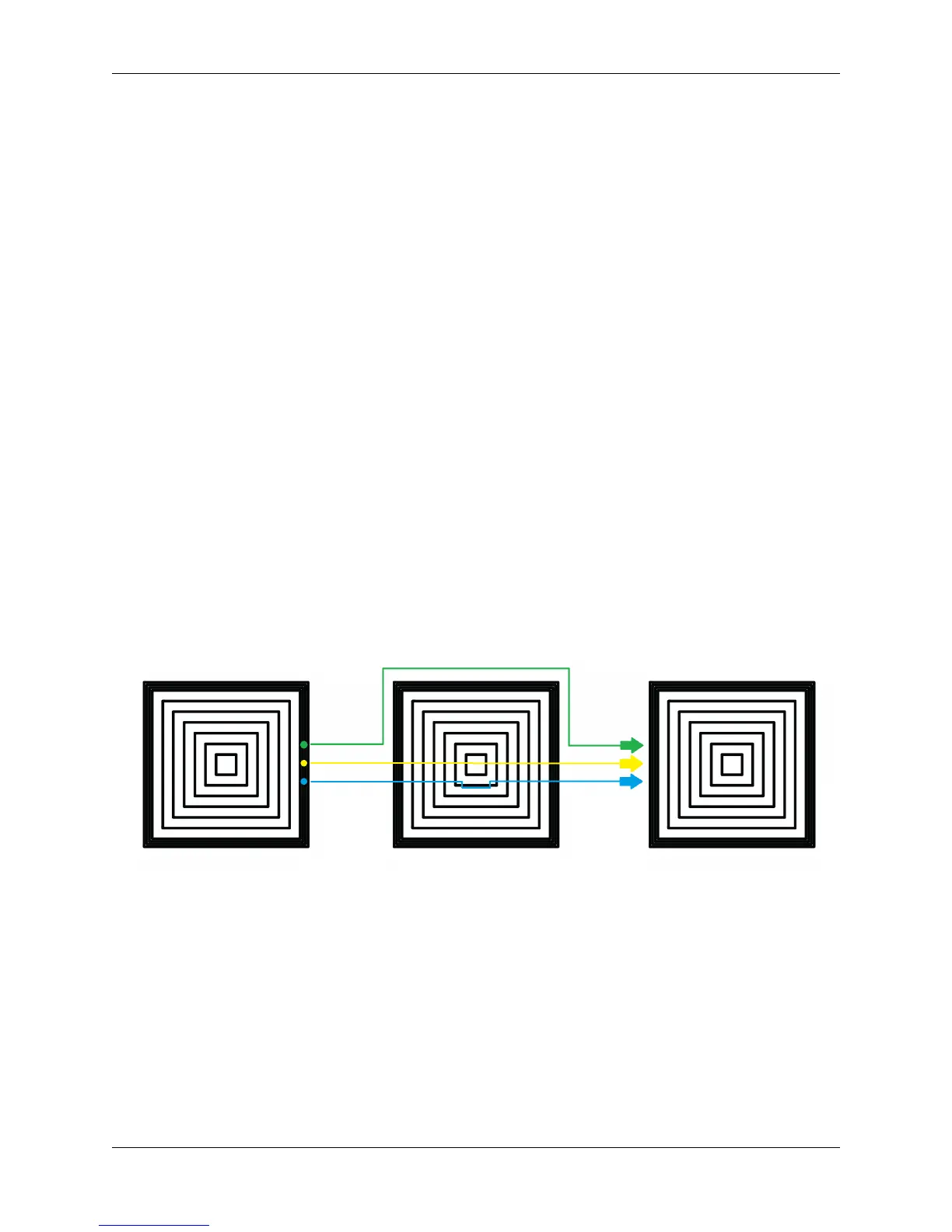
Combing mode keeps the print nozzle within the interior of the model whil traveling from one point to
another. This reduces the number of retraction moves because the extruder wont retract if enabled, but
will increase print time. If combing mode is off, the print nozzle will travel the shortest distance from
where it stopped to the next point it needs to go, not minding what is in its path underneath it.
Green: Combing ON, avoid distance ON - Yellow: Combing OFF - Blue: Combing ON, avoid distance OFF
2. Avoid printed parts when traveling
Avoid printed parts when traveling will move the nozzle around printed parts to make potential oozing
not get hit by the printed part. Sometime this can lead to the nozzle hitting an existing printed part and
knocking it over as well. Enabling this will increase the surface quality of your printed part.
3. Travel avoid distance
Travel avoid distance determines how far a distance your print nozzle will will be from your existing
printed parts when ‘avoid printed parts when traveling’ is enabled. The further this distance is away, the
less chance you have at running into a part with your nozzle, but will increase printing time of your model.
4. Z-hop when retracted
70 Chapter 5. Cura for Robo Desktop


 To Next Page