59
Menu List
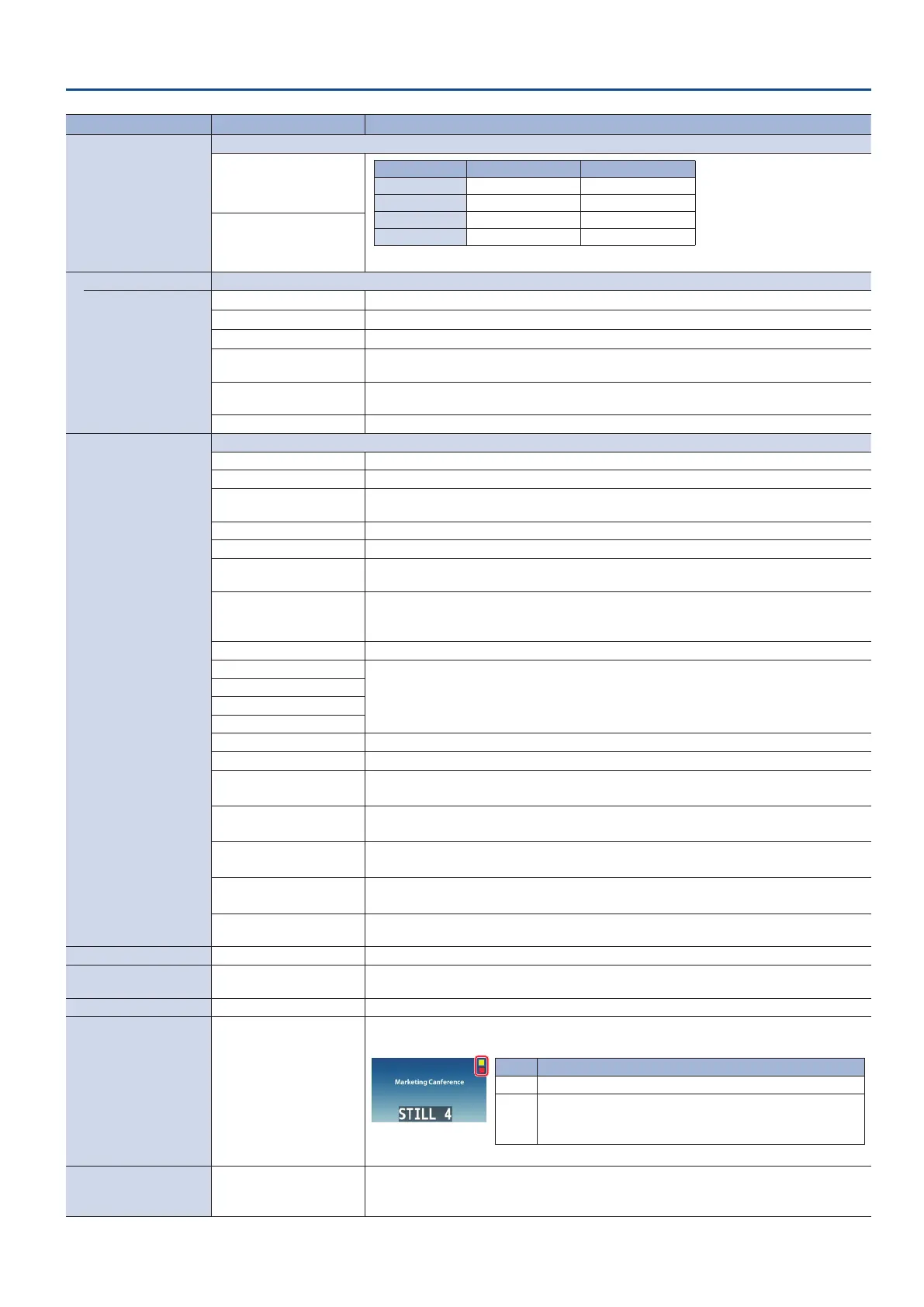
Menu item Value (bold text: default value) Explanation
CONTROL KNOB
PRIORITY
Species the settings that are operated by the [CONTROL 1] and [CONTROL 2] knobs when both split and PinP compositing are on.
SPLIT
Knob SPLIT PinP
[CONTROL 1] A-CENTER POSITION H
[CONTROL 2] B-CENTER POSITION V
[CONTROL 3] CENTER POSITION SIZE
[CONTROL 4] SPLIT TYPE ZOOM
* If you turn a knob while pressing it, these knobs function as [CONTROL 3] [CONTROL 4] knobs.
PinP
OUTPUT FADE ASSIGN Specify the functions when turning the [OUTPUT FADE] knob counter-clockwise (TURN LEFT) or clockwise (TURN RIGHT).
TURN LEFT
TURN RIGHT
BLACK
The nal output video is faded-in/out to a black screen.
WHITE
The nal output video is faded-in/out to a white screen.
AUDIO
Adjusts the output volume.
BLACK&AUDIO
Fades-in/out the nal output video and audio simultaneously. The video fades to a black screen.
This is the default setting for “TURN LEFT.”
WHITE&AUDIO
Fades-in/out the nal output video and audio simultaneously. The video fades to a white screen.
This is the default setting for “TURN RIGHT.”
STILL 1–4 OUTPUT The specied still image is output as a cut to nal/preview output.
DSK PVW SW ASSIGN
DSK ON SW ASSIGN
Species the function of the [DSK PVW] [DSK ON] buttons.
N/A No function is assigned.
DSK SW Turns DSK composition on/o. This is the default setting for “DSK ON SW ASSIGN.”
DSK PVW
Turns the preview output of the DSK compositing result on/o. This is the default setting for “DSK
PVW SW ASSIGN.”
FREEZE Turns the freeze function on/o.
AUTO SWITCHING Turns the auto switching function on/o.
INPUT 1–4 ASSIGN
When “TYPE” in the AUTO SWITCHING menu is “BPM SYNC,” you can set the BPM according to the
tempo at which you press the button. The buttons ash in sync with the current BPM setting.
INPUT 1–4 ASSIGN
The video source assigned to the specied input switches between HDMI and STILL 1 through 4
in order, with each press of the button.
* If there is no video input or if a still image has not been saved, this is skipped.
STILL 1–4 OUTPUT Outputs the specied still image.
INPUT 1–4 MUTE
Turns the mute function on/o for the specied input audio.
AUDIO IN 1, 2 MUTE
LINE IN MUTE
MIC/AUXIN MUTE
OUTPUT MUTE Turns on/o the mute function for the output audio.
REVERB SW Turns reverb on/o.
INPUT SCAN N
The nal output switches from INPUT 1
0
4 in order, with each press of the button.
* If there is no video input, this is skipped.
INPUT SCAN R
The nal output switches from INPUT 4
0
1 in order, with each press of the button.
* If there is no video input, this is skipped.
MEMORY SCAN N
The preset memories 1
0
8 are recalled in order with each press of the button.
* Preset memories in which no settings have been saved are skipped.
MEMORY SCAN R
The preset memories 8
0
1 are recalled in order with each press of the button.
* Preset memories in which no settings have been saved are skipped.
REC START/STOP
Controls the recorder’s video record start/stop if a recorder that supports REC control
functionality is connected.
LED DIMMER 1–8 Adjusts the brightness when the buttons or indicators are lit.
ON SCREEN MENU
UPPER LEFT, UPPER RIGHT,
LOWER LEFT, LOWER RIGHT
Species the location of the menu displayed on the multi-view.
TALLY FRAME OFF, ON Species whether to display the tally frame or not in the multi-view.
STILL/PinP INDICATOR OFF, ON
If this is “ON,” the indicators display the status in the still image or input video section of multi-
view, as shown below.
Color Explanation
Yellow
Shows that this has been selected as an inset screen for the PinP.
Red
Shows whether the still image has been output.
* Only when pressing the [1/5]–[4/8] buttons and outputting
a still image (p. 22).
REC INDICATOR OFF, ON
Species whether to display the REC indicator in the multi-view.
When this is “ON,” a REC indicator showing that the camera’s REC button has been pressed is
displayed, if the unit is connected to a camera that supports the REC status function.


 To Next Page