Chapter 10 Maintenance and Options
93 TS4240 User’s Guide
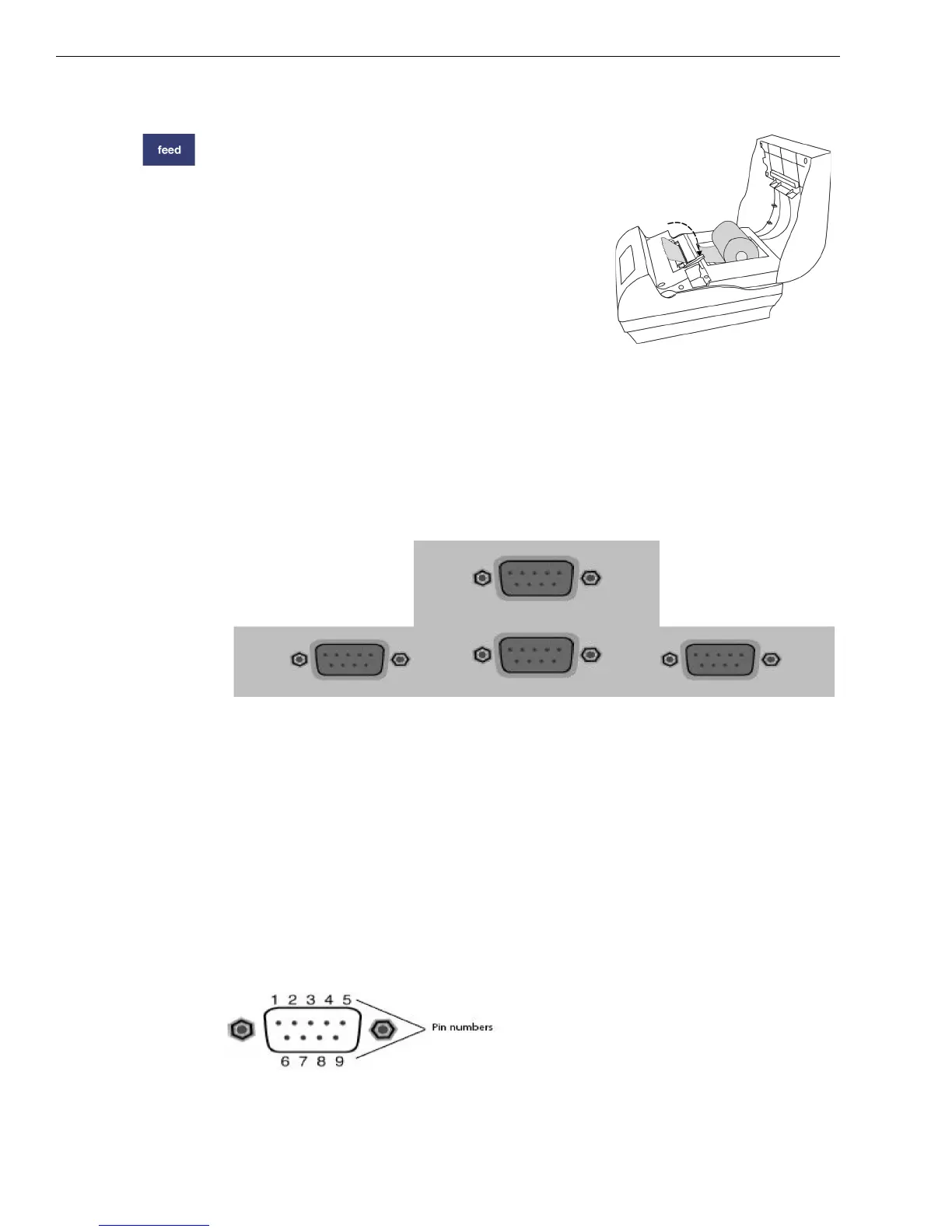
5 Flip the little handle towards the back of the printer.
6 Press the Feed key to move the paper
through the printer to make sure there is
no jam and the paper is properly installed
before continuing.
7 Feed the paper through the paper slot in
the printer cover.
8 Close the printer cover.
Note
Make sure the thermal paper feeds from the
correct position or printing errors will occur.
About the Serial Port
Your cash register includes 4 serial ports. You can connect items to the
cash register using these serial ports. You can connect the receipt printer,
a PC, an optional barcode reader, or a secondary/backup (KP) printer.
The receipt printer connects to the serial port labeled RECEIPT
PRINTER. To use the optional barcode reader, connect it to the serial
port labeled SCANNER. You can use the serial port labeled PC to
connect the cash register to a PC to use the RegisterLink software. To use
a KP printer, connect it to the port labeled KP.
To connect your computer to the serial port, you need a specific
null-modem serial cable. A 6 foot null modem serial cable is included in
the box with the cash register to use with a PC. If it is lost or damaged,
contact Royal for a replacement.
The pin description for all serial ports on the cash register is shown below.
PC
SCANNER
RECEIPT PRINTER
KP



 To Next Page