TS4240 User’s Guide 66
Using Tables
To open and close a table
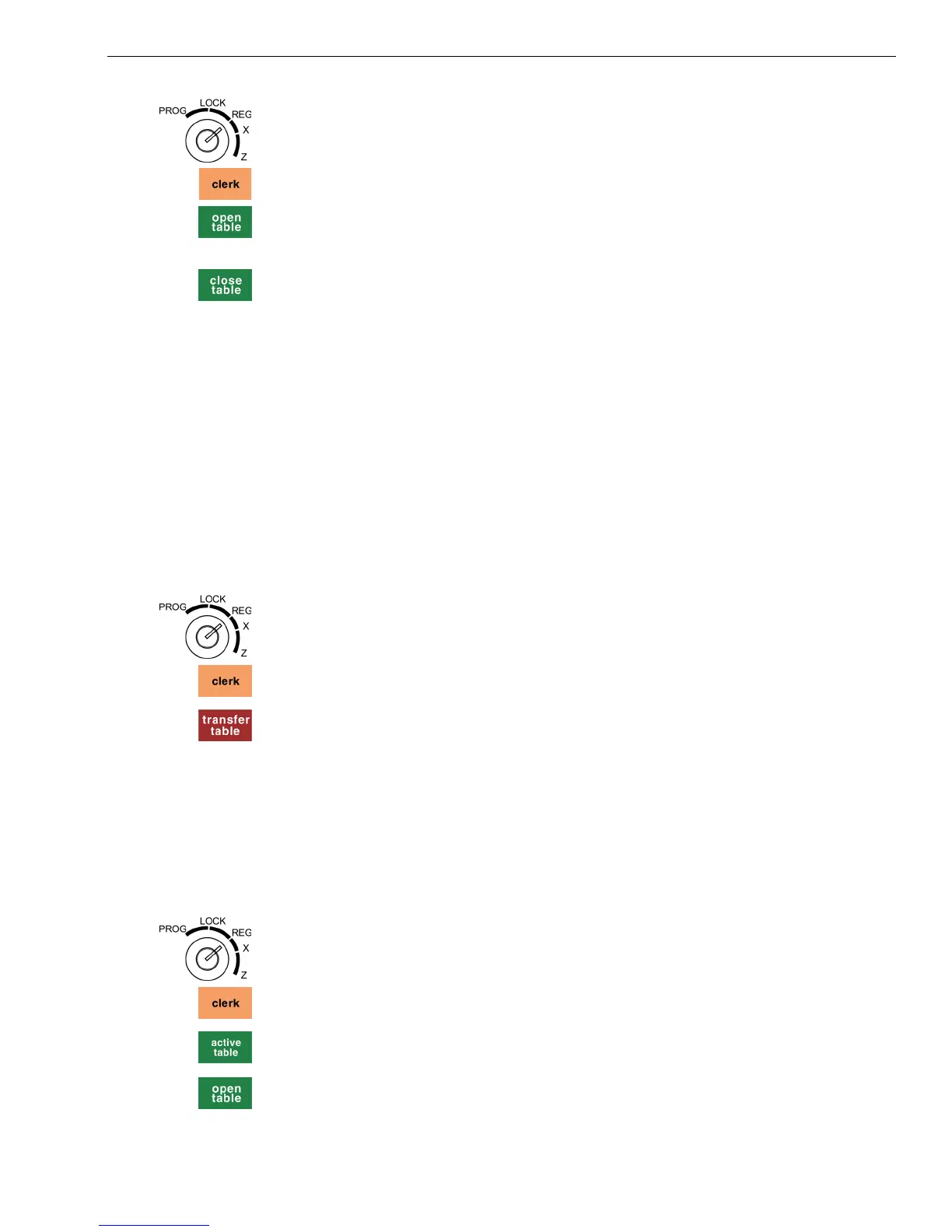
1 Put the REG key in the Mode key slot and turn it to the Reg position.
2 If the clerk numbers are set, press the four digit passcode and then press
the Clerk key.
3 Enter the table number you want to open. Press the open table key.
4 Add the order information you want.
5 When you are done, press the close table key.
Transferring Tables
A wait person can transfer an active table to another table. This is useful,
for example, if patrons move from the bar to a table in the restaurant.
The currently logged in clerk is in control of any table transferred while
they are logged in. When transferring tables, the current active clerk will
be the new default clerk after any transfers take place.
For example, if Bill has tables 1 and 2 and Susan logs in and transfers table
1 to table 3, Susan becomes the assigned clerk for table 3. This also applies
to the Super Clerk code used in emergency situations. For more
information about the Super Clerk, see Setting X and Manager Passcodes
on page 30.
To transfer a table
1 Put the REG key in the Mode key slot and turn it to the Reg position.
2 If the clerk numbers are set, press the four digit passcode and then press
the Clerk key.
3 Press the transfer table key.
4 Follow the instructions on the screen. When you are done, a
confirmation of the table transfer will appear on the screen and print.
Viewing Active Tables
You can view all active open tables. You can see sales totals and clerk
names. If you do not have the clerk IDs set, you see N/A as the clerk
name.
To view active tables
1 Put the REG key in the Mode key slot and turn it to the Reg position.
2 If the clerk numbers are set, press the four digit passcode and then press
the Clerk key.
3 Press the active table key.
4 Optionally, open a table by entering the table number and pressing the
open table key.



 To Next Page