TS4240 User’s Guide 80
Using VAT Tax Rates
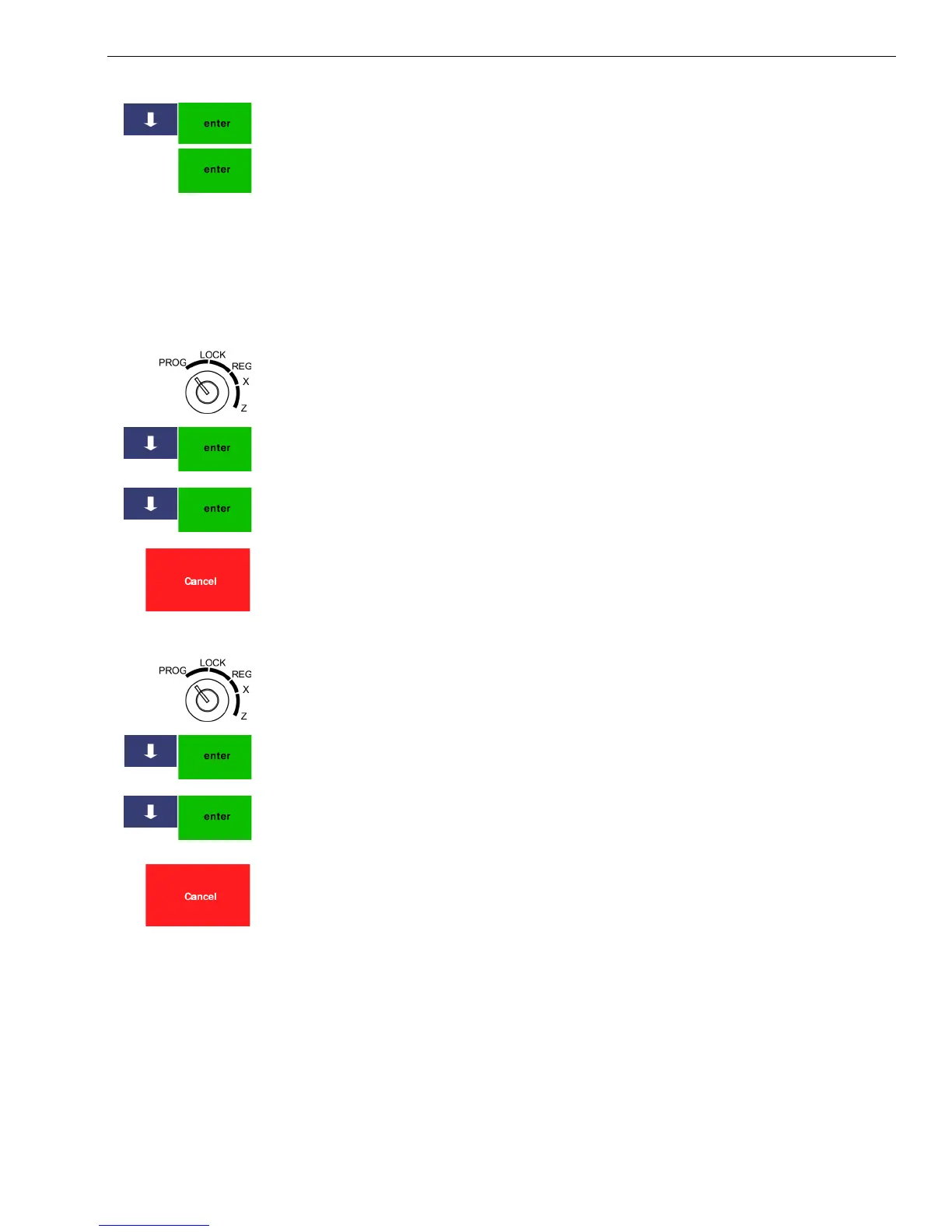
4 Select either GST or Non-GST.
5 Press the Arrow Down key to Tax-on-tax. Press Enter.
6 Make your selection and press Enter.
Using VAT Tax Rates
The Value Added Tax is commonly used in Mexico and Europe, as well as
other locations.
To set the cash register to use VAT tax
404 -- Tax SettingSystem Configuration SettingTax System
1 Put the MGR key in the Mode key slot and turn it to the PROG position.
If prompted, enter the Manager passcode and press Enter.
2 Press the Arrow Down key to select 404 -- Tax Setting. Press Enter.
3 Select the tax you want to change. Press Enter.
4 Using the number area, enter the tax rate to set using a 5 digit code. Press
Enter.
5 Repeat for each tax you want to set.
6 When you are done, press the Cancel key.
To set a VAT tax
404 -- Tax SettingSystem Configuration SettingTax System
1 Put the MGR key in the Mode key slot and turn it to the PROG position.
If prompted, enter the Manager passcode and press Enter.
2 Press the Arrow Down key to select 404 -- Tax Setting. Press Enter.
3 Select the tax you want to change. Press Enter.
4 Using the number area, enter the tax rate to set using a 5 digit format.
Press Enter.
5 Repeat for each tax you want to set.
6 When you are done, press the Cancel key.
Printing a Confirmation Report
To check your results, see Options Dump Report on page 57.



 To Next Page