Navigation (NAV)* 107
Operating RADIO, MEDIA (audiovisual
systems)
NAME, TEL NAV, INFO CAR, SETUP
Select Street
You can specify the destination more precisely by entering a street name.
After selecting the street, you can specify more detailed destination criteria
by entering an intersection, a house number or through Enter destination on
map ⇒ page 111.
If you would like to find a street independently of the city, select Street
⇒ page 109 in the destination entry menu after selecting the country.
Select Special destination in city
You can select a special destination in the specified city. For example, you can
navigate directly to tourist attractions or public facilities (e.g. hospital,
cinema, recreation areas).
If this function is not available in the display (is greyed out) there are no
special destinations available for the city selected.
If you would like to find a particular special destination independently of the
city, select Special destination ⇒ page 110 in the destination entry menu
after selecting the country.
Select Destination entry on map
You can find destinations for a specified city from the map display.
If the map is being displayed to select a destination, the cursor is in the
centre of the city in question. By moving the cursor horizontally and vertically,
you can set a new destination ⇒ page 129.
If additional information is available for the selected point on the map, you
can display it by selecting the Detail info function.
You can also select a stopover from the map display using the option Set as
stopover ⇒ page 120.
You can also store a selected map destination using the option Store in direc-
tory ⇒ page 117.
Enter a street name to specify a more detailed position of the map.
Note
• Once you have entered a city in the keyboard, you can confirm the entry
by pressing and holding down the control knob. Or, you can enter the first few
letters of a city until you see the desired town listed on the keyboard display
and then shift directly to the city list by pressing down on the control knob.
• Once they have been entered, you can store route plans and then use
select them again later, using the "Load route" function ⇒ page 118.
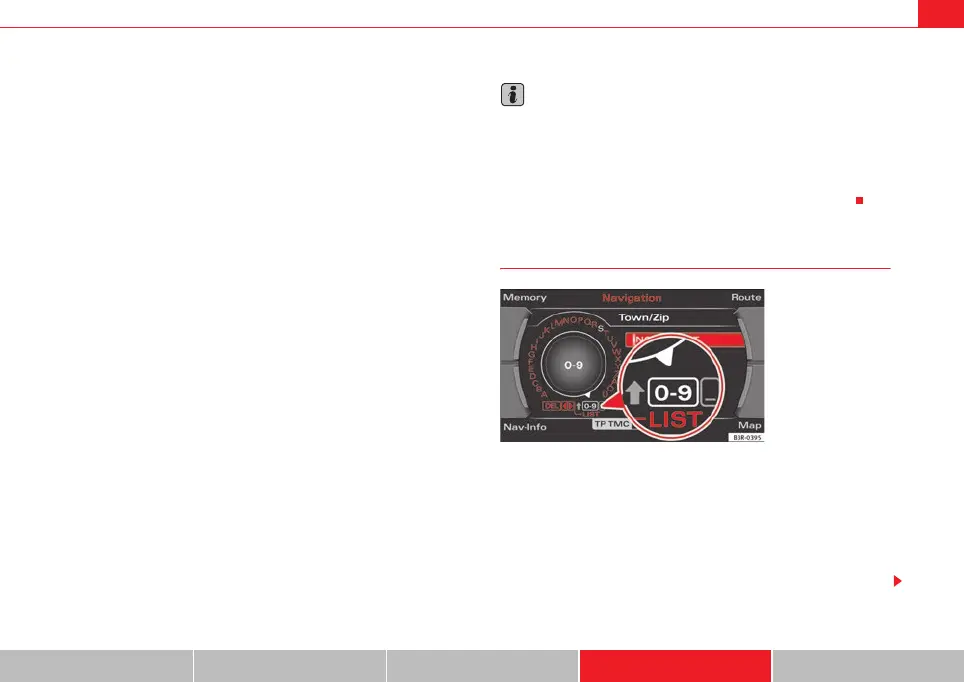
Entering a city/street with special characters
– If necessary, select a different Country from the list in the desti-
nation input menu using the rotary pushbutton.
– Select Town/ZIP or Street.
– Using the keyboard for letters, enter the city/ street name up to
the point where the special character is required (e.g. a dash)
⇒ fig. 124.
Fig. 124 Navigation:
Switching from the
keyboard for letters to
numbers
media_systemE_EN.book Seite 107 Montag, 21. September 2009 1:48 13



 To Next Page