Audio and Media Mode
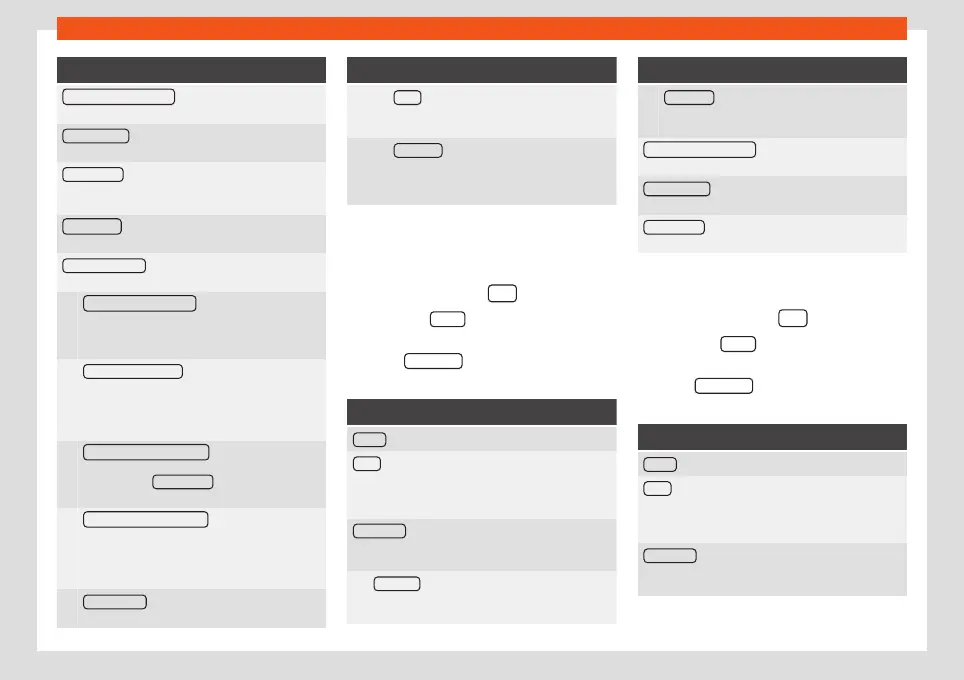
Function button: function
Traffic programme (TP) : The TP function (traffic news
station tracking) is active
›››
page 36.
Delete presets : To delete all or some of the stored sta-
tions.
Station logos : To manually assign or delete the stored
station logos to and from the memory buttons
›››
page 34.
Radio text : Radio Text is active
›››
page 31, Radio
text.
Advanced settings
a)
: Setup of the RDS (radio data sys-
tem).
Autostore station logos
a)
: Logos can be auto-
matically assigned to the stations stored on the
memory buttons if they are available in the Info-
tainment system. Also see
›››
page 34.
Region for station logo
a)
: Allows you to select the
region (country) in which the vehicle is located.
This optimises the automatic assignment of sta-
tion logos. The option also allows the system to
select the region automatically.
Alternative frequency (AF)
a)
: The automatic sta-
tion tracking is active. With the
checkbox de-
activated, the RDS regional function button re-
mains inactive (grey).
Radio Data System (RDS)
a)
: The Radio Data
System (RDS) is deactivated
›››
page 31. If the
checkbox is deactivated, the traffic news sta-
tion functions (TP), Radio Text, station name and
programme type will not be available.
RDS Regional
a)
: Setting automatic station
tracking by RDS
›››
page 31.
Function button: function
Fixed : The unit only switches to alternative
frequencies for the selected station if the
same regional service is being broadcast.
Automatic : the unit always switches to the
station's frequency that currently offers the
best reception. As a result, regional pro-
grammes may be interrupted.
a)
This depends on the country and unit in question.
AM Setup
Select the AM frequency band by pressing
the Infotainment button
.
OR: Press the
BAND
function button and se-
lect the AM frequency band.
Press the SETTINGS function button to open
the
AM Settings
menu.
Function button: function
Sound : Sound settings
›››
page 93.
Scan : Scan function. When the scan function is ac-
tive, all available stations on the current frequency
band are played in sequence for approximately 5
seconds
›››
page 35.
Seek mode : To adjust settings for the buttons with the
arrows
and
. This setting applies to all frequency
bands (FM, AM and DAB).
Preset list : All stored stations on the selected fre-
quency band can be browsed with the arrow
buttons.
Function button: function
Station list : All available stations on the selected
frequency band can be browsed with the arrow
buttons.
Traffic programme (TP) : The TP function (traffic news
station tracking) is active
›››
page 36.
Delete presets : To delete all or some of the stored sta-
tions.
Station logos : To assign the logos to the stations stor-
ed on the memory buttons
›››
page 34.
DAB Settings
Select the DAB frequency band by pressing
the Infotainment button
.
OR: Press the
BAND
function button and se-
lect the DAB frequency band.
Press the SETTINGS function button to open
the
DAB Settings
menu.
Function button: function
Sound : Sound settings
›››
page 93.
Scan : Scan function. When the scan function is ac-
tive, all available stations on the current frequency
band are played in sequence for approximately 5
seconds
›››
page 35.
Seek mode : To adjust settings for the buttons with the
arrows
and
. This setting applies to all frequency
bands (FM, AM and DAB).
»
37



 To Next Page