Telephone management system
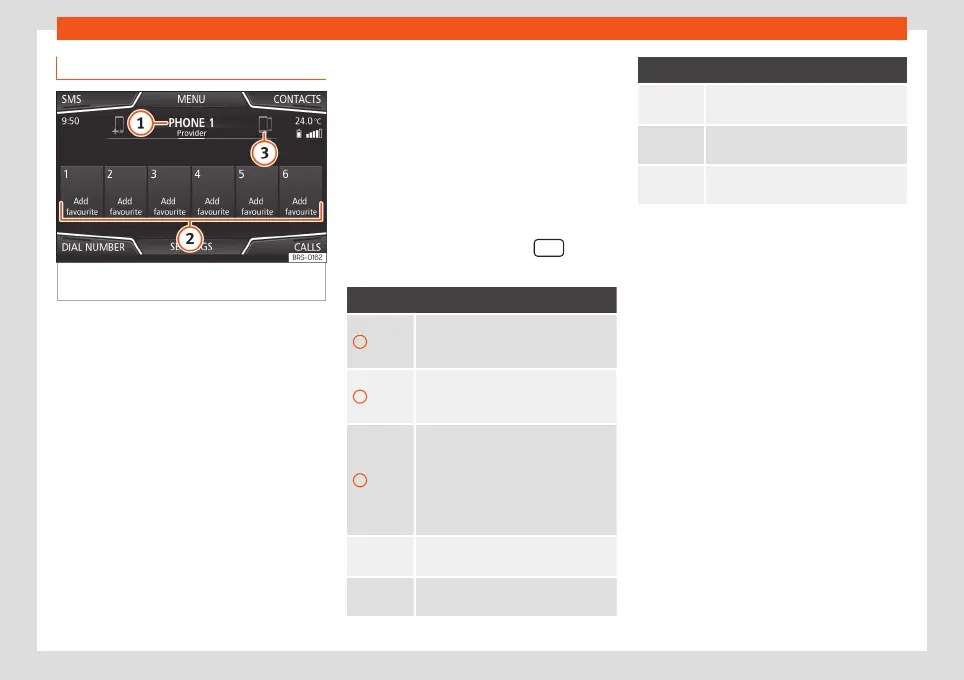
Phone main menu
Fig. 69
Telephone main menu (view of the 8"
screen).
Assign a user profile
The data from the phonebook, the call lists
and the stored speed dial buttons are as-
signed to a user profile and remain stored on
the telephone management system. This in-
formation will be available every time the mo-
bile telephone is connected to the telephone
management system.
After the first connection, it will take a few mi-
nutes for the data from the phonebook of the
linked mobile phone to be available in the In-
fotainment system. The next time that the
mobile telephone is connected (e.g. on the
next journey) the phonebook is updated au-
tomatically.
If any entries in the mobile phonebook have
been modified while connected, a manual
update of the phonebook data can be initi-
ated from the
User profile settings
menu
›››
page 89.
Telephone management can store a maxi-
mum of 4 user profiles for mobile telephones.
If you wish to link/connect another mobile
phone, the oldest user profile will automati-
cally be replaced.
Telephone management system function
buttons
●
Press the infotainment button
to open
the Phone main menu.
Function button: function
1
Name of connected mobile telephone.
Press the icon to the left to connect or
pair with another mobile telephone.
2
Speed dial buttons, to which telephone
numbers from the phonebook may be
assigned respectively
›››
page 88.
3
To change to another telephone con-
nected to the hands-free profile. This
button will only be visible when there
are two telephones connected as
hands-free. The active user profile cor-
responds to the telephone appearing
on the screen.
DIAL
NUMBER
To open the number pad and enter a
telephone number
›››
page 85.
CONTACTS
To open the phonebook of the connec-
ted mobile telephone
›››
page 85.
Function button: function
SMS
To open the menu for SMS messages
›››
page 87.
CALLS
To open call lists of the connected mo-
bile telephone
›››
page 87.
SETTINGS
To open the Telephone settings
menu
›››
page 89.
83



 To Next Page