Wi-Fi network with your browser device as you've configured for the
openSPOT4.
Make sure you have enabled 2.4GHz Wi-Fi, not just 5GHz.
Place the openSPOT4 close to the Wi-Fi router.
Make sure the Wi-Fi bandwith is set to max. 20Mhz in the Wi-Fi router
(see explanation here).
If it still does not work, try switching Wi-Fi channel on your Wi-Fi router.
Only channels 1, 6 or 11 should be used (see explanation here).
You can also find more information on the Connecting the openSPOT4 to a Wi-
Fi network page on the steps required to set up the openSPOT4's Wi-Fi
connection.
The status LED is green/yellow
Green/yellow LED means the openSPOT4 is connected to the configured Wi-Fi
network and it is standing by (the Null connector is active).
What you have to do is to connect your browser device (phone/tablet/computer)
to the exact same Wi-Fi network as you've configured for the openSPOT4 and
use SharkRF Link to open its web interface. If it does not work, then make sure
Wi-Fi client isolation is turned off in your Wi-Fi router's settings.
The web interface only loads partially
Make sure you use a supported browser (Chrome, Firefox or Safari), and that the
browser is updated to the latest version.
If you're trying to do the initialization setup (the openSPOT4's status LED is
white), then place the openSPOT4 close to your browser device
(phone/tablet/computer) during the setup.
Otherwise, try placing the openSPOT4 closer to the Wi-Fi access point (your
Wi-Fi router).
I need help connecting the openSPOT4 both to home
and phone Wi-Fi network
Here's a quick tip on setting up the openSPOT4 both for home and phone Wi-Fi
connections. If you can open the web interface of the openSPOT4 right now,
then proceed to step 7. Otherwise, start with step 1.
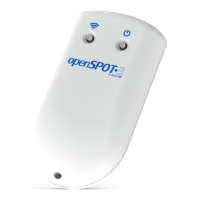
1. Turn on the openSPOT4's AP (access point) mode by pressing the Wi-Fi
button for 3 seconds. The status LED will become white.


 To Next Page