SYSTEM VIEW
2-9
SIG-QG-20-02 JANUARY 2021
Version : A.2
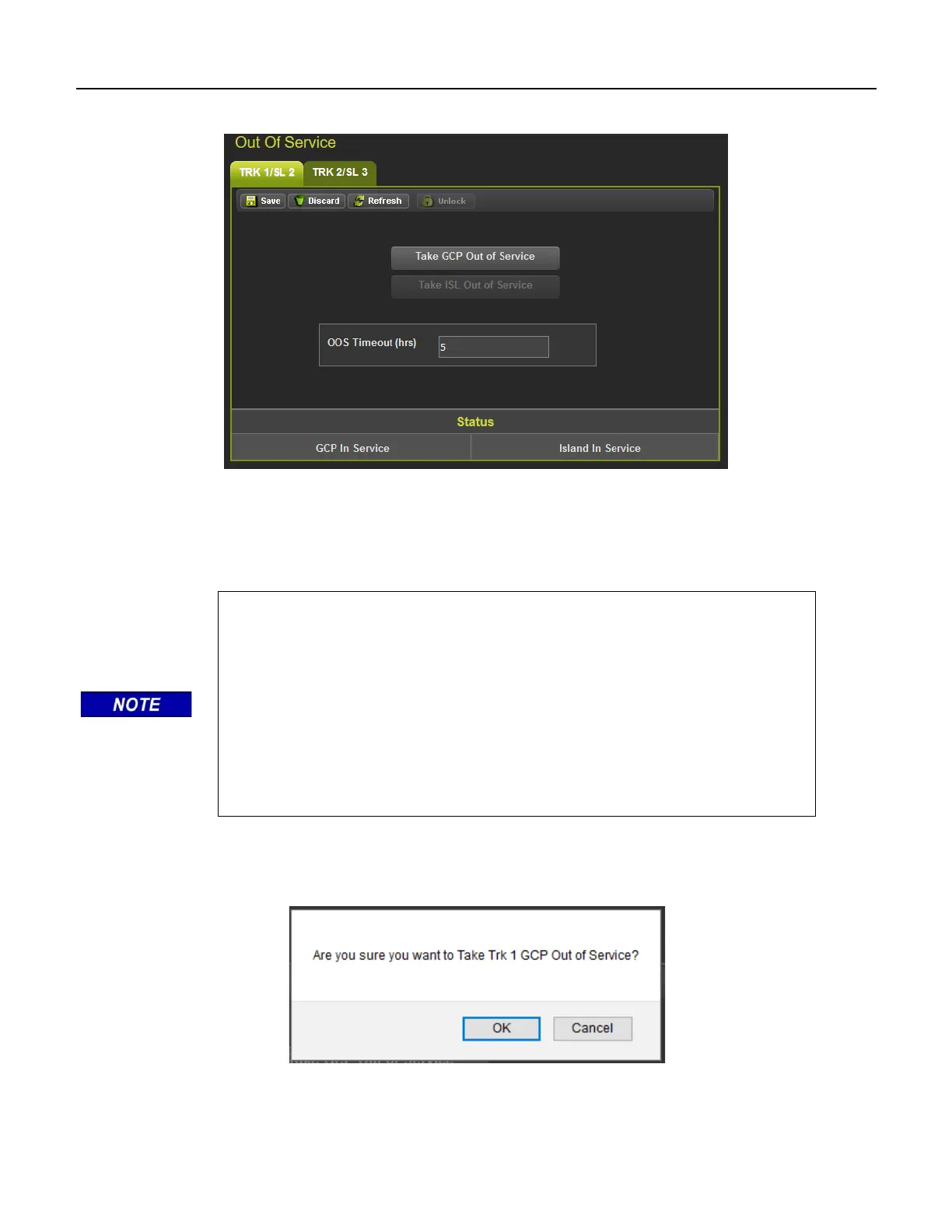
Once local user presence has been confirmed, other buttons will be enabled as shown below.
Figure 2-11 WebUI Out of Service Unlocked
First, enter the Out of Service Timeout that is required, and press Save. The timer cannot be changed
once a track is out of service, so it needs to be set first. The valid values are 0 to 23 hours, where the
value 0 means that the timeout is not being used.
NOTE
The Out of Service Timeout covers all tracks taken out of service with one
time interval.
If the timer is running for one track out of service, and it is desired to take
the other track out of service for an added amount of time, do the following:
• Return to the first track service
• Edit the Out of Service Timeout to the new value
• Take both tracks out of service
If the Transfer Module transfers while a track is out of service, the track will
be returned to service and may activate the warning devices.
If OOS Control is set to Display+OOS IPs, energize the Trk OOS Input according to railroad procedure
before continuing and then select the Take GCP Out of Service button. The WebUI will ask for
confirmation as shown below.
Figure 2-12 WebUI Out of Service Acknowledge



 To Next Page