WARNING
IF A NEW CONFIGURATION FILE IS LOADED INTO THE GCP, THE GCP
WILL HAVE TO BE RETESTED ACCORDING TO RAILROAD
STANDARDS.
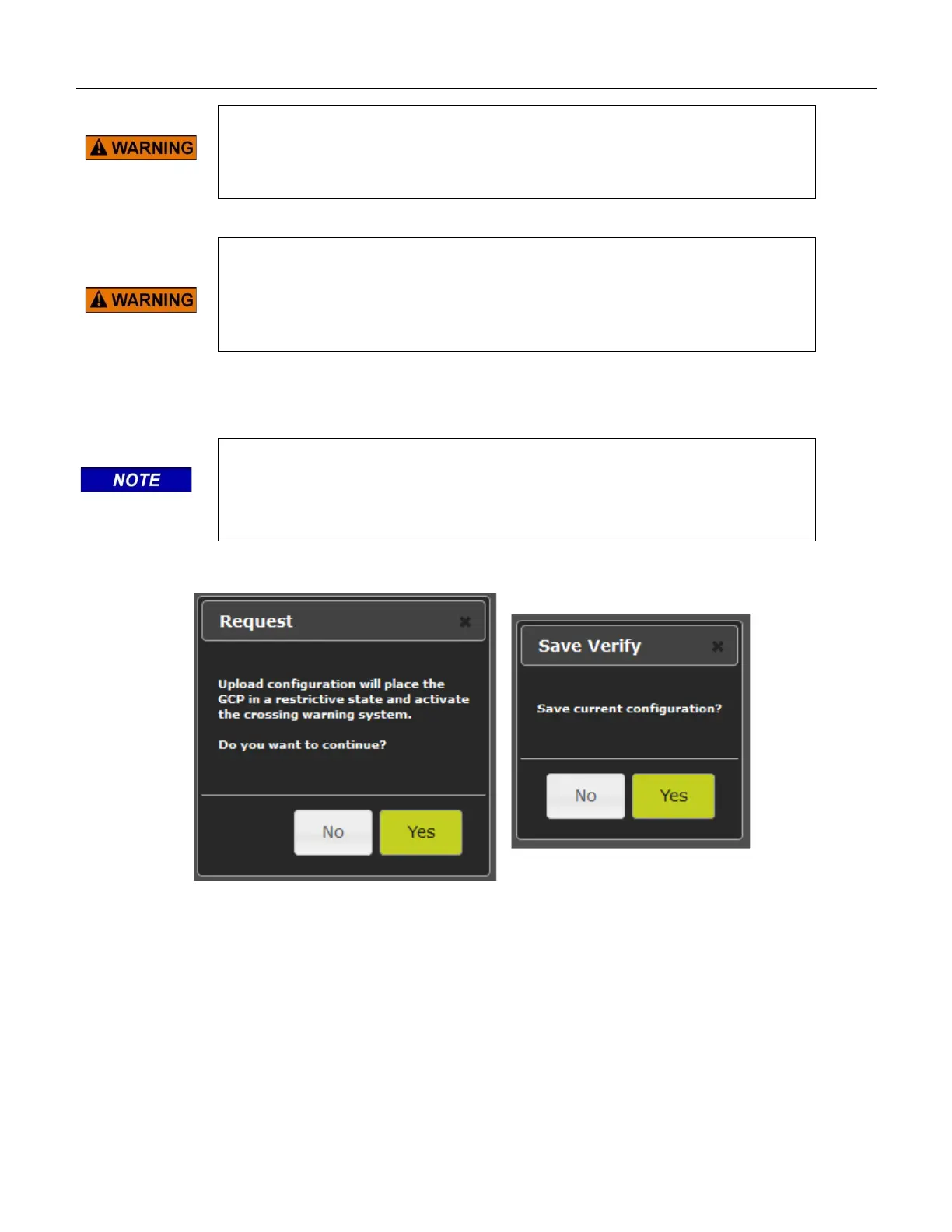
If Yes is selected, the WebUI will download the current configuration as shown in the figure below. If No
is selected, the message below is shown immediately. Select the configuration file to be loaded.
NOTE
The GCP must be running the same MCF that the PAC file was created for.
If the PAC file is created for a different MCF, the WebUI will reject the
upload.
Once the file has been selected, the WebUI will ask for confirmation.
Figure 6-5 WebUI Configuration Upload File Selection
If the user decides not to continue the upload process, select No. At this point the CPU is in a restrictive
state and the crossing will be active. The old configuration has not been lost at this point, to get the CPU
back into its previous operational state, reset the VLP module (see Section 6.1.3).
If the user wants to continue and load the selected PAC file, press Yes. The WebUI will show the
progress, (Figure 6-6, left) then give the message shown in Figure 6-6 on the right, which gives one final
confirmation to continue. At this stage, the user has to prove there is someone in the field at this location
by having them press a pushbutton on the CPU module. Once a button has been pressed, select Yes to




 To Next Page