SYSTEM VIEW
2-10
SIG-QG-20-02 JANUARY 2021
Version : A.2
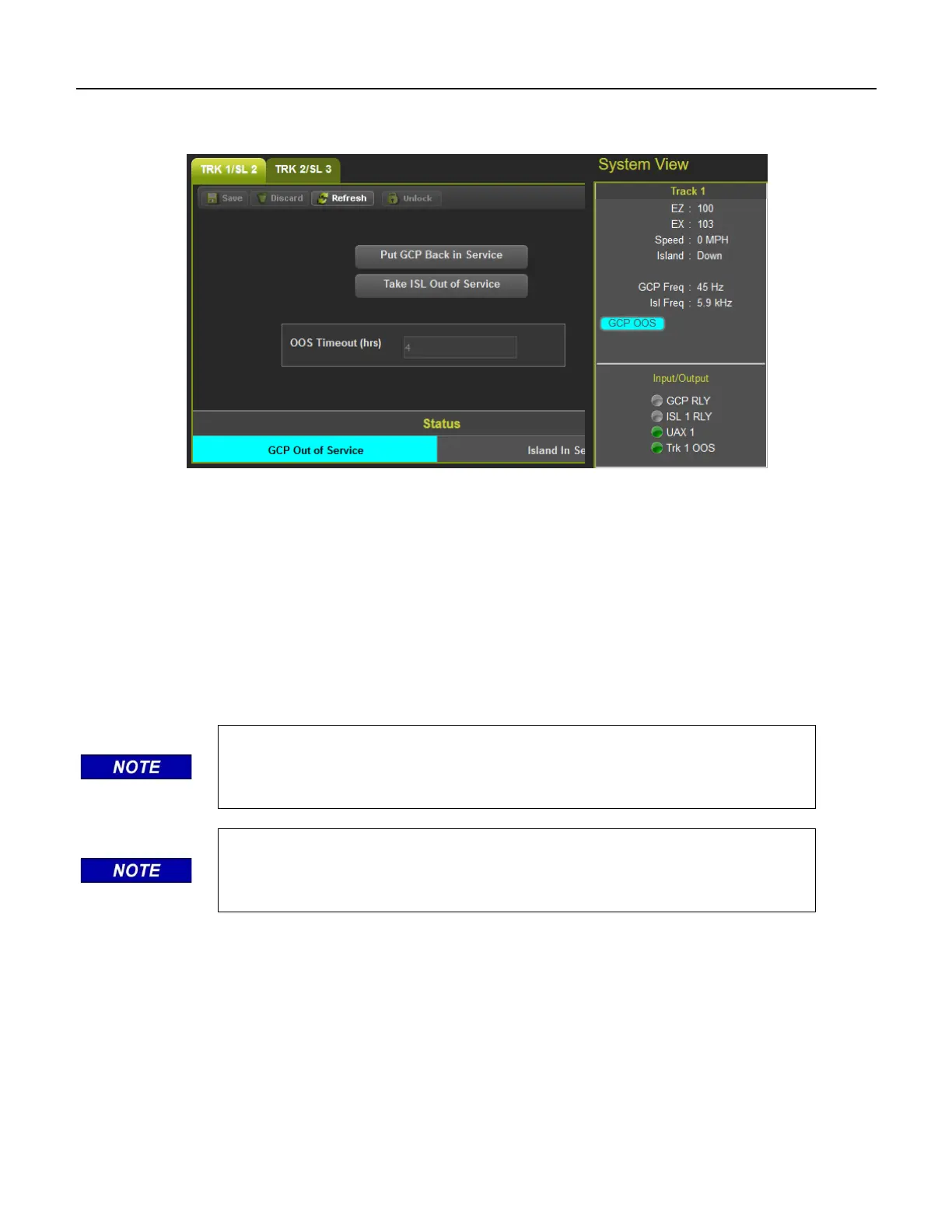
Select OK if required. The WebUI will now show: GCP Out of Service as shown in Figure 2-13 on the
left. The System View will show the GCP OOS icon flashing between blue and white.
Figure 2-13 WebUI Out of Service Indications
The track module will also display the message GOFS on its four-character display. The maintenance
call output on the GCP will turn off, causing the maintenance call lamp to go off, if it is wired. The
maintenance call light is illuminated when running properly, if it goes dark, that indicates a problem at the
location.
To return the GCP to service, if OOS Control is set to Display+OOS IPS, de-energize the track OOS
input on the track module.
If OOS Control is set to Display, use the WebUI module and select the Put GCP Back in Service
button shown in Figure 2-13 above. (This requires local user presence - Section 6.1.5.1).
NOTE
When a GCP is OOS but the island remains in service, the crossing will
activate when the island is occupied.
If the OOS Control is set to Display+OOS IPs and the Trk OOS Input is still energized, performing the
above step will put the track back in service; however, the maintenance lamp call will remain off while the
Trk OOS Input is still energized. Similarly, if the out of service timer expires and the Trk OOS Input is still
energized, the maintenance call lamp will remain off.



 To Next Page