14 SIVISION 3 / SIROCAM 3 / SIROCAM C Sirona Dental Systems GmbH
14.10 Switching between VIDEO mode and PC mode C3
+
59 06 404 D 3390
110 D 3390.201.01.18.02
14.10 Switching between VIDEO mode and PC mode
Only with SIROCAM 3 / SIROCAM C in the assistant
element and a connected PC
The system can be used in two operating modes:
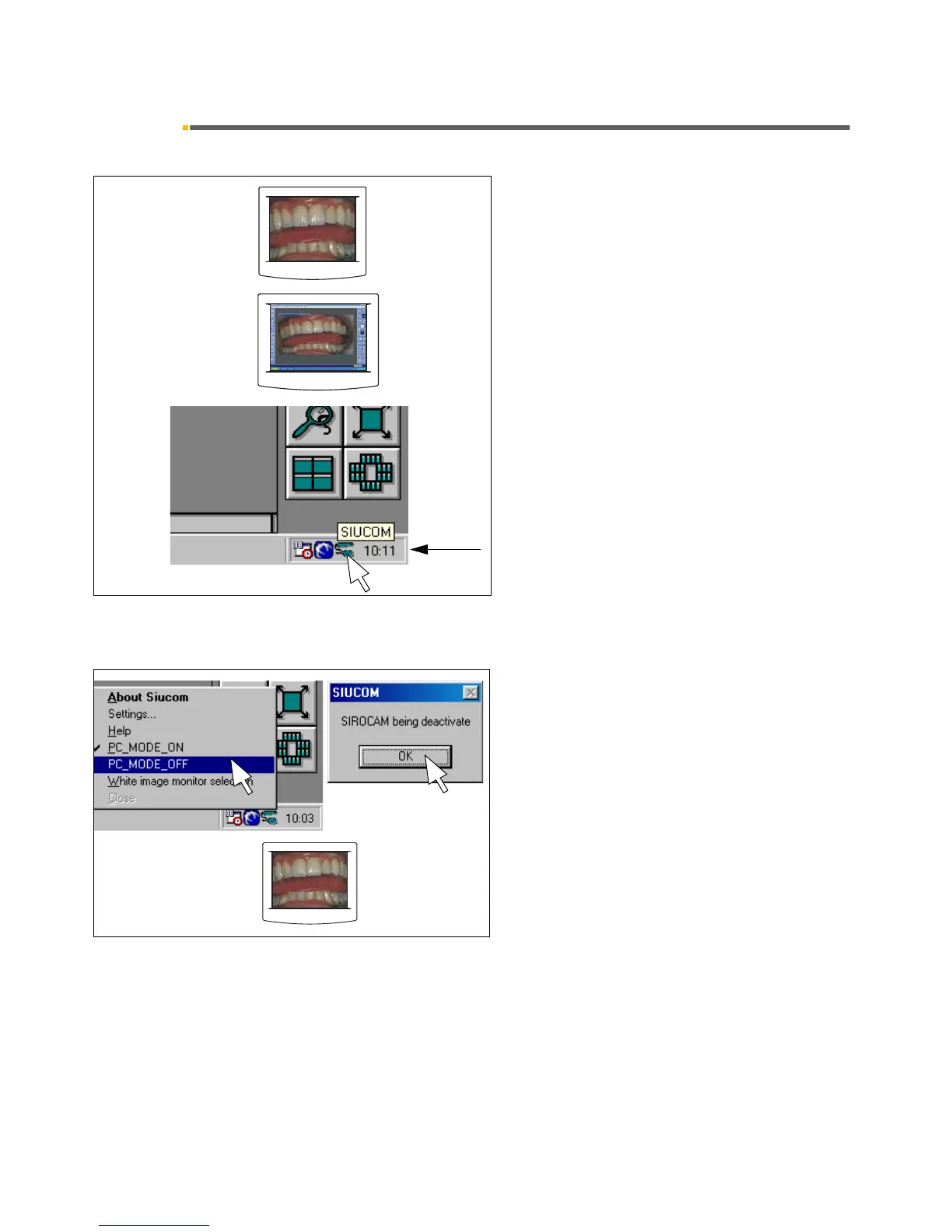
• Video mode
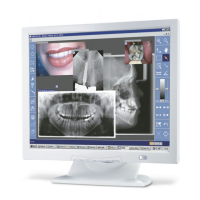
The video image from the camera is directly dis-
played on the SIVISION monitor.
• PC mode
The video image is processed on the PC. The
SIVISION monitor shows the PC user interface.
To toggle between the two modes, the popup menu of
the Siucom program on the PC is used.
The SIROCAM 3 / SIROCAM C camera is always in
video mode after the treatment center is switched on or
the camera is connected to the assistant element.
When the Siucom program is running (executes simul-
taneously with SIDEXIS / VIDEXIS) and the item "PC_-
MODE_ON" has been activated (factory setting), the
SIROCAM 3 / SIROCAM C camera automatically
switches to the PC mode.
The SIROCAM 3 / SIROCAM C camera remains in PC
mode until one of the following occurs: video mode is
activated on the PC, the camera is disconnected from
the treatment center or the treatment center is switched
off.
Switching to video mode
Right-click the Siucom icon in the Systray (usually in the
lower right corner of the screen).
In the Siucom popup menu which then opens, click
"PC_MODE_OFF". Confirm by clicking OK in the mes-
sage box.
These settings will remain saved even after you switch
off the PC.
The SIVISION monitor must also be set to video mode
(S Video Port; see flat-screen monitor Operating
Instructions).




 To Next Page