How to Start Typing on your
FWP
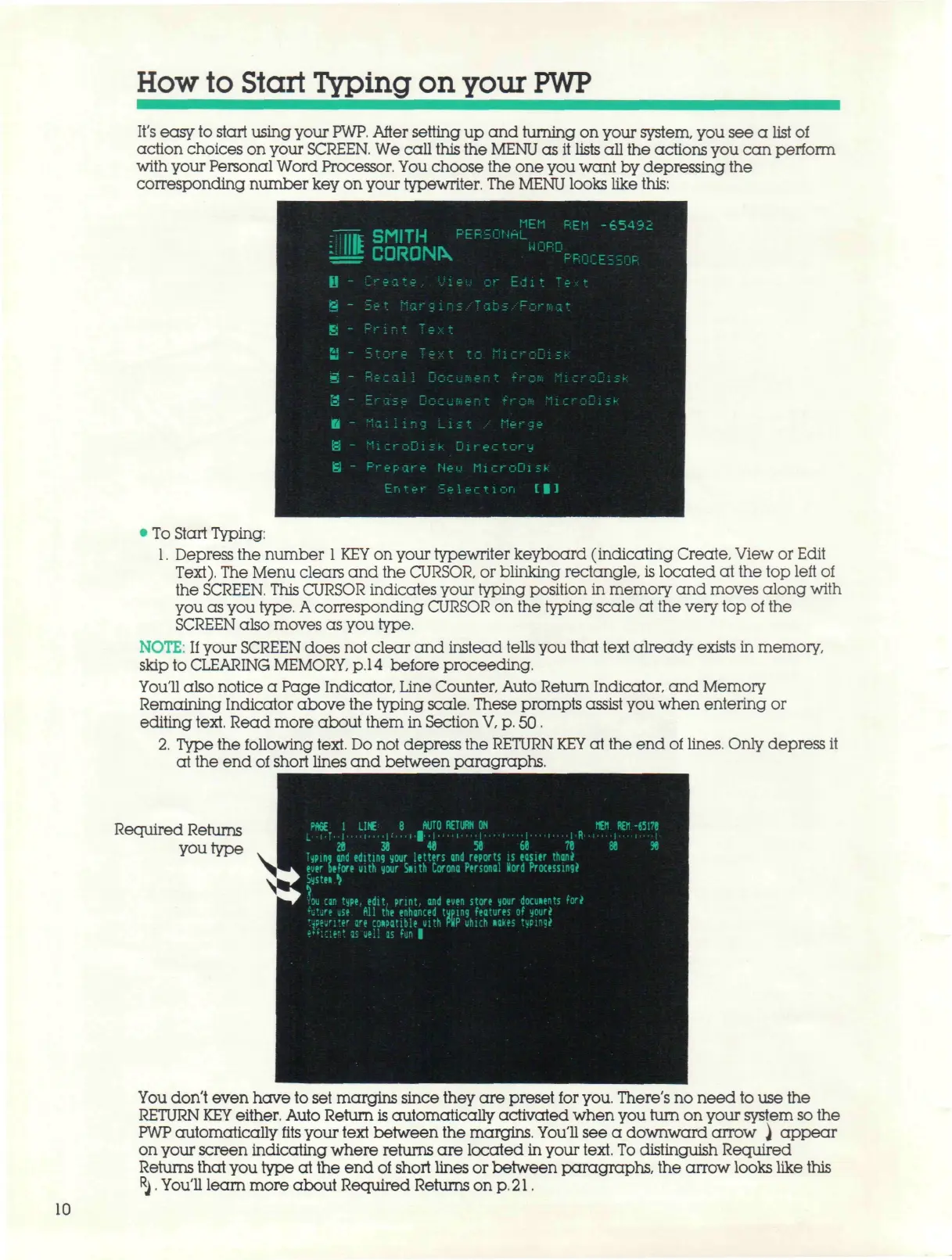
It's easy to start using your
PWP.
After setting up and turning on your system, you see a list
of
action choices on your
SCREEN.
We call this the
MENU
as it lists all the actions you can perform
with your Personal Word Processor. You choose the one you want by depressing the
corresponding number key on your typewriter. The
MENU
looks like this:
III
: III
U
s -
El -
fii _
m
s -
M _
a -
& -
ei
-
MEM REM -65432
C SMIT H PERSONAL
\ CORONA PROCESSOR
r>-
ea
t p .iieu or Edit
T
*-t
Set Margins/Tabs/Forsat
Prirjt Text
Store Text to MicroDisk
Recal1 Document froR MicroDisk
p
roq
„
n-:-!!r-.c-
* 4-1-,-,-fi
M,.-!-.-n;-k
Mailing List / Merge
MicroDisk Directory
P r e
p
a r e Ne u
M
i
c
r oDisk
Enter Selection [|]
• To Start Typing:
1.
Depress the number
1 KEY
on your typewriter keyboard (indicating Create, View or Edit
Text).
The Menu clears and the
CURSOR,
or blinking rectangle, is located at the top left of
the
SCREEN.
This
CURSOR indicates your typing position in memory and moves along with
you as you
type.
A
corresponding CURSOR on the typing scale at the very top of the
SCREEN
also moves as you type.
NOTE:
If
your
SCREEN
does not clear and instead tells you that text already exists in memory,
skip to CLEARING
MEMORY,
p.
14 before proceeding.
You'll also notice a Page Indicator, Line Counter, Auto Return Indicator, and Memory
Remaining Indicator above the typing scale. These prompts assist you when entering or
editing
text.
Read more about them in Section
V, p.
50.
2.
Type the following
text.
Do not depress the
RETURN
KEY
at the end of
lines.
Only depress it
at the end of short lines and between paragraphs.
Required Returns
you type
PAGE
1
LINT
8
AUTO RETURN ON
Typing and editing your letters and reports
is
easier
than!
_ ' C_» • .L _ _ #• ;
»L
r n 1 II i ft :-_*
Systen
^
Vou can type, edit, print, and even store your docuients fori
''uture use
All the
enhanced typing features
of
your*
immxtr are coipatihle uith PHP uhich »akes
f
MEN REI1 -6517J
You don't even have to set margins since they are preset for
you.
There's no need to use the
RETURN
KEY
either. Auto Return
is
automatically activated when you turn on your system so the
PWP
automatically fits your text between the margins. You'll see a downward arrow ) appear
on your screen indicating where returns are located in your
text.
To
distinguish Required
Returns that you type at the end of short lines or between paragraphs, the arrow looks like this
R
j.
You'll learn more about Required Returns on
p. 21.
10



 To Next Page