Setting Margins/Tabs/Format
Your
PWP
has a preset Format (including margins and tab, pitch and line spacing). This
Format will be incorporated
into
your typed text unless you change it.
• To Review the Format:
1.
Depress the
MENU
KEY.
2.
Depress the number
2 KEY
on your typewriter (indicating Set Margins/Tabs/Format). The
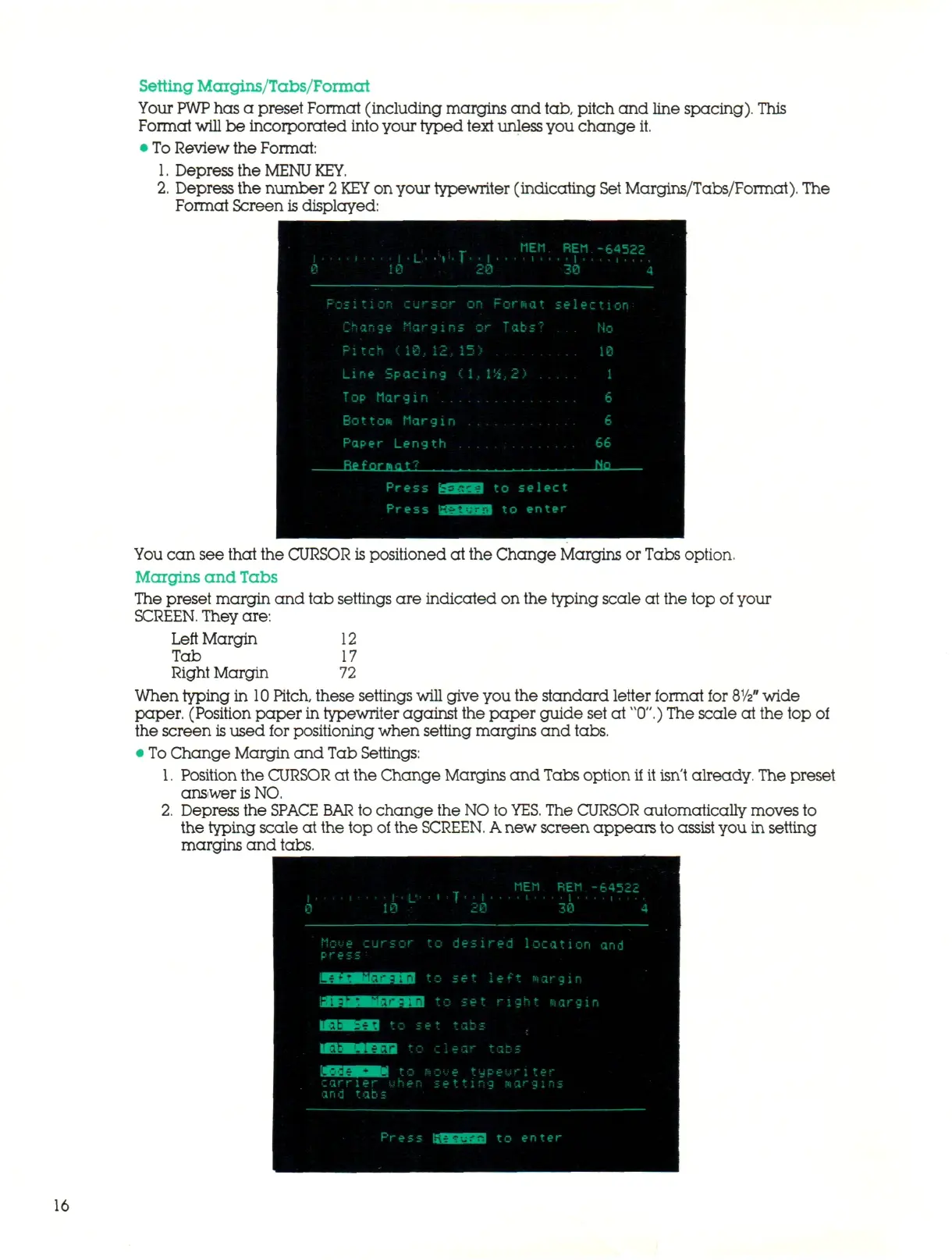
Format Screen
is
displayed:
.
;
_ MEM.
1 • • • •
»
• • • • i -L.'
•''»'•
1 • • I
0 10 20
Position cursor on Format
Change Margins or Tabs'
Pi tch ( 10, 12, 15)
Line Spacing (l,l'i,2) ..
Top Margin
Bottom Margin
Paper Length
Re f o r s a t
7
REM
i . 1 .
30
Sel Pi
Press SEES) to select
Press MMHSfei to enter
-64522
4
: t i on
No
10
1
6
6
66
Nn
You ca n see that the CURSOR is positioned at the Change Margins or Tabs option.
Margins and Tabs
The preset margin and tab settings are indicated on the typing scale at the top of your
SCREEN.
They are:
Left Margin 12
Tab 17
Right Margin 72
When typing in
10
Pitch, these settings will give you the standard letter format for
8
1
/2
n
wide
paper. (Position paper in typewriter against the paper guide set at "0".) The scale at the top of
the screen
is
used for positioning when setting margins and tabs.
• To Ch ang e Margin and Tab Settings:
1.
Position the CURSOR at the Change Margins and Tabs option if it isn't already. The preset
answer
is
NO.
2.
Depress the SPACE
BAR
to change the NO to
YES.
The CURSOR automatically moves to
the typing scale at the top of the
SCREEN.
A
new screen appears to assist you in setting
margins and tabs.
16



 To Next Page