Depending upon the length of your replacement, these lines may be pushed out beyond the
right margin and perhaps even off the screen. When editing
is
complete, you can "Reformat" to
automatically readjust the line endings according to your set margins. See "Reformat After
Editing" on
p.
32.
NOTE:
You can cancel the Search function before you depress the Return Key by simply
depressing the Search Key.
Delete/Character
• To delete a character in your text:
1.
Position the CURSOR to the immediate right of that character.
2.
Depress the CORRECT
KEY
and release immediately. To dele te more characters, continue
holding down the CORRECT
KEY.
Delete/Carrier Return Symbol
When a Carrier Return Symbol is followed by text on the next line, you cannot delete it using
the "Delete/Character" instructions above. You must use another method.
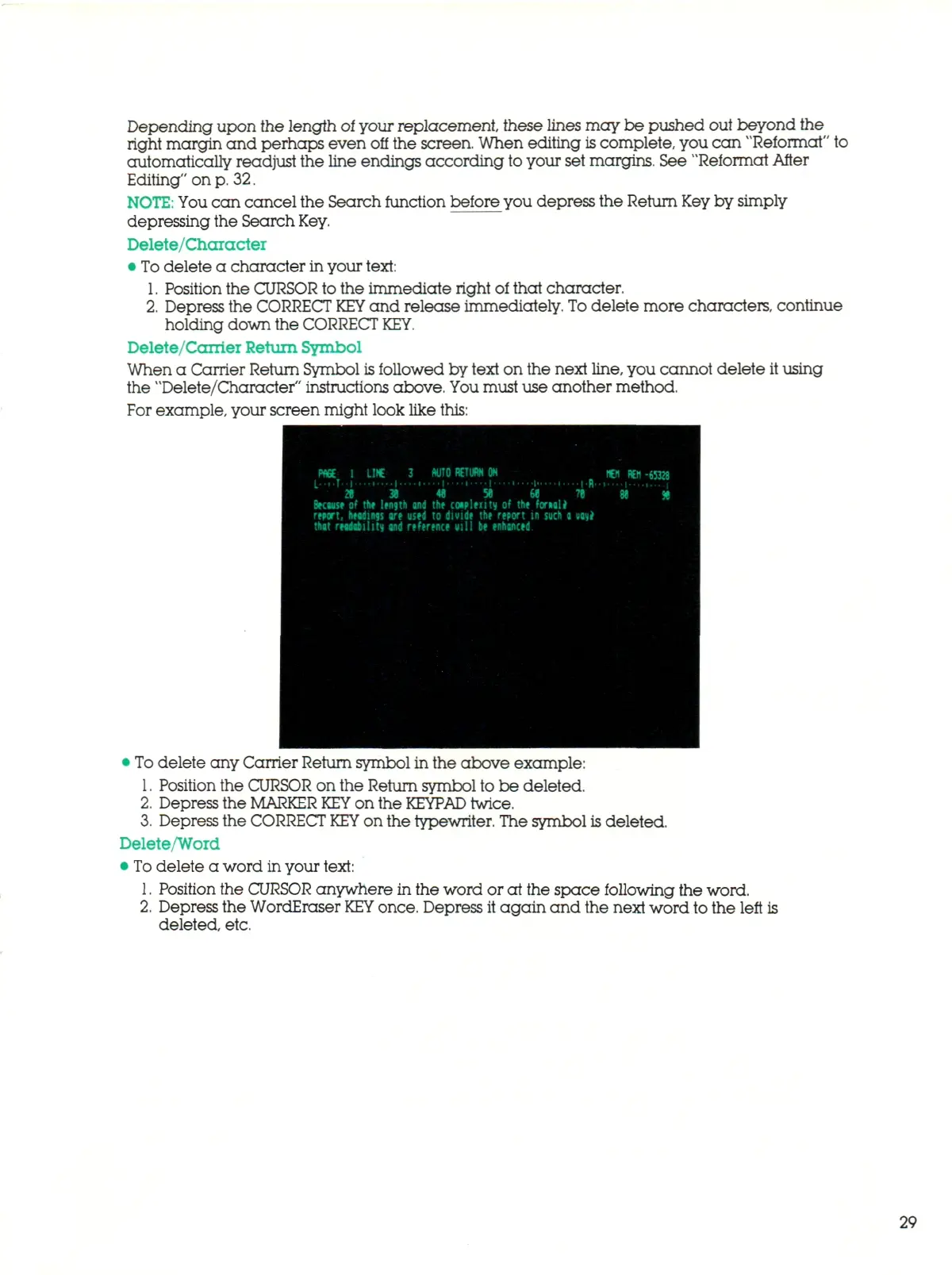
For example, your screen might look like this:
• To delete any Carrier Return symbol in the above example:
1.
Position the CURSOR on the Return symbol to be deleted.
2.
Depress the MARKER
KEY
on the
KEYPAD
twice.
3.
Depress the CORRECT
KEY
on the typewriter. The symbol is deleted.
Delete/Word
• To delete a word in your text:
1.
Position the CURSOR a ny wh er e in the word or at the space following the word.
2.
Depress the WordEraser
KEY
once. Depress it again and the next word to the left is
deleted, etc.
29



 To Next Page