•
To
Search to a Word or Phrase:
1.
Depress the SEARCH
KEY.
2.
If
you want to locate the
CURSOR
at a specific word or phrase, depress the number
2 KEY
on your typewriter (indicating Search for
Text).
The SCREEN then asks you to enter the text.
3.
Type the word or phrase exactly as it appears in the text. You may type a maximum of 39
characters. The system
will
search to the first occurrence it finds, therefore, if the word you
are entering
is
located several times throughout the document, type the word before
and/or after it to make the location you desire "unique". Underscores and Bold print (if
available on your typewriter) are ignored during the Search process so they cannot be
used to identify a particular location.
You ca n also Search to a Stop Code Symbol or Page End Symbol if desired. Simply depress the
STOP CODE KEY
or the PAGE
END KEY
on the
KEYPAD
when the
SCREEN
asks you to enter the
text you are searching for. Both Automatic Page Ends and Required Page Ends
will
be
identified when searching for a Page End Symbol.
4.
Depress the
RETURN KEY
and the CURSOR ap p e a rs at the end of the specific word, phrase
or symbol you searched for.
You ca n also use the Search feature to automatically REPLACE a word or phrase with another.
Your
PWP
can do this in one or all occurrences throughout the text.
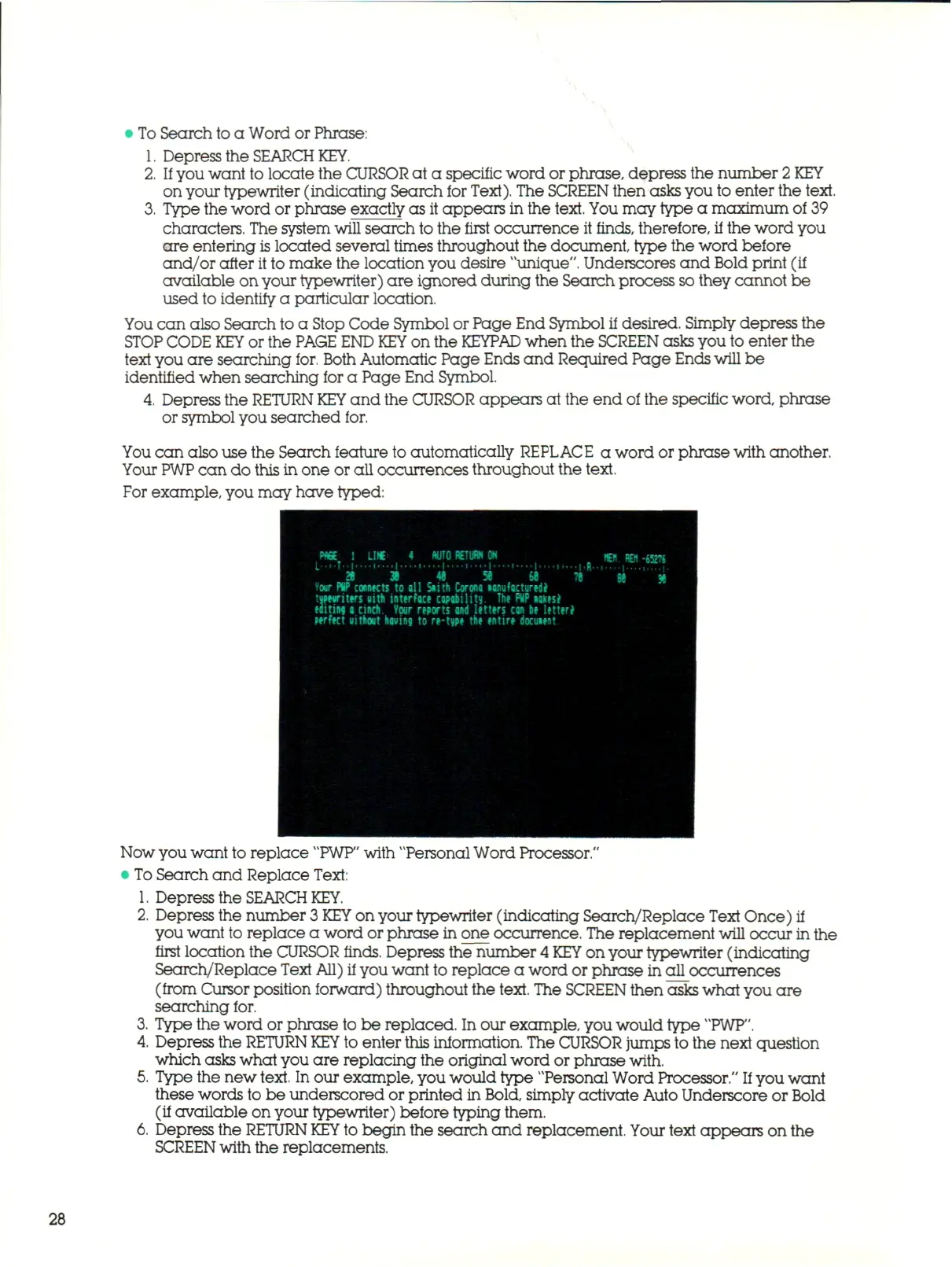
For example, you may have typed:
Now you want to replace
"PWP"
with "Personal Word Processor."
•
To
Search and Replace Text:
1.
Depress the
SEARCH
KEY.
2.
Depress the number
3 KEY
on your typewriter (indicating Search/Replace Text Once)
if
you want to replace a word or phrase in one occurrence. The replacement will occur in the
first location the CURSOR finds. Depress the number 4
KEY
on your typewriter (indicating
Search/Replace Text All) if you want to replace a word or phrase in all occurrences
(from Cursor position forward) throughout the text. The
SCREEN
then asks what you are
searching for.
3.
Type the word or phrase to be replaced. In our example, you would type "PWP".
4.
Depress the
RETURN KEY
to enter
this
information. The
CURSOR
jumps to the next question
which asks what you are replacing the original word or phrase with.
5.
Type the new
text.
In our example, you would type "Personal Word Processor."
If
you want
these words to be underscored or printed in Bold, simply activate Auto Underscore or Bold
(if available on your typewriter) before typing them.
6. Depress the
RETURN KEY
to begin the search and replacement. Your text appears on the
SCREEN
with the replacements.
28



 To Next Page