CONGRATULATIONS!
You've just found out how easy
it is
to type, make simple corrections,
print, store, a n d clear memory with the Smith Corona Personal Word Processor. Notice how the
system prompted you along, actually telling you the next step. Now you're ready to go on to
the next section "Getting More Involved."
WP/Type Key
This key, located at the top of your
KEYPAD,
allows you to switch from using your Personal Word
Processor to using your typewriter alone without disconnecting the components. Simply depress
the WP/TYPE
KEY
to deactivate
PWP
and activate your typewriter. Depress it again and the
Personal Word Processor is activated. Deactivating the word processor does not cause loss
of
memory. Turning the power of the typewriter oft however, will cause text in
PWP
memory to be
erased.
If
you want to "save" text, simply store it to MicroDisk as previously explained.
Turning off the MONITOR does not deactivate the word processor.
Section
II:
Getting
More
Involved
There are many features and functions of your Personal Word Processor you'll want to know to
begin making full use of the system's benefits.
Memory
Your
PWP
can retain over 65,000 characters in memory which
is
approximately
32
p a g e s
of
double spaced text. Text in memory can be edited, printed, or stored to MicroDisk for future
use.
When 400 characters remain in memory, you hear three beeps and the
MEMORY
REMAINING
INDICATOR at the top right of the SCREEN indicates 400 characters left. It is recommended,
however, to stop entering text when there are at least
2,000
characters remaining in order to
allow sufficient memory for editing operations.
Text in memory
is
automatically erased when the typewriter
is
turned OFF or there
is
a power
failure. We recommend, therefore, that you store text to Disk frequently when typing long texts
or before leaving your
system.
In
this
way you
will
protect your text from accidentally being
erased.
Turning off the MONITOR does not erase memory. Deactivating the word processor does not
erase memory.
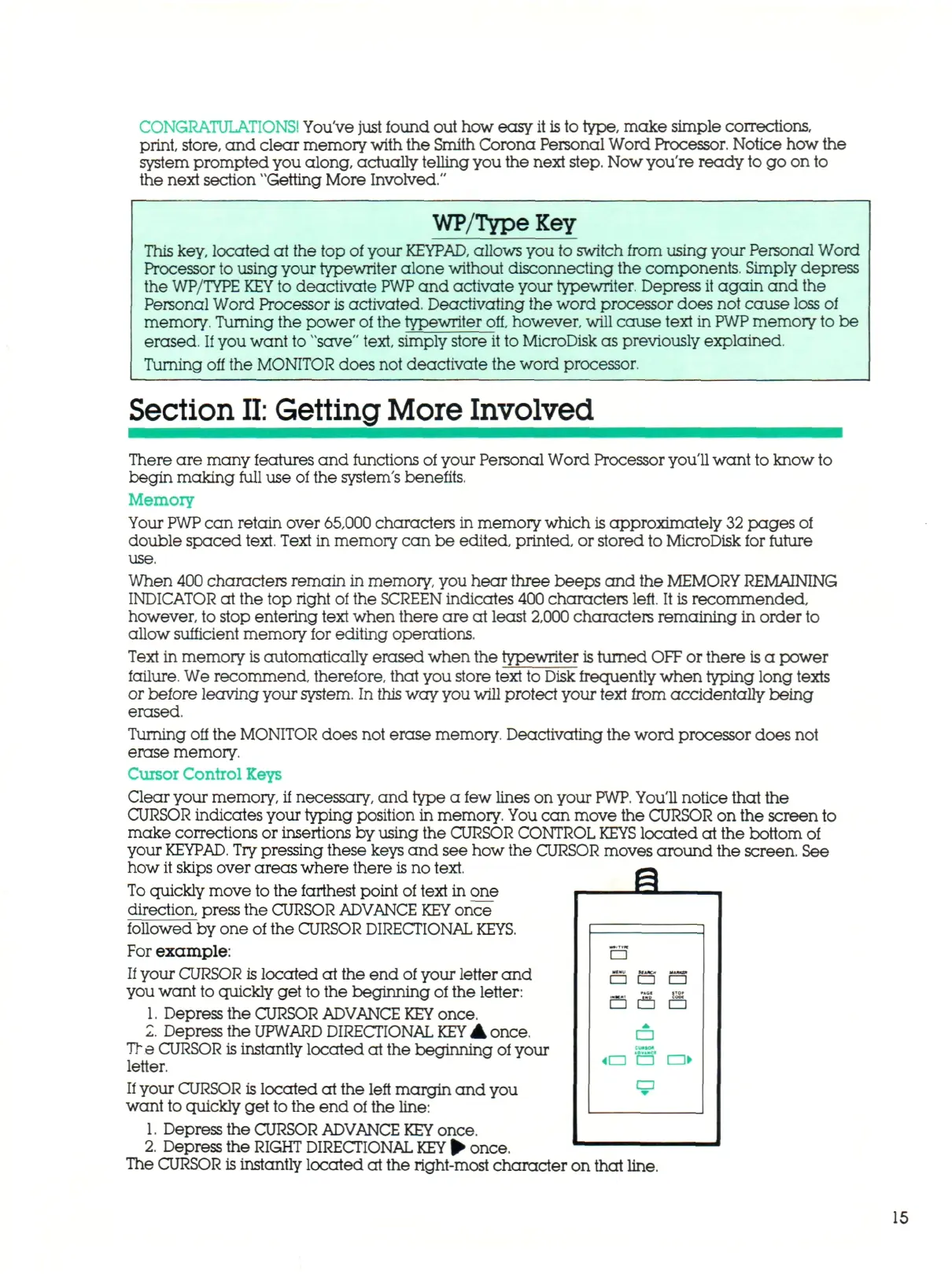
Cursor Control Keys
Clear your memory, it necessary, and type a few lines on your
PWP.
You'll notice that the
CURSOR indicates your typing position in memory. You can move the CURSOR on the screen to
make corrections or insertions by using the CURSOR CONTROL
KEYS
located at the bottom
of
your
KEYPAD.
Try pressing these keys and see how the CURSOR moves around the screen. See
how it skips over areas where there
is
no text.
To
quickly move to the farthest point of text in one
direction, press the CURSOR ADVANCE
KEY
once
followed by one of the CURSOR DIRECTIONAL
KEYS.
For example:
If
your
CURSOR
is located at the end of your letter and
you want to quickly get to the beginning of the letter:
1.
Depress the CURSOR ADVANCE
KEY
once.
2.
Depress the
UPWARD
DIRECTIONAL
KEY
A once.
Tr e CURSOR is instantly located at the beginning of your
letter.
If
your CURSOR is located at the left margin and you
want to quickly get to the end of the line:
1.
Depress the CURSOR ADVANCE
KEY
once.
2.
Depress the
RIGHT
DIRECTIONAL
KEY
• once.
The CURSOR is instantly located at the
right-most
c h a r a c t e r on that line.
E.
•
3
•
« •
H
a
C3
Q
• •
15



 To Next Page