• To Recall More Than One Document at a Time:
1.
Follow steps
1
through 5 above.
2.
To recall a second document repeat steps
1
through 5 again. When the
SCREEN tells
you
that text currently exists in memory, type the number
2
(indicating you want to Add the
document you recalled to the text already in memory).
When Recall
is
complete the
SCREEN
displays "(document name) recalled", followed by
the Menu. The second document you just recalled
is
now added to the end of the first
document.
This newly formed document automatically reformats to the widest margins of the two original
documents and incorporates the tab settings of the original document with the most settings.
Now
you can proceed with Printing, Editing, or Storing them as one new document. If desired,
you can even Recall more documents to be assed to the end of the existing text in memory by
following the same procedure.
As
many documents as desired can be recalled together into
memory as long as there is memory available.
How to Erase Documents from a MicroDisk
When you no longer have need to retain a document for future use, you can erase it from the
MicroDisk.
•
To
Erase a Document from MicroDisk:
1.
Insert the appropriate MicroDisk.
2.
Return to the Menu by depressing the
MENU
KEY.
3.
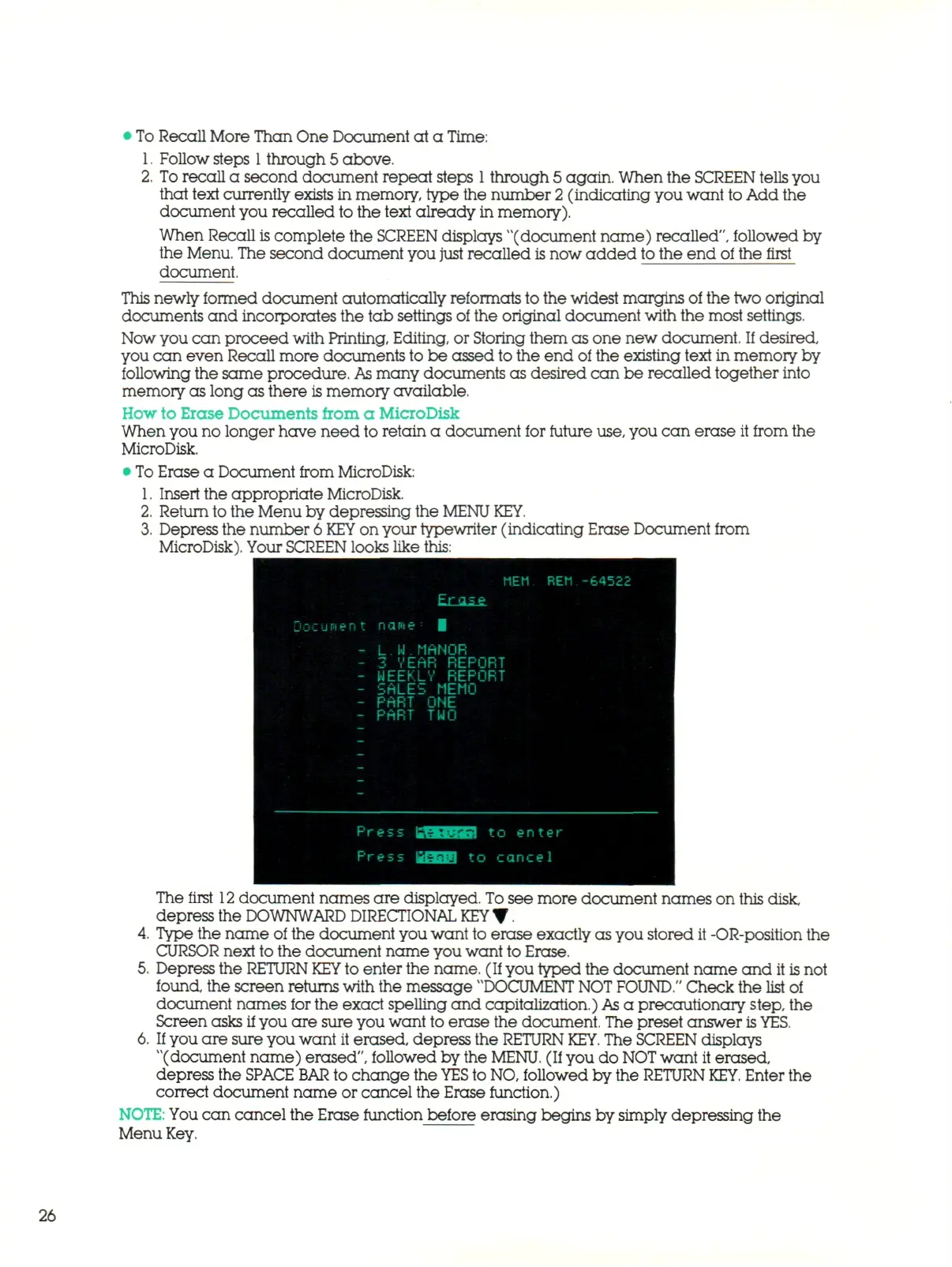
Depress the number 6
KEY
on your typewriter (indicating Erase Document from
MicroDisk). Your
SCREEN
looks like this:
MEM REM -64522
Jocus^nt nam*
L.W.MANOR
3 VEAR REPORT
WEEKLV REPORT
SALES MEMO
PART ONE
PART TWO
The first
12
document names are displayed. To see more document names on this disk
depress the DOWNWARD DIRECTIONAL KEY • .
4.
Type the name of the document you want to erase exactly as you stored it -OR-position the
CURSOR next to the document name you want to Erase.
5.
Depress the
RETURN KEY
to enter the name. (If you typed the document name and it is not
found, the screen returns with the message "DOCUMENT
NOT
FOUND."
Check the list
of
document names for the exact spelling and capitalization.)
As
a precautionary step, the
Screen asks
if
you are sure you want to erase the document. The preset answer
is
YES.
6.
If
you are sure you want it erased, depress the
RETURN
KEY.
The SCREEN displays
"(document name) erased", followed by the
MENU.
(If you do
NOT
want it erased,
depress the
SPACE BAR
to change the
YES
to
NO,
followed
b y the RETURN
KEY.
Enter the
correct document name or cancel the Erase function.)
NOTE:
You c a n cancel the Erase function before erasing begins by simply depressing the
Menu Key.
26



 To Next Page