Insert
You can insert a character, word, phrase, paragraph, page end, stop code, carrier return, etc.
anywhere
in
your text.
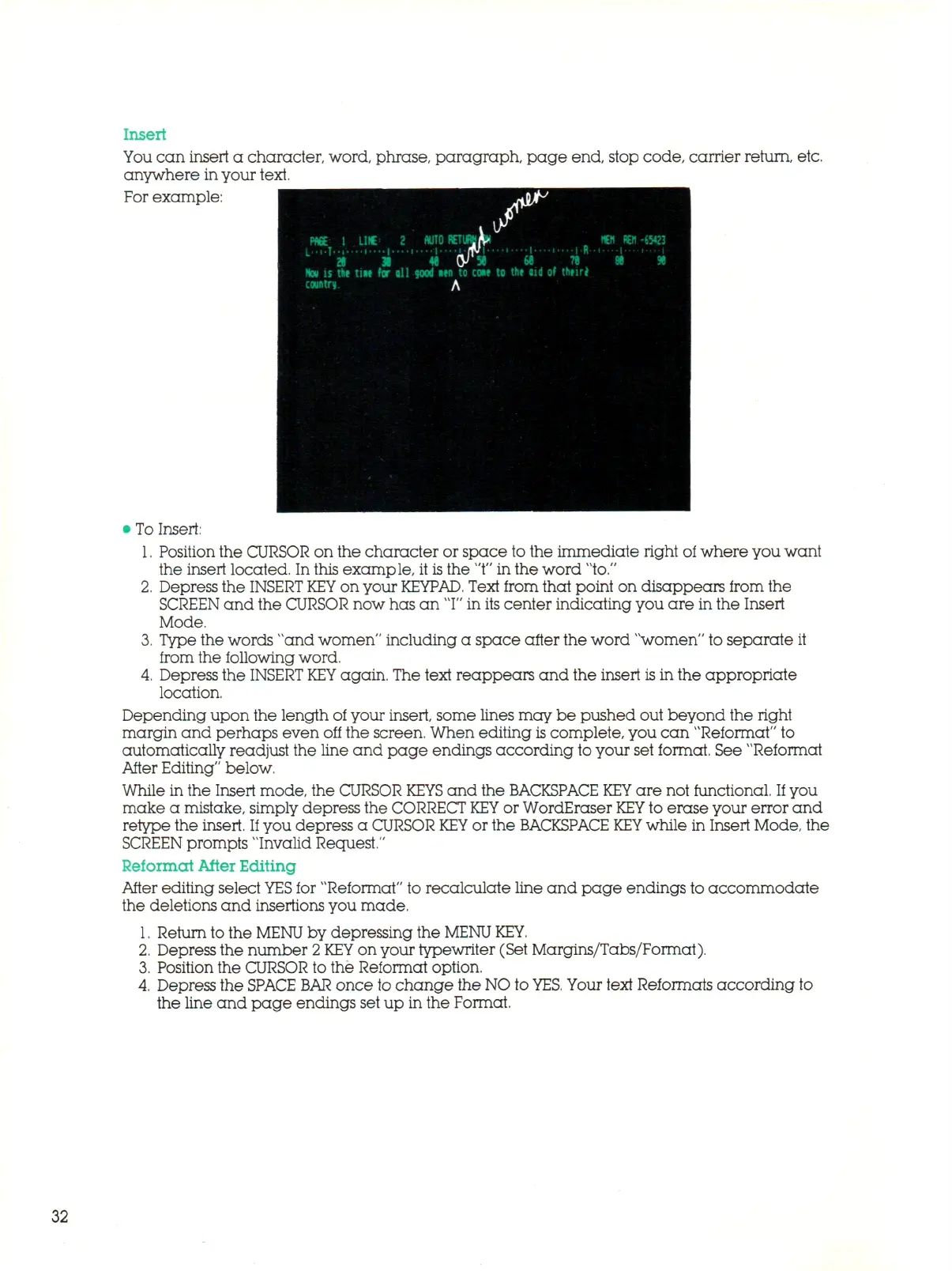
For example:
• To Insert:
1.
Position the CURSOR on the character or space to the immediate right of where you want
the insert located. In this example, it
is
the "t" in the word "to."
2.
Depress the
INSERT KEY
on your
KEYPAD.
Text from that point on disappears from the
SCREEN
and the CURSOR now has an
"I"
in its center indicating you are in the Insert
Mode.
3.
Type the words "and women" including a space after the word "women" to separate it
from the following word.
4.
Depress the
INSERT KEY
again. The text reappears and the insert is in the appropriate
location.
Depending upon the length of your insert, some lines may be pushed out beyond the right
margin and perhaps even off the screen. When editing
is
complete, you can "Reformat" to
automatically readjust the line and page endings according to your set format. See "Reformat
After Editing" below.
While in the Insert mode, the CURSOR
KEYS
and the BACKSPACE
KEY
are not functional. If you
make a mistake, simply depress the CORRECT
KEY
or WordEraser
KEY
to erase your error and
retype the insert.
If
you depress a CURSOR
KEY
or the BACKSPACE
KEY
while in Insert Mode, the
SCREEN prompts "Invalid Request."
Reformat After Editing
After editing select
YES
for "Reformat" to recalculate line and page endings to accommodate
the deletions and insertions you made.
1.
Return to the
MENU
by depressing the
MENU
KEY.
2.
Depress the number
2 KEY
on your typewriter (Set Margins/Tabs/Format).
3.
Position the CURSOR to the Reformat option.
4.
Depress the
SPACE BAR
once to ch ange the NO
to
YES.
Your text Reformats according to
the line and page endings set up in the Format.
32



 To Next Page