Section
V:
More Features and Functions
Stop Code
Stop codes can be entered at any location in your text by depressing the Stop Code key on the
KEYPAD.
You
will see the symbol (*) indicating a stop code on your screen. Stop Codes halt
printing at required locations so you can insert phrases, names, or other variable information in
a repetitive document.
For example:
If
you are sending the same letter to several people, you would type the
Salutation as follows:
|
Peart: |
During printout the typewriter will automatically stop when it reaches the Stop Code so you can
insert each individual's name. To do so:
1.
Enable the typewriter by depressing the
WP/TYPE KEY
on the
KEYPAD.
2.
Type the person's name.
3.
Depress the WP/TYPE
KEY
again to reactivate the word processor.
4.
Resume printing by depressing the RETURN
KEY.
You c an delete and insert Stop Codes when editing.
When using a Stop Code in the body of a text, be sure to allow for the required amount
of
space for the insert by placing the Return at the appropriate location. Because you must
deactivate the
PWP
to type the insert, the system is not able to recalculate line endings after
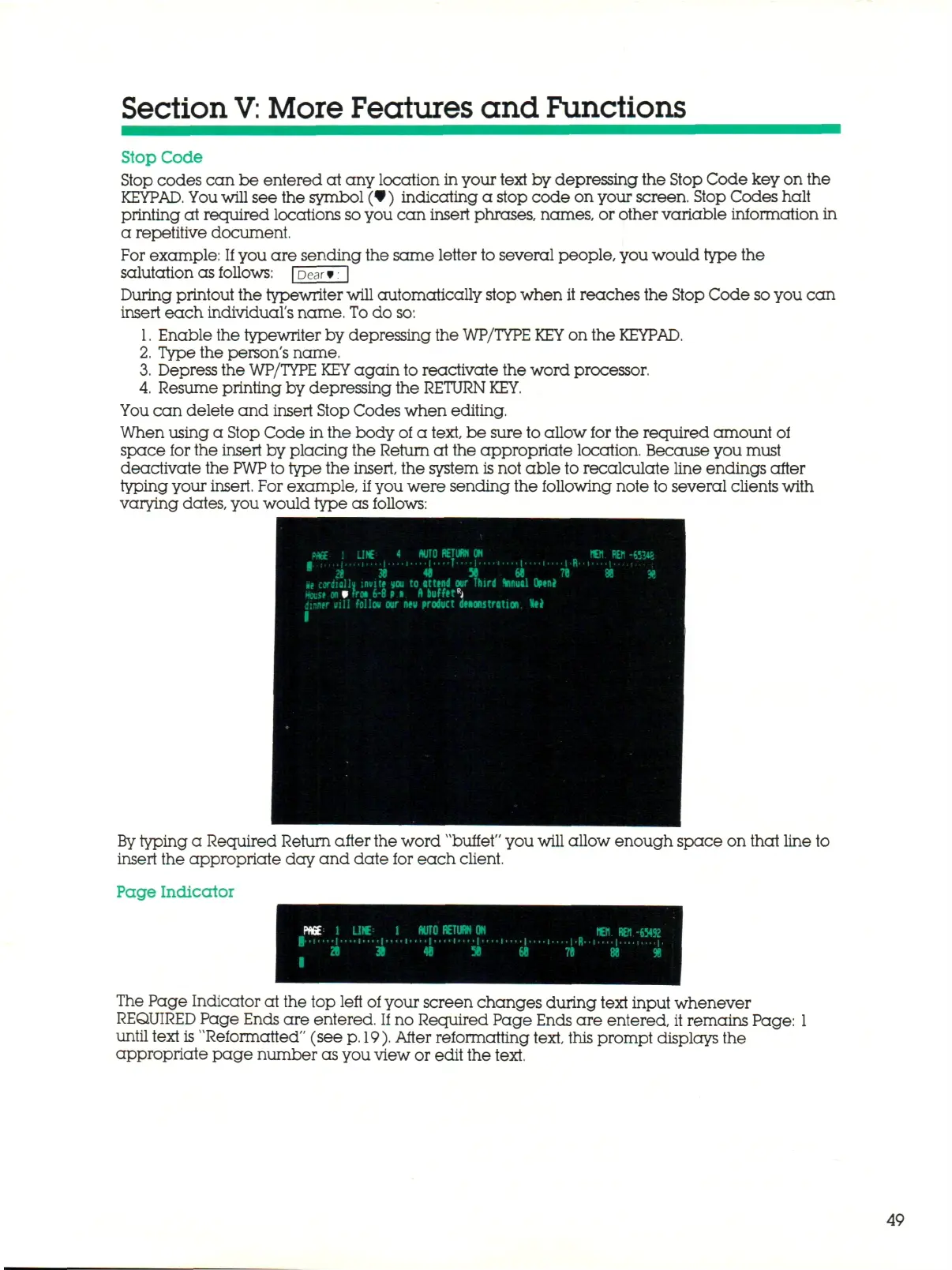
typing your insert. For example, if you were sending the following note to several clients with
varying dates, you would type as follows:
By
typing a Required Return after the word "buffet" you
will
allow enough space on that line to
insert the appropriate day and date for each client.
Page Indicator
The Page Indicator at the top left of your screen changes during text input whenever
REQUIRED Pa ge Ends a re entered. If no Required Page Ends are entered, it remains Page: 1
until text is "Reformatted" (see
p.
19).
After reformatting text, this prompt displays the
appropriate page number as you view or edit the text.
49



 To Next Page